> ## Documentation Index
> Fetch the complete documentation index at: https://docs.superoffice.com/llms.txt
> Use this file to discover all available pages before exploring further.
# Edit documents
> Editing documents; Deleting documents
Editing documents involves two things:
* Editing of the document properties in the **Document** dialog.
* Editing of the document file itself in the application the document was created in.
You can open a document in [edit mode or in read mode][1]. When you open the document in edit mode, only you can edit the document. Other users can open the document in read mode. If your organization uses a document library like SharePoint, multiple people can edit a document simultaneously.
## Edit document properties in the Document dialog
To change document properties, such the project the document is linked to, use the **Document** dialog:
1. Select the required document.
2. Right-click and select **Document**. If you double-click on the document, it opens directly in the application it was created in.
3. [Make the required changes][3].
4. Click the **Save** button.
To edit a completed document, you must first uncheck the **Completed** status.
## Edit document content
Follow the instructions below, depending on how documents are managed in your SuperOffice installation.
1. Double-click the required document.
2. If a dialog opens, click **Edit**.
3. Update the document as required.
4. Save it and close the text-editing application.
5. (if applicable) In the dialog that appears, click **Yes** if you are done editing the document. Click **No** to keep the document checked out.
This dialog appears only if this option was activated in SuperOffice WebTools.
6. The document is checked in and the status is set to **Completed**.
**This feature requires a license.**
1. Double-click the required document. The document opens in a new tab with the online text-editing program (Office Online).
To use your desktop editing program, you can choose **Open in Desktop App** from Office Online.
2. Edit the document.
3. Close the tab or your desktop app. The document is automatically saved to SharePoint.
This procedure describes how to edit a document if you are using a desktop text-editing application. The actual process may be slightly different if you use an online text-editing tool (like Microsoft Office Online) and a document library (like SharePoint).
1. Double-click the required document.
2. In the **Document** dialog, click **Open**.
3. If a dialog opens, click **Edit**.
4. In the **File download** dialog, select **Open** or **Save** Then, follow steps 5-9 from the [create document without WebTools][2] procedure.
Browser security question for opening files
When you access and edit a document, file, or email in SuperOffice, your browser prompts you with a *security question* regarding the file download.
* To open the file, you must select the **Open**/**Allow** button.
* Select **Always allow** to skip the question next time.
The dialog is slightly different in Chrome, Edge, Firefox, and Safari.
**Chrome:** Select **Open URL:SuperOffice-Extensions**.
![Chrome: Open URL:SuperOffice-Extensions button -screenshot][img5]
**Edge:** Select **Open**.
![Edge: Open button -screenshot][img2]
**Firefox:** Select **Open Link**.
![Firefox: Open Link button -screenshot][img3]
**Safari:** Select **Always Allow** or **Allow**.
![Safari: Always Allow or Allow button -screenshot][img4]
Delete document
### From the Activities section tab
1. Select the required document on the **Activities** section tab in the Company, Contact, Diary, Sale, or Project screen.
2. Right-click and choose **Delete**.
3. Confirm or cancel the deletion in the confirmation dialog.
### From the Document dialog
When viewing a specific document:
1. Click the **Task** button () in the **Document** dialog.
2. Choose **Delete**.
3. Confirm or cancel the deletion in the confirmation dialog.
## Troubleshooting
If you double-click a document and nothing happens, try to right-click it and select **Document**. This opens the **Document** dialog. Click **Open** and see if the document opens now.
### How do I know if I am using SharePoint, SuperOffice WebTools or not?
SharePoint: Create a new document. If it opens in Microsoft Office Online, you are using SharePoint.
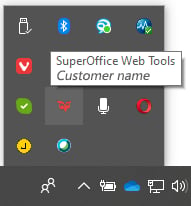
SuperOffice WebTools: Open the system tray in the lower right corner of your desktop and look for the SuperOffice icon .
 [1]: ./lock
[2]: ./create
[3]: ./create#fields
[img2]: /media/loc/en/webtools/webtools-edge-security-question.png
[img3]: /media/loc/en/webtools/webtools-firefox-security-question.png
[img4]: /media/loc/en/webtools/webtools-safari-security-question.png
[img5]: /media/loc/en/webtools/webtools-chrome-security-question.png
## Related topics
- [Change Completed status of an activity](/en/diary/learn/change-completed-status.md)
[1]: ./lock
[2]: ./create
[3]: ./create#fields
[img2]: /media/loc/en/webtools/webtools-edge-security-question.png
[img3]: /media/loc/en/webtools/webtools-firefox-security-question.png
[img4]: /media/loc/en/webtools/webtools-safari-security-question.png
[img5]: /media/loc/en/webtools/webtools-chrome-security-question.png
## Related topics
- [Change Completed status of an activity](/en/diary/learn/change-completed-status.md)