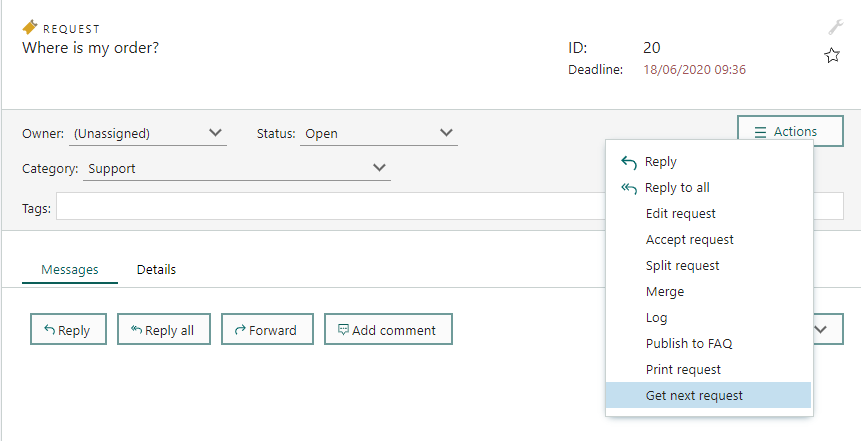
- Write your script and save it on the CRMScript page in SuperOffice Admin client.
- Add a button pointing to that script.
Button scripts will open a new browser window.
Creating the script
- Sign in to the SuperOffice admin client.
- Open the CRMScript page.
- Click New script and enter information. Don’t forget the include name!
- Add your code to the Script tab and click OK.
Example: requests as queue
In a typical support environment, a central question is how to assign the requests. Using the unassigned delegation method will allow the team to work more like a call-center, picking up the request (call) that has been waiting in the queue the longest. This reduce the risk of requests getting “stuck”. You might want to differentiate on priority. Some requests are more urgent than others, and thus we want to make sure the team picks the highest priority requests first. Unfortunately, if the load is high, the team might never get to requests with medium or low priority Another way of sorting by priority is using thedeadline field on a request. When a request is created, the deadline is set according to the request’s priority.
Let’s assume your priorities are set up as follows:
Your queue might look like this:
- Request 1 created Monday at 13:00 with medium priority will get deadline Tuesday at 13:00.
- Request 2 created Monday at 13:00 with a high priority will get deadline Monday at 17:00.
- Request 3, created Tuesday at 12:00 with a high priority will get deadline Tuesday at 16:00.
Referencing the script
To reference your script, its include ID must have been set. Edit your script if this setting is missing before you continue. Next, you construct the URL, which specifies to run bLogic, invoke the doScript action, and pass the include ID.<site>/<custId>/CS/scripts/blogic.exe?action=doScript&includeId=<myScript>
Adding the button
To add the button, you must create an extra menu in SuperOffice Service:- From the hamburger menu, select System Design and then select Extra menus.
- Expand Top menu, point to one of the folders, and click New menu.
- Set Label to what you want the button text to be (keep it short).
- Select Use script and then select your CRMScript.
- Optionally set other menu properties.
- Click OK.
Example (cont.)
Continuing our example, we’ll label our button Get next request and select the CRMScript, here named Requests as queue.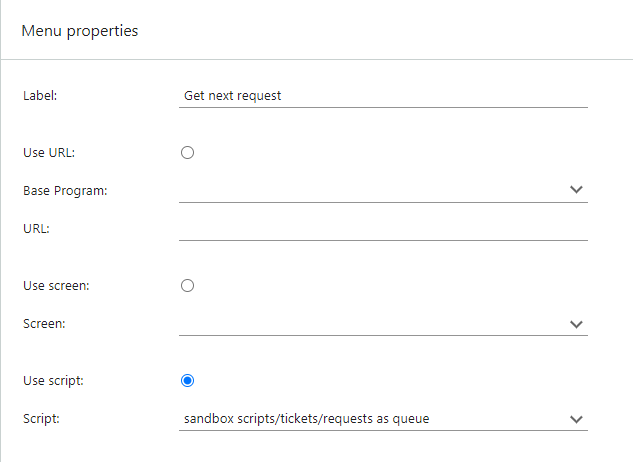 After saving, the new button is available on the View request screen. Clicking the button will run the script and assign the next request according to our call-center model.