

Creating a custom screen
- Sign in to SuperOffice Service.
- From the hamburger menu, select System Design and then select Screens.
- Click New screen.
- Enter screen properties (name is mandatory) and click OK.
- Add elements.
- Click OK to save your screen.
- Toggle preview to test your current screen.
- Set up a screen chooser.
Modifying an existing screen
The standard SuperOffice screens are locked and can’t be edited. These defaults will be overwritten each time the application is upgraded. To modify one of the built-in screens, you need to:- Create a copy of a screen.
- Edit the copy.
- Use a screen chooser to pick your copy instead of the default.
Copy a screen
- Sign in to SuperOffice Service.
- From the hamburger menu, select System Design and then select Screens.
- Expand System screens.
-
Point to the screen you want to copy and then click Copy screen.
- Your new screen is added to the list. Its name is the name of the original screen with the word copy added to it.
Edit copy of a screen
After you’ve created a copy of a system screen, you can edit the copy:- Point to your copy and click Edit screen.
Example
Let’s say we want to display some text at the top of the Edit request screen. To do this, we can add a view element of typeInfo fields v2.
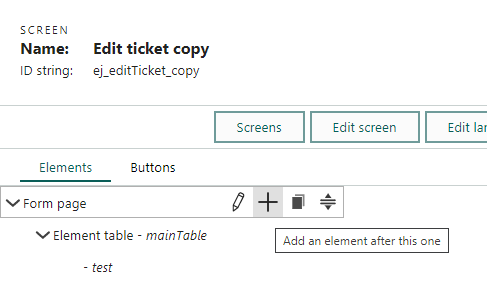
- While in edit mode, point to the main table and click + to add an element directly inside it.
- Select type and give the element a name so that you can get a reference to it afterward in your script.
- Click Edit screen and extend the loading script (after setFromCgi) to pull data into your new field.
- Save and preview the screen.
Settings
Loading scripts
You can use scripts to precalculate variables from for example a form entry or CGI variables that the screen obtains via a URL.
Read more about screen events.