

- Element group (Fieldset)
- Panes and Pane
- Panel
- Element table
- Element table v2
- Form page
Calculating available space
The available space for each element is calculated each time a user opens a custom screen.- The system calls a method on the outermost element (OE) stating the total space available in the browser.
- OE reserves some space for itself, and then tells its children how much they have available.
- Each child reserves some space for itself. AND if a child is a container, it will tell its children how much they can use.
- The calculation continues until all elements in the hierarchy know how much space they can use.
Nesting
How you nest elements determines the structure of your screen. It is crucial that you place GroupEnd elements after the last child in a container. A missing or misplacedGroupEnd will mess up your hierarchy.
- Add a new element directly after it
- Duplicate an element
- Move an element
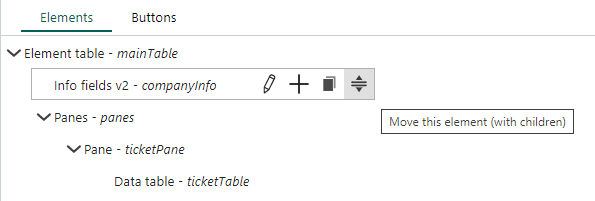
Element group (Fieldset)
An element group creates a small inset frame around its children in the browser. Use it to group related elements in a form.Panes and Pane
A Pane creates a tab. ThePanes element is a container for 1 or more Pane elements. A pane must be placed directly inside Panes.
You can set the title of individual tabs.
Pane doesn’t handle the layout of multiple children. To place more than 1 view or form element on a tab, wrap them in another container such as Element table.
Example config
Panes:Panel
A Panel adds a white background to the screen. Also known as the white sheet. Use panels to improve readability. Without a parent Panel or Pane, screen elements are placed directly on the default gray background.Panel doesn’t work with multiple children. To place more than 1 element on a white background, wrap them in another container such as Element table.
Element table
Element table is one of the most central layout controls. It places its children in a 1-row grid. It does a double-pass over its children, figuring out how much space they require and allows the remaining to be dynamically resized to the remaining space.Element table has some overhead when resizing complex screens. Consider using Element table v2 for layout out large sections.Vertical space
Setting this to rest for any immediate child will stretch the element out to the maximum available vertical space. If multiple child elements have verticalSpace=rest, the remaining space will be divided equally. Use theverticalSpace setting for example if you have a Text area or editor in a screen and want it to become as large as possible, occupying all the available space.
Element table v2
Element table v2 is an improved version ofElement table that lets you lay out elements in a 2-dimensional grid.
It allocates how much space each child gets. It does not adjust depending on how much space its children require.
Use this for example to create multiple areas in a dashboard.
Rows and columns
You should set the initial number of rows and columns. It is more important to get columns right. The number of rows will expand dynamically if there are more children than the initial space. You can then set the size of individual rows and columns. For example:You must specify row.length and column.length before you can start using the index notation.
layout.colspan and layout.rowspan on the child elements.