

View license information
- In Settings and maintenance, go to the Licences screen.
- Select the SuperOffice tab.
- The list shows the licenses your organization has purchased and activated. Click a license name to view more information about it.
The Licences screen
The SuperOffice tab
The SuperOffice tab shows licence information for your SuperOffice subscription.- Module-based subscriptions
- CRM Suite


If a third-party add-on is installed, several tabs are displayed here.
Owner information
At the top is the company name (your company/organization) and serial number. If the license is time-limited, the expiry date is displayed below the serial number.License list
The list at the bottom shows which licenses are in use and how many are available.The Status tab
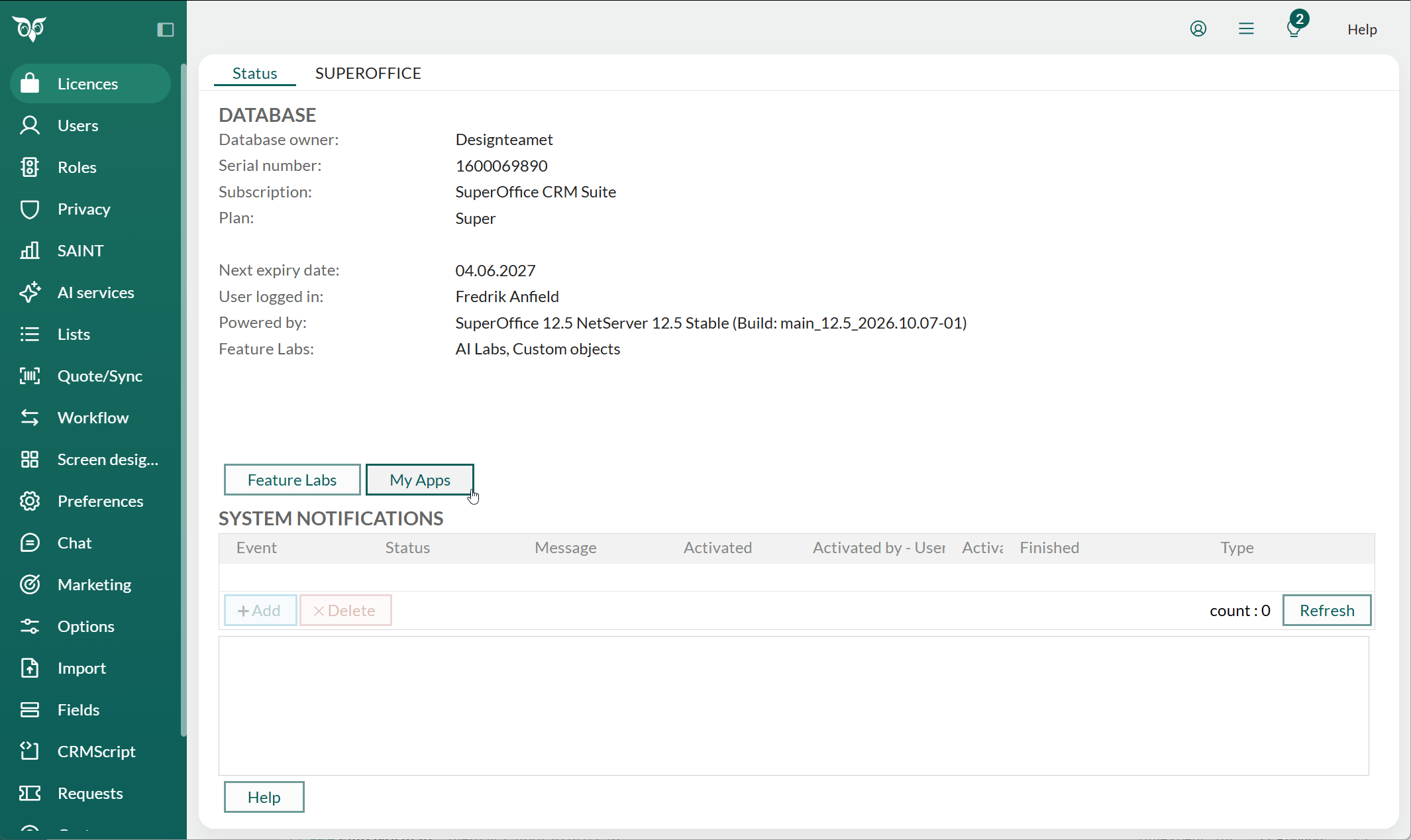
Updated information about the system is displayed in the Status tab in the Licences screen.- Module-based subscriptions
- CRM Suite


Database
Shows the database owner, serial number, subscription, and type, which are specified on installation. You can see the next expiry date and the name of the user currently logged in. If your organization is on a SuperOffice CRM Suite subscription, the Database section also shows:- Plan: the plan included in your subscription, for example, Core
- Restrictions: your current usage against one or more plan limits, for example, 1 of 100 active projects
Select the indicator to open the SuperOffice CRM Suite page for more information.
If you are a system administrator, an Upgrade button appears next to the warning or stop indicator. Select it to open a contact form to request more capacity or a plan upgrade.
Metered services
Available on module-based subscriptions only.
- Storage space used
- Emails sent via Mailings
- Customer center logins
- Chat sessions started
- Form submissions
System notifications
This list shows status messages from the system and added events. Notifications of active imports, SAINT or freetext indexing, and so on. Select a notification in the list to display a description. You can keep track of events that are active in the system. The System events tab consists of two parts:- Events.
- Description, shows detailed information about the event currently selected under Events.
My Apps
Available on CRM Suite subscriptions only.
License types
System licenses
User licenses (plans)
Finally, there are user licenses for SuperOffice CRM, which are purchased for a specific number of users. This applies amongst others to the following products:- CRM Suite
- Sales-Essentials
- Sales-Premium
- Service-Essentials
- Service-Premium
- Marketing-Essentials
- Marketing-Premium