

Checklist for CRM 8
- Web server is enlisted in Active Directory
- The hostname used for accessing is registered in DNS (not hosts file)
- Remote NetServer (where Web and NetServer are on different servers) is not supported due to Kerberos double-hop issues
- Users are configured with Active Directory authentication in SuperOffice
- The IIS site where SuperOffice is located is configured to use Windows Authentication
- Customer Service & Pocket CRM must use a separate NetServer site where Windows Authentication is turned off. It can point to the same physical path as NetServer for Sales but with its own IIS Application with Windows auth turned off.
- You should now be able to test with your browser to see if SSO works for users.
- To enable SSO with Mail Link and TrayApp, you will need to change the protocolMapping to use WindowsAuth in the web.config file.
A change in SuperOffice version 10.1.5 prevented logging in to SuperOffice with AD credentials without SSO. This was corrected in version 10.1.6.Using Remote web services for Web (where Web and NetServer are on different servers) is not supported due to Kerberos double-hop issues.
Single sign-on with Windows authentication
The following process is carried out when a windows user is automatically signed in to SuperOffice Web:- Authenticate the user with IIS
- Pass the IIS Authentication on to CRM Web
- Authenticate the Windows user with CRM Web
Authenticate the user with IIS
Windows 2016 Server
- Open Server Manager
-
Make sure Windows Authentication is checked.
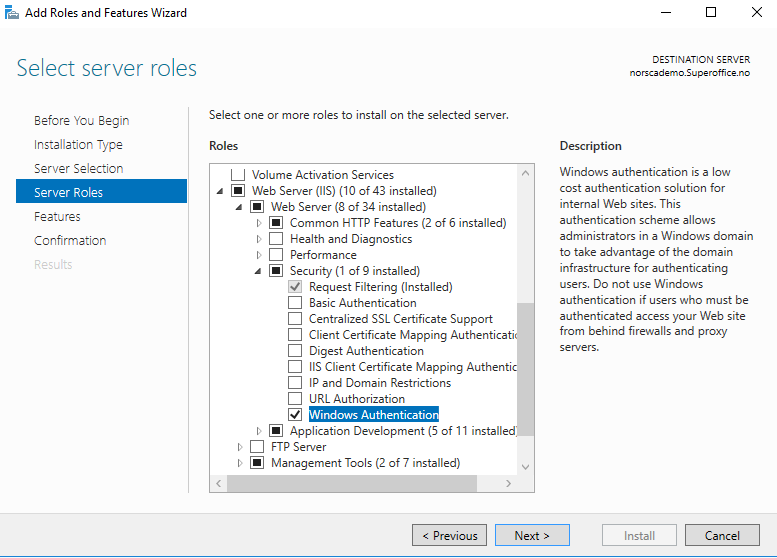
- Open Internet Information Server (IIS) Manager.
-
Select the SuperOffice CRM Web site again and double-click on the Authentication Feature:
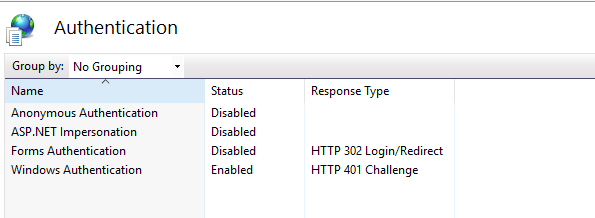
- Make sure that only Windows Authentication is enabled. We do not recommend other authentication methods such as Basic and Digest.
SuperOffice WebTools
To enable Single sign-on for Web Tools (MailLink and Web Extensions) the bindingConfiguration must be changed to WindowsAuth (and WindowsAuths for HTTPS) in Web.config.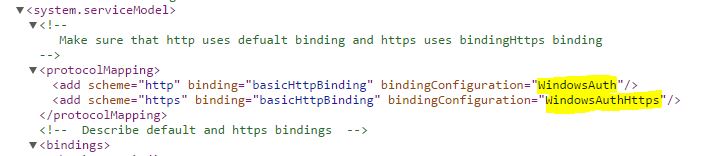
SuperOffice Service
SuperOffice 8.4 R04 and newer includes support for NetServer communicating with Service (for instance through the ticket or CRMScript agent).Impersonation user
To support this functionality for single sign-on scenarios, we have to use an impersonation user for the communication between NetServer and Service. The impersonation user must exist in Active Directory but does not need to be a SuperOffice user. Steps to configure in the web.config file:- Configure the installation as SSO.
- Make sure the SymmetricKey and SymmetricSecret values are the same between SuperOffice Web and Customer Service config files.
-
Add a CustomerService section in the
SuperOfficesection group: -
Add this section under SuperOffice:
-
Update the values to be correct for the installation:
ImpersonateCsUsermust be set to True.CsUserNameis the AD user to impersonate.CsPasswordis the corresponding password.CsDomainis the AD domain where the user is registered.
Other configuration options
Single sign-on for WebTools alone
- Open IIS Manager.
- Select the Services folder for the CRM Web site.
- Enable Windows Authentication in Authentication. Disable other authentication methods.
- Apply the configuration changes related to bindings and WindowsAuth.