

cURL mail
cURL uses libcurl, and supports a range of common Internet protocols. cURL has a wide range of supported protocols, certificates and improved speed. cURL is used for sending and receiving emails in the SuperOffice Service client. cURL is enabled by default for ALL SuperOffice Service sites and installations, from version:- CRM Online 8.0 (R26)
- SuperOffice 8.1 (available from SuperOffice 8.0 SR2)
How to enable cURL
Online: Enabled by default Onsite: 8.1 and newer: Enabled by default SuperOffice 8.0 SR2 -> 8.1 Change the value forreg_id = 320 in the table registry
- Using cURL: value = “0” (default)
- Using NetServer: value = 2
The value will not be stored in the database (table “registry”) until a value is entered the Mail setup dialogue in Service.
 This can be changed either by a SQL statement (requires access to SQL database) or by eJScript (requires access to Development Tools).
How to troubleshoot mail when using cURL
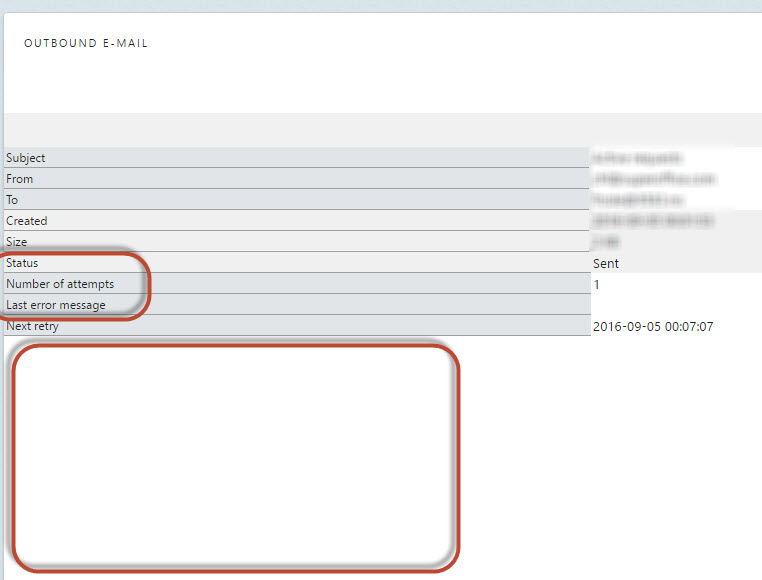
Error information will appear in each of incoming mail’s receiving log and outgoing mail’s sending log. This information will in most cases tell what’s wrong.How to open the incoming/outgoing log
-
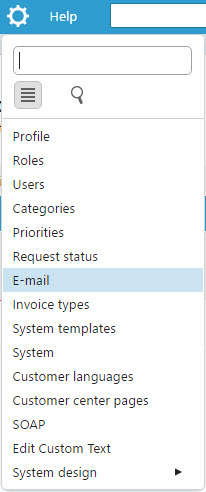
Open Mailboxes by clicking on the wrench -> E-mail. Note: only available to Admin users.
-
Click on Inbox for email / Outbox for email
 Here you will see all items not sent or imported yet. (To also see already sent, check “show sent emails” bottom right.)
- Click on an item in this list to open the mail’s receiving/sending log.
Connection and authentication
Requirements for OAuth 2.0
- Onsite customers who use SuperOffice 8.5 R17 + SuperOffice G9 9.2 R10 or newer
-
Unique/separate serial number for each site/DB to use OAuth/AccessGateway
- Only the first site that tries to register with a given serial number will register successfully. Contact support to change site/DB.
- The firewall cannot block IMAPS on port 993
- Microsoft 365 (Microsoft® Exchange Online)
- MX Record pointing to the Microsoft® Exchange Online server
-
NetServer must use Mailkit
- When OAuth 2.0 is used on a mailbox, it ignores the value in reg_id = 320, and uses NetServer to connect to the OAuth service.
- NetServer must use Mailkit, not EasyMail.
- Mailkit only supports IMAP (no POP support).
- See SuperOffice.Inbox Email for more details.
How to add the OAuth 2.0 feature
This feature is in General Availability (not in Pilot) in SuperOffice 10.0.3 (+ SuperOffice 8.5 R17). Online: N/A Onsite: For versions between G9 9.2 R10 and 10.0.3 you can add the feature via adding:- A: a new sectionGroup ‘FeatureToggles’ with state
- B: a FeatureToggles section, with state and key=“NewAuthentication”
- in the web.config file (ask your technical installation partner for assistance if needed)
Show details
Show details
A:B:
How to use OAuth 2.0 in SuperOffice Service
When a mailbox is created in SuperOffice Service, and a Microsoft 365 (Microsoft® Exchange Online) email account is added, you will be redirected to Microsoft for authentication: To create a new mailbox with OAuth 2.0 (in 10.1.5 and newer):- Select System settings > E-mail. This takes you straight to the Mailboxes tab.
- Click New mailbox.
- The “Set up e-mail account” dialog appears
- Click the “sing in with Microsoft” button
- We redirect you to Microsoft for authentication.
- Completing authentication towards Microsoft will redirect you back to Mailboxes tab.
- Click OK. The mailbox is created.
- Select System settings > E-mail. This takes you straight to the Mailboxes tab.
- Click New mailbox.
- The Mailbox properties screen appears, with the Properties tab open.
- In the Address field, enter the Microsoft 365 email account e-mail address you want to use for the mailbox.
- If we recognize the UPN as a Microsoft 365 email account, we redirect you to Microsoft for authentication.
- Completing authentication towards Microsoft will redirect you back to Mailboxes tab.
- Click OK. The mailbox is created.
- Select System settings > E-mail. This takes you straight to the Mailboxes tab.
- Click on mailbox you want to change. The Mailbox properties screen appears, with the Properties tab open.
- Click “Change OAuth”, this will trigger new dialog for setup of account.
- If we recognize the UPN as a Microsoft 365 email account, we will redirect you to Microsoft for authentication.
- Completing authentication towards Microsoft will redirect you back to Mailboxes tab.
- Click OK. The mailbox is updated.
Give access to SuperOffice Office365/Microsoft Entra enterprise app
When registering, if the current user (by email address) doesn’t have grant access rights, you first need to get a Microsoft Entra (formerly AAD) domain administrator to authenticate and register it manually. You do this by registering the domain with us. We use the same service as for our federated sign-in service we use for CRM Online customers. This enables us to recognize the domain of the user’s email address and redirect to the correct identity provider for authentication. This will add our Microsoft Entra enterprise app to your domains app list. This process will have no effect on login/authentication of SuperOffice Onsite users in general. To register Microsoft as an IDP and grant the SuperOffice ID Microsoft Entra application access to read user profile information, the user should be Global Admin or App Admin.Start IDP registration
- Go to https://id.superoffice.com/identityprovider/register.
- Select your organization’s identity provider (Choose Microsoft).
- You are sent to the provider’s sign-in page after starting registration.
- Authenticate with your Global admin or App admin Microsoft Entra account.
- Accept the permissions and grant SuperOffice access to read profile information if prompted.
- Confirm that all users of this domain should use the identity provider (not used for onsite logins). This scope is for OAuth only.
Endpoints used in the communication
From SuperOffice’s side, it’s onlyaccessgateway.superoffice.com. On Microsoft’s Office365 OAuth and Identity side, we have no control over the endpoints they use. That is how oAuth works, you are redirected to a provider you have chosen to trust.
How to troubleshoot when using OAuth
Credential is not recognized
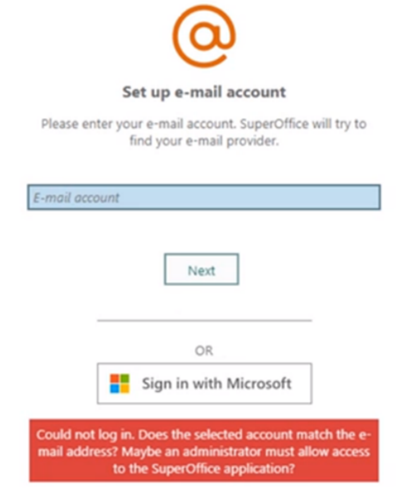 For OAuth to be able to work, make sure you have user-credentials (UPN) that directly authorize you on the mailbox, not the email address or a user which has access to it as a shared mailbox.
Up to version 10.1.4: If we don’t recognize the UPN you will be redirected to mailbox properties. Click Cancel -> redirect back to mailboxes tab. Fix and verify the UPN. Make sure your MX Record is pointing to the Microsoft® Exchange Online server. Try again.
What is UPN (User Principal Name)?
What is UPN (User Principal Name)?
In Windows Active Directory, a User Principal Name (UPN) is the name of a system user in an email address format. A UPN (for example: john.doe@domain.com) consists of the user name (logon name), separator (the @ symbol), and domain name (UPN suffix).A UPN is not the same as an email address. Sometimes, a UPN can match a user’s email address, but this is not a general rule.To check or modify the UPN of a user:
support@company.com, enter support@company.mail.onmicrosoft.com as the username in the Service mailbox dialog.
If the browser caches an existing valid authentication-cookie, this can result in a direct redirect back to Service without the needed user interaction to get the needed details back. Clear the cookies or use an incognito-session in the browser.
Also make sure your firewall is not blocking IMAPS on port 993.
MX Record pointing to the Microsoft® Exchange Online server
Ensure that the MX record points to the Microsoft address. If the MX does not point to Microsoft, this is the cause of the problem, and your IT administrator needs to resolve this DNS issue. To check:- Open command.
- Type
nslookupand press Enter. - Type
set type=mxand press Enter. - Enter your domain.
MX, pref=5, outlook.microsoft.com
Duplicate serial number
When the following error is observed when configuring OAuth:- Alt. 1: ‘create’ a new serial number and change to this new serial number on “tenant b”. You may now use OAuth 2.0 for “tenant b”:
- Alt. 2: register a support request, where you submit the serial number for “tenant a” and request to delete it from OAuth/AccessGateway
- to be able to to use this serial number for another tenant. When you get confirmation the serial number is deleted, you may use OAuth 2.0 for “tenant b”.
The use of App Passwords is dependent on basic authentication. This type of authentication will be discontinued by Microsoft in October 2022.
Show details on the redirect flow when connecting
Show details on the redirect flow when connecting
When a user starts logging in to the CRM inbox / Service mailbox, they enter their email address. We use the domain of the email address to try to figure out if this belongs to a provider that supports OAuth 2.0 (so far Microsoft is supported). To figure this out, we look up the MX records for the domain and we look for the domain in the Thunderbird autoconfig database (query my.domain.com : 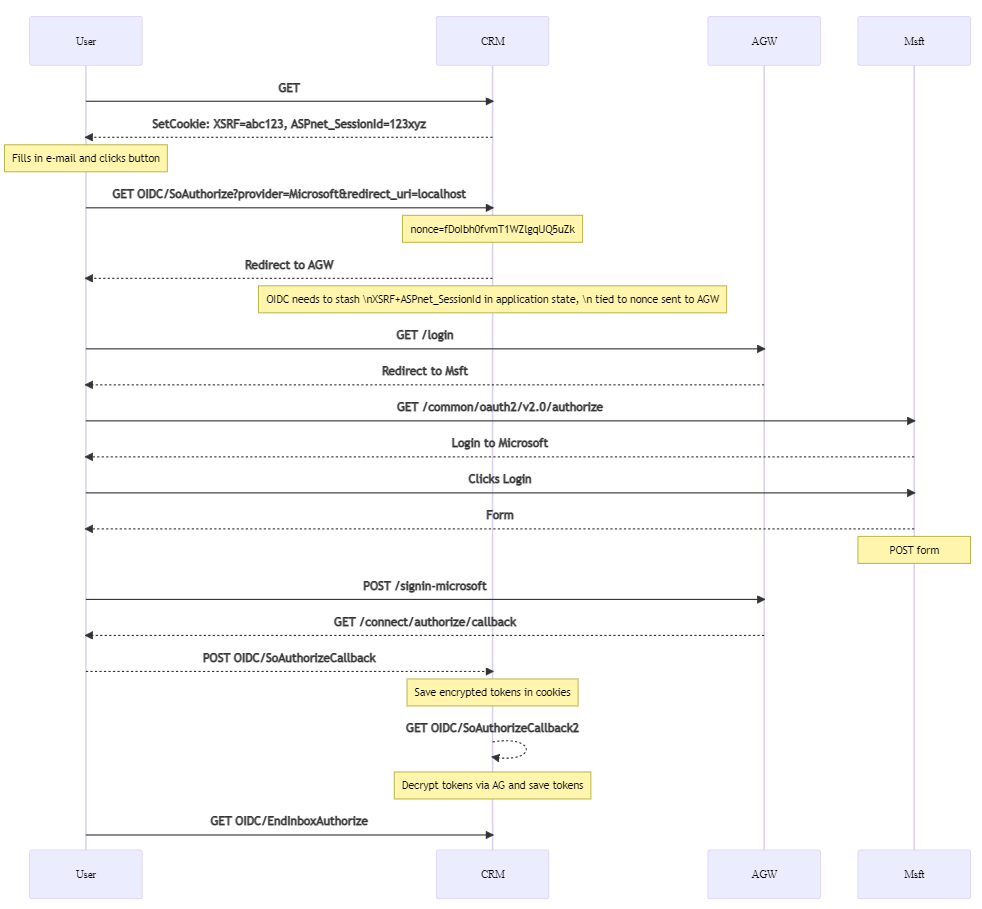
https://autoconfig.thunderbird.net/v1.1/my.domain.com). This database contains some large company domains, but most company domains will not be found here. If either the company domain MX records or the database lookup resolves to office365.com, the user is automatically redirected to Microsoft for OAuth2-based login. If we don’t recognize the email domain as a microsoft domain, the user can either input the password for normal IMAP/SMTP login or press a button to authenticate with Microsoft using OAuth 2.0 authentication/authorization flow.When the user starts the authentication flow, the user initiates with an active session in CRM.web. When the authentication flow completes, the CRM.web request is posted back without session cookies due to the same-site LAX restrictions. This means that ASP.net creates a new session (since it does not see an existing session cookie). We use the PRG (https://en.wikipedia.org/wiki/Post/Redirect/Get) workaround with the tokens saved in cookies to get the session back so we can decrypt the tokens and save them to the database properly.