

Prerequisites
We assume you have already run the general SuperOffice CRM server setup to create a database primed with necessary startup data in the language of your choice. You need to have a working SuperOffice web services installation before you proceed with the installation of Service as ejTermsetup.exe requires it. Both Service and SuperOffice web services must be of the same version and run on the same domain from our SuperOffice 8.1.Run the installer
The installer will copy the necessary files to the Service program folder.SuperOffice Service v11 has a new dependency: Microsoft WebView2. It is not included in the Service installer. You must download it from the Microsoft website and install it before installing or upgrading SuperOffice Service.
- Run SuperOffice.CustomerService.exe.
- When asked, select a destination folder for the installation of SuperOffice Service.
- Choose your hostname. The hostname should be the registered DNS name you will be using to access both CRM web and Customer Service request management interface in your web browser.
- You also have the option of installing and overwriting the customer web templates, or leaving your own customized one in place (if you have done customizations). If you choose to install/overwrite the templates, the installer will attempt to make a backup copy. For new installations, always leave this field checked.
- Let the installer create an IIS site based on the hostname you entered. If the IIS website is already available on the web server then you need to uncheck the Create IIS website.
Configure startup data
You need to configure some startup data that is specific to your installation - among else you need to specify the mail server to use, default from address, the company name, the ODBC database user, NetServer system users, and a few other things.- Start cmd.exe as an administrator from the start menu and navigate to your installation directory, and then to the sub-directory /bin under that.
- Run the application ejtermsetup.exe, and you will be prompted for the necessary settings (see below).
- When ejtermsetup.exe is done, it will tell you that your installation is ready to run and the address where it should be available in a web browser. You can log in with the administrator user you entered earlier, and start configuring the system.
Settings
Choose system language: Customer Service will use this language to prime the database with different things that are not multi-language (for example the default system templates, priorities, and so on). You will not be able to change this later. Hostname: This should be the hostname that the application will be accessed on. Normally this is the same as the DNS address you entered when installing Customer Service.This is where you may add hostname/applicationname if you have followed the steps for manual installation.
From 8.4
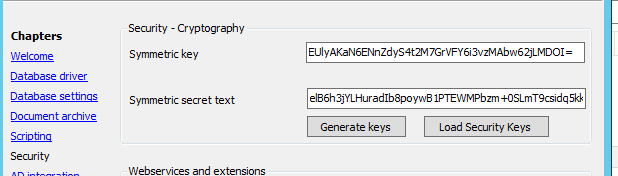
From version 8.4 R04, Service needs to know NetServer’s symmetric keys, which are used to encrypt traffic from NetServer to Service. This is used to enable NetServer to call Service. When prompted:- Enter the
SymmetricKeyvalue without quotes. - Enter the
SymmetricSecretvalue without quotes.
From 8.5
In version 8.5 R06, we have rewritten the CRMScript triggers in Sales to use the same communication system as the Service entities, so that we standardize on one way of doing API calls from Sales to Service. Previously, the connections originate from the Web client, now they originate from NetServer. As a consequence, you must verify that this communication system is working when upgrading. Otherwise, CRMScript triggers from Sales will stop working. Specifically, this means:- Make sure the authentication keys are present and equal, in all config files (web.config(s) and config).
- Make sure your network topology allows HTTP(s) communication from the NetServer installation to the Service installation.
 .
.
Start the scheduler
The ejtermsetup.exe application would have asked you if you wanted to start the ejScheduler service that is responsible for periodically running the console applications ejournalcron.exe and importmail.exe. These applications in turn will perform tasks like importing email, sending email, activating postponed tickets, and other tasks. If you did not let the ejtermsetup.exe start the scheduler for you, you should do it manually when you are ready:- Open the Control panel
- Choose Administrative tools
- Click Services
- Click the appropriate ejSchedule <sitename> for your site.
- Select Start Service
- To start the service at boot, right-click ejSchedule, select Properties and make sure Startup type is set to Automatic.
- Click Start to start the service
Previous | Next | Back to guide