

Forms - Hide tag Powered by SuperOffice
In Global preferences, you can choose to Remove Powered by SuperOffice watermark. Depending on your choice, you will (or will not) see the watermark on all your forms.
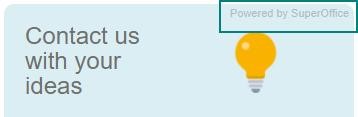
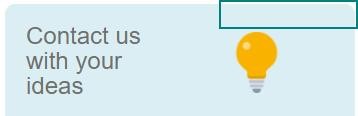
This is a global setting, and not per form.
Forms - Rating icons with a new look
The icons used for ratings have a new fresher look.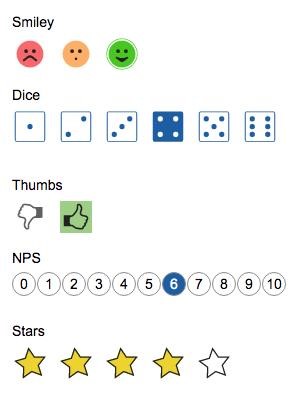 You can choose between:
- Smiley
- Dice
- Thumbs
- NPS
- Stars
Forms - Two-column form
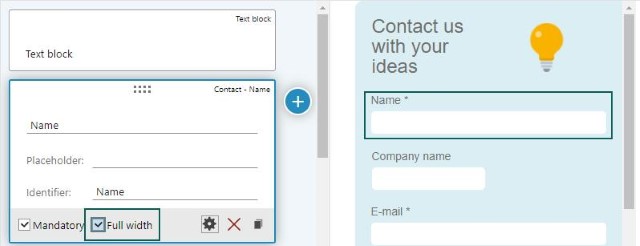
On the Style section you have an option to choose to see the form as 1 column or 2 columns.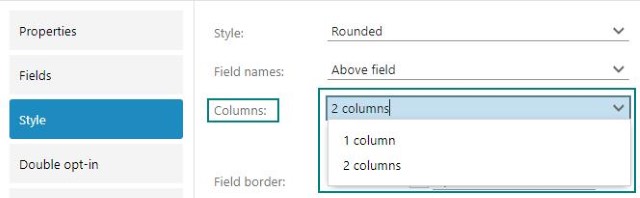 On each field on the form there is a setting, Full width, where you set yes or no to show the field in one column or both columns.
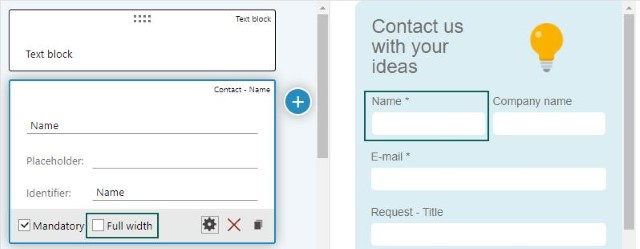 When the screen is small (like on mobile or other), the rank is as the fields are placed in the overview (left to right).
Forms - The request view of a form
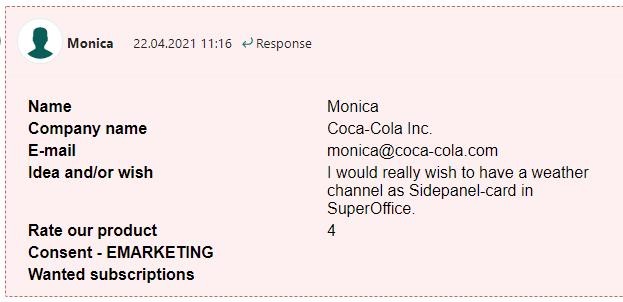
The form response will be added to the created request, and have a table structure format, to make it easier to read the content. If there are multiple selections, those will be displayed as bullet points.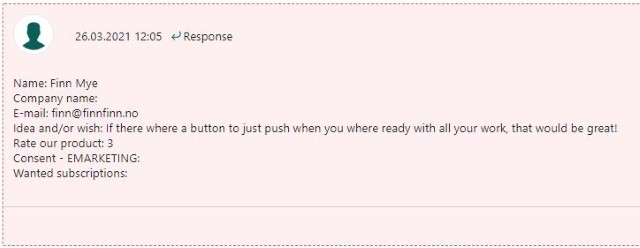
Forms - Create requests with forms
On your customer portal, it’s useful to give your customers an opportunity to send in requests.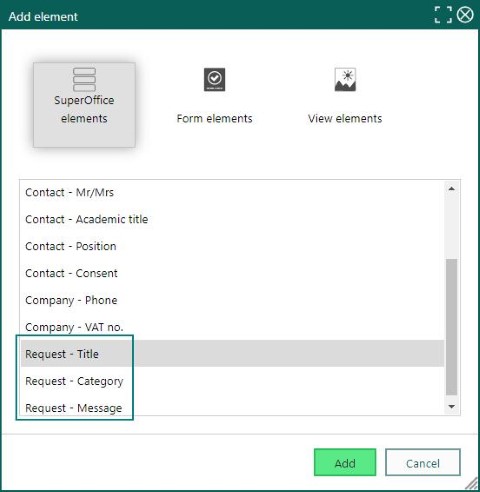 By creating a form using the fields:
- Request - Title
- Request - Category
- Request - Message
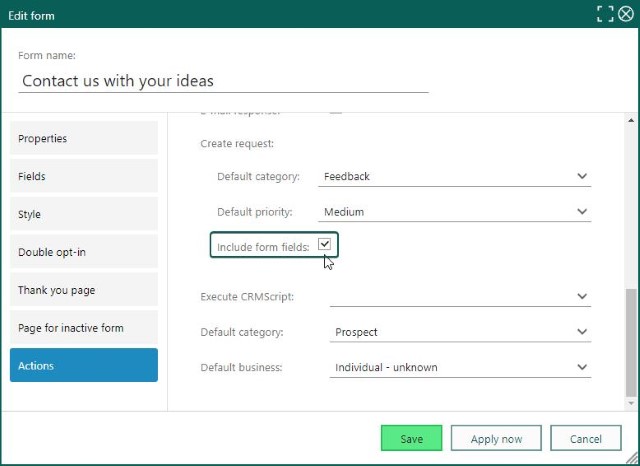 This is a neat way to create requests directly in Service with a form, and all info is included as request info.