

A better way to search for information
Instead of having 2 ways to look for information, depending on whether you are looking for one piece of data (previously via Find) or a list or series of data (previously via Selection), you now use the same method for both.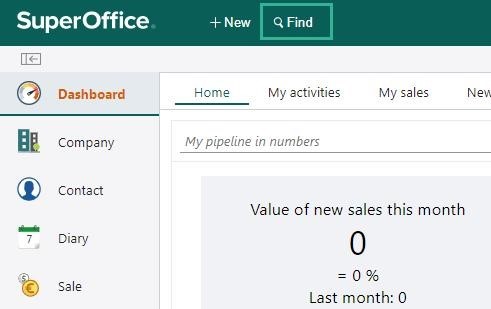 You now start all searches with the Find button. The Find feature lets you search across all the fields in your database and pull out a single or a series of data.
- Click the Find button to create a new selection.
- Add the search criteria to find the information you need.
- Once you are satisfied with the results, you can choose to save your search either as a dynamic or static search.
Pre-defined searches (in Find)
The new Find feature contains a wide range of typical searches.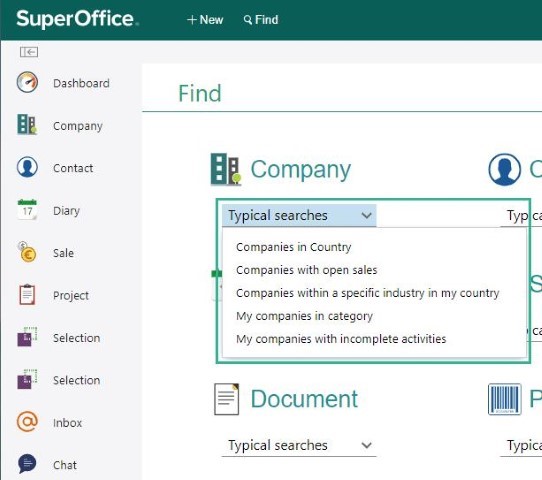 Choose from a range of pre-defined search criteria for each category of data to get results fast.
You can add additional criteria or amend the pre-defined criteria to improve your search results.
Choose from a range of pre-defined search criteria for each category of data to get results fast.
You can add additional criteria or amend the pre-defined criteria to improve your search results.
Search using AND/OR functionality
In addition to narrowing your search by adding more criteria, using AND, you can also broaden your search using OR.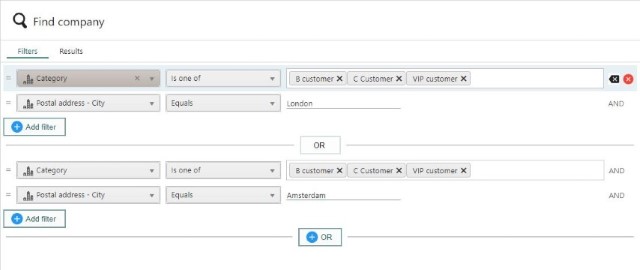 The OR function allows you to search for two different types of data within the same search.
For example, you can search for customers who have bought either product A OR product B.
This new feature gives you more flexibility to search for information in your SuperOffice database.
The OR function allows you to search for two different types of data within the same search.
For example, you can search for customers who have bought either product A OR product B.
This new feature gives you more flexibility to search for information in your SuperOffice database.
Preview and navigate between search results
The side panel, which was introduced in SuperOffice 9.1, gives you a preview of the data in your search results.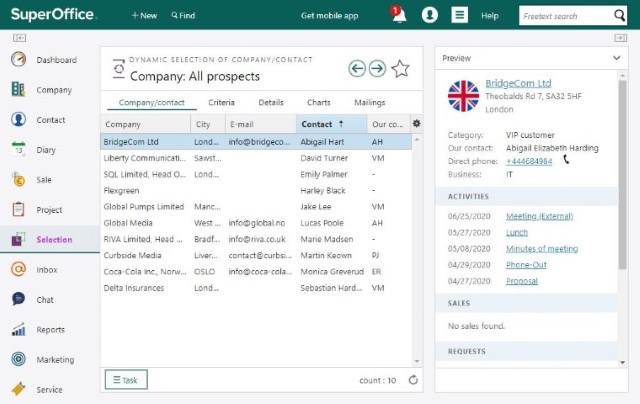 This allows you to scan and go through your search results in a fast and efficient way.
Sort, group and organize the search results
The new ways to organize, sort, and group lists, which was introduced in 9.1, now also apply to the search result screen.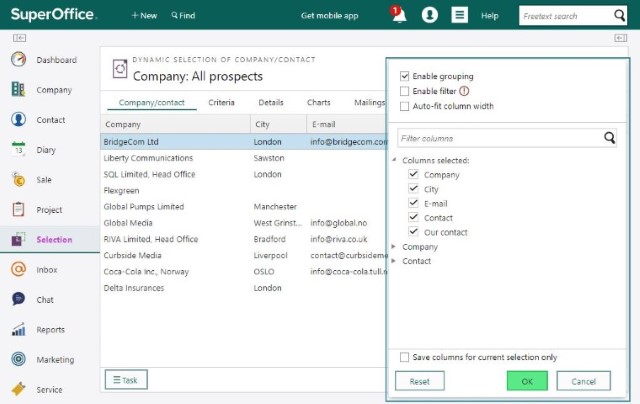 You now also have the flexibility to maximize the screen space for your search results. Use the entire length of your screen and choose whether to collapse the navigator menu and/or the side panel.
Save the columns for this selection
New to this version is the ability to save the columns used for a selection.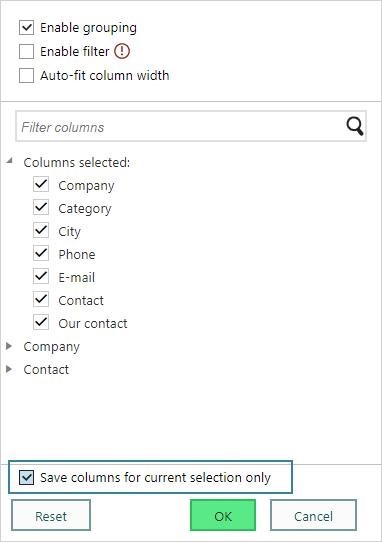 Ticking this option ensures that the columns remain visible for everyone who opens this particular selection.
This saves other users of the selection time to find the most relevant columns to view and the creator of the selection more control when sharing the findings.
Ticking this option ensures that the columns remain visible for everyone who opens this particular selection.
This saves other users of the selection time to find the most relevant columns to view and the creator of the selection more control when sharing the findings.
Auto-fit column width in the results screen
The number of columns, order, and sort is available for a user to define (see above). It is now possible to let the system auto-fit the column width in the results screen archive.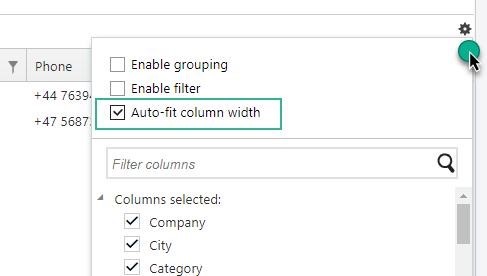 When this option is selected, the columns are locked for further adjustments until the option is unselected.
Save search results as a selection
When you have found the information you need, you can choose to save your search as a dynamic or static selection using the Save as selection button.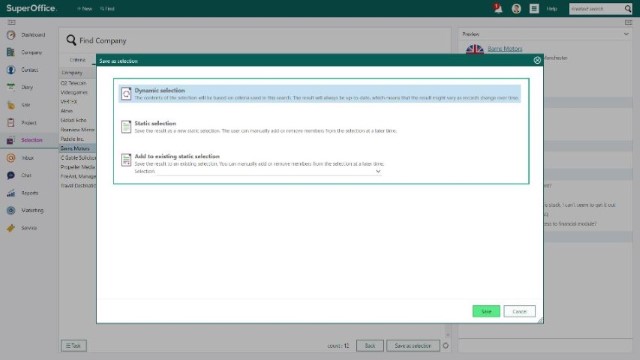 You can choose to use the preview screen in the side panel to see more detailed information about the data you found.
Improved Task menu options
The task menu has moved from a tab on the top to the bottom left corner.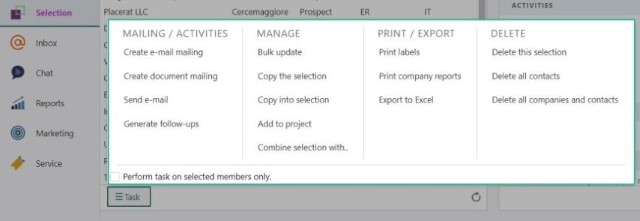 The presentation of Task options has been improved by grouping the different types of tasks, to make it easier to understand and use.
Note that the task to combine a selection with another selection is now available in the Task menu.
The presentation of Task options has been improved by grouping the different types of tasks, to make it easier to understand and use.
Note that the task to combine a selection with another selection is now available in the Task menu.
Present information lists in Charts
Different types of search results can be presented in charts.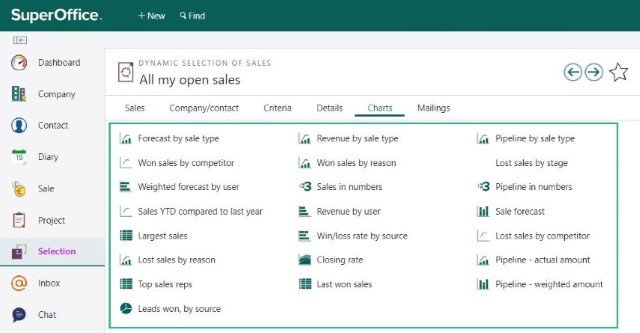 Chart options are available, and you can choose the information you want to see from a list of options. The type of charts will automatically vary according to the type of data you have in your search result.
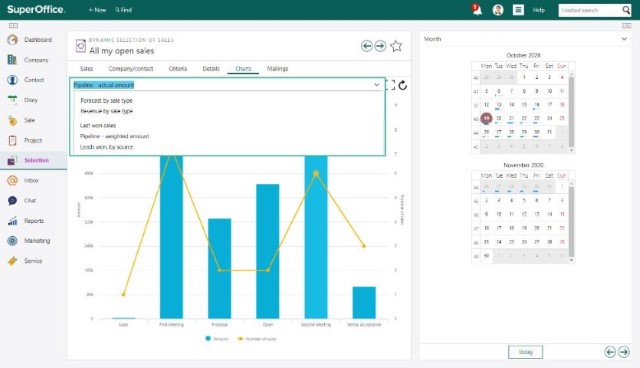 You can also change the chart and information you visualize within the same selection - allowing you to analyze and view your results from different angles.
Search for selections and manage existing selections
New is the possibility to search for selections using different search criteria, including when a selection was created and/or last used.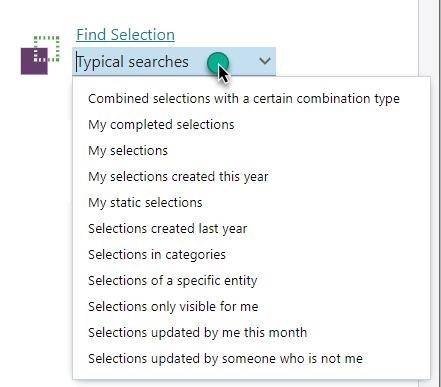 This opens up for better organizing of current selections. For example, deleting old and unused selections makes it faster to find the ones that matter.
Request searches available for all
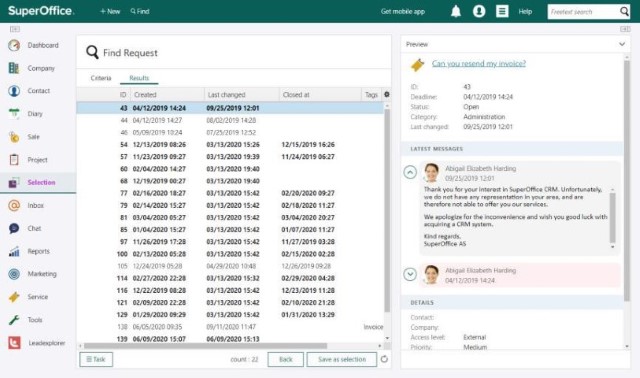
The ability to search Requests is available for all and not only those who are users of SuperOffice Service.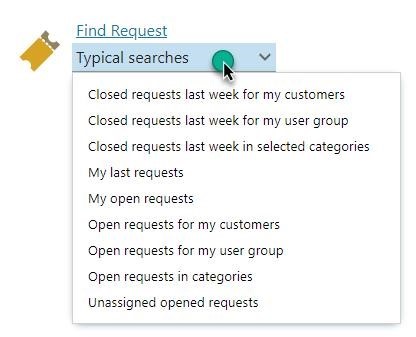 The search results are presented as a list with more details available in the Preview Side panel. Users with access to SuperOffice Service (users with a Service and Complete user plan) can also open the requests in Service, from the results screen, and continue responding to the ticket directly.
Chat available as a separate add-on
Chat has been available to all users of Sales, Marketing, Service, and Complete and will continue to be available to all existing users who currently have access to Chat.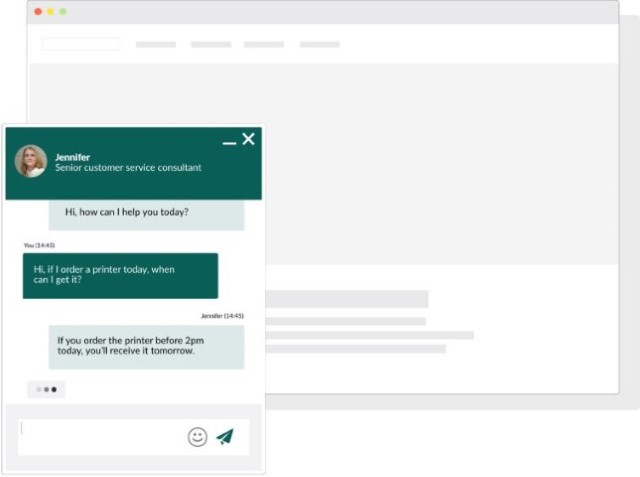 For new customers of this version of SuperOffice CRM or users on a version of SuperOffice CRM that does not have Chat, the feature will be available as a separate add-on as part of the new Customer Engagement Platform concept.
Selection export to file with selection name
When exporting your selection to excel, the name of the file will be the same as the selection file.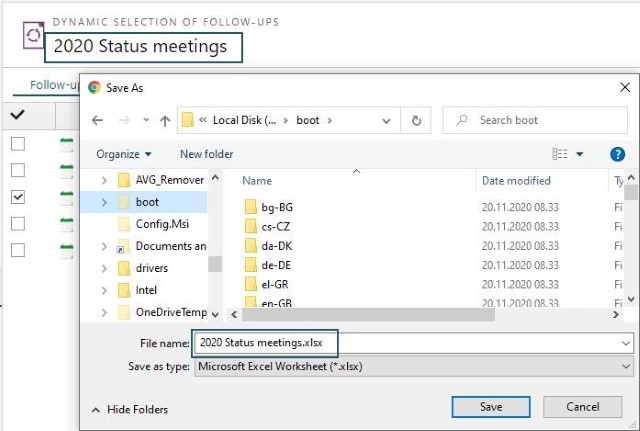 It makes it easier to locate your file after saving it.