

New free-text search page
When using the Free-text search in the top right corner, your results will be presented in full-screen view.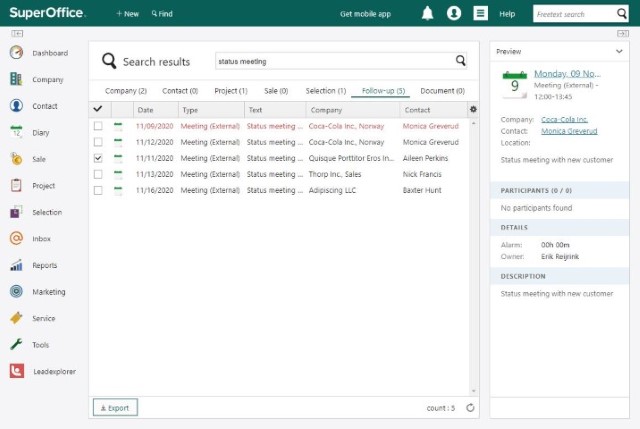 Your results are organized into different tabs, and you can use the Preview side-panel to see more information on selected items.
Double-click on options in the Save as selection dialog
When you save a selection, you can double click on the different options in the dialog or select the option and then click the Save button.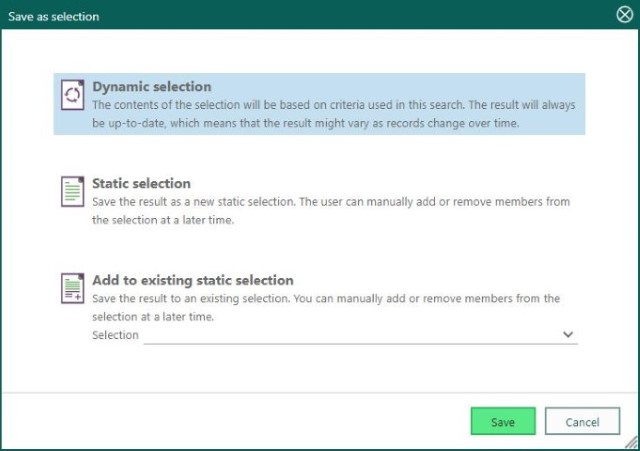
Static selection with Add members button
On a static selection, you can use the Add members button, where you search with criteria and add the results you get on given criteria.
Side panels with updated info
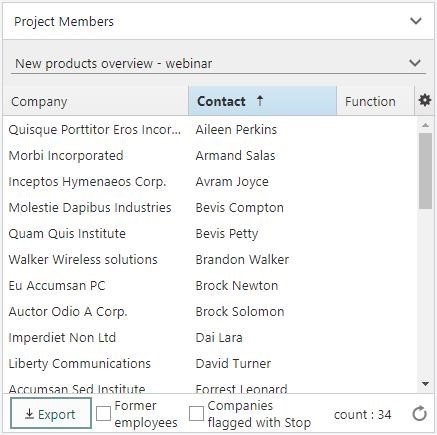
Side panels for different features have gone through some revisions and changes.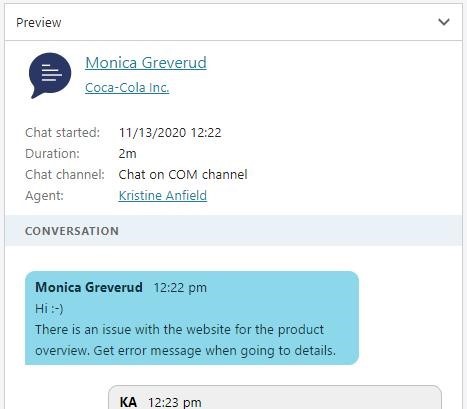 The preview is updated for:
- Chat
- Form
- Mailing
Edit of external meeting invitations
When you accept an invitation from an external person, you can change some fields in the appointment to make it easier to save it with the right information.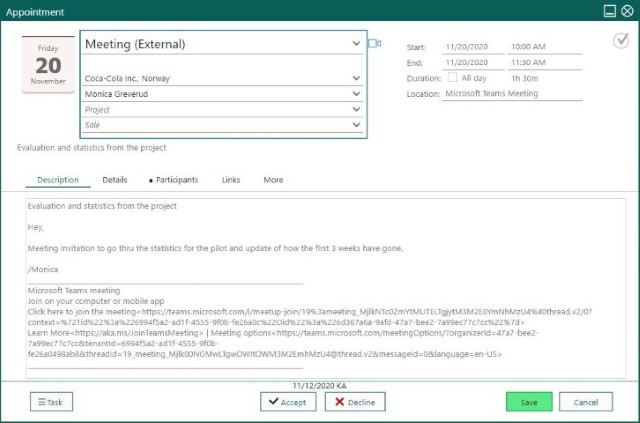 Fields such as appointment type, company, person, sale, and project can now be edited.
Any user (with sufficient rights) can change the fields on the appointment, and this will be shown for all participants.
Fields such as appointment type, company, person, sale, and project can now be edited.
Any user (with sufficient rights) can change the fields on the appointment, and this will be shown for all participants.