

Choose which activity types should not trigger a notification
In Pocket CRM you can now select which activity types should prompt a notification to warn you about this activity and which activities shouldn’t.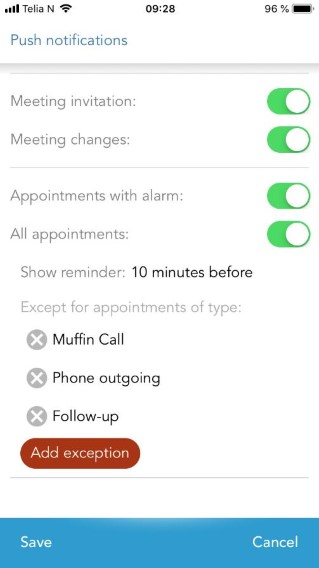 In the Settings menu you can add all the activity types you don’t want to receive a notification about in your Diary.
This way you can personalize your notifications and you won’t get disturbed by notifications you do not want or find helpful.
In the Settings menu you can add all the activity types you don’t want to receive a notification about in your Diary.
This way you can personalize your notifications and you won’t get disturbed by notifications you do not want or find helpful.
Get an overview of all your appointments in the next 48 hours with My day
Pocket now has its own widget for iPhone users called My day.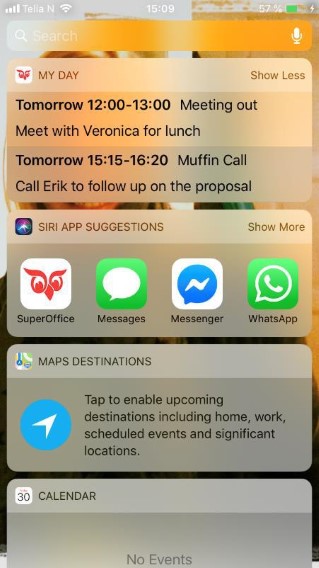 A widget is an app extension that makes information for apps available even if you haven’t opened them. Like Siri app suggestions or the weather forecast for example.
You find your widgets when you unlock your iPhone and swipe to the right until you get to the screen that is farthest left. Here you’ll find all your widgets. Scroll to the bottom of the screen to find the Edit button.
When you click the Edit button, you get to the Add widget screen. Find My day in the list of available widgets. You can add the My day widget by pressing the plus logo.
A widget is an app extension that makes information for apps available even if you haven’t opened them. Like Siri app suggestions or the weather forecast for example.
You find your widgets when you unlock your iPhone and swipe to the right until you get to the screen that is farthest left. Here you’ll find all your widgets. Scroll to the bottom of the screen to find the Edit button.
When you click the Edit button, you get to the Add widget screen. Find My day in the list of available widgets. You can add the My day widget by pressing the plus logo.
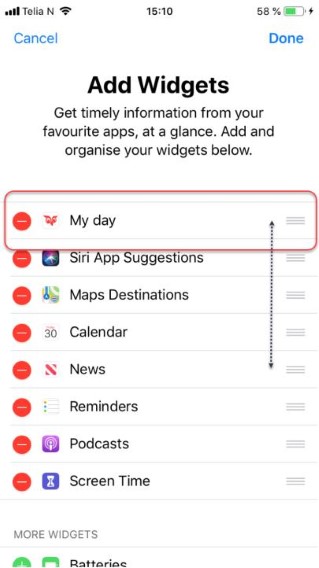 This adds the My day widget from Pocket CRM. You can also change the order of your widgets by pressing and holding the widget on the right side. You can now move the widget up and down to change the order in which they are visible.
The SuperOffice App extension will show you all your appointments for the next 48 hours.
Getting an overview of all the tasks ahead of you has never been this easy.
The My day widget is only available for iPhone users.
This adds the My day widget from Pocket CRM. You can also change the order of your widgets by pressing and holding the widget on the right side. You can now move the widget up and down to change the order in which they are visible.
The SuperOffice App extension will show you all your appointments for the next 48 hours.
Getting an overview of all the tasks ahead of you has never been this easy.
The My day widget is only available for iPhone users.