

See activities for the next 48 hours with the My day widget for Android users
For Android devices we have introduced the SuperOffice My Day widget that you can add to your home screen.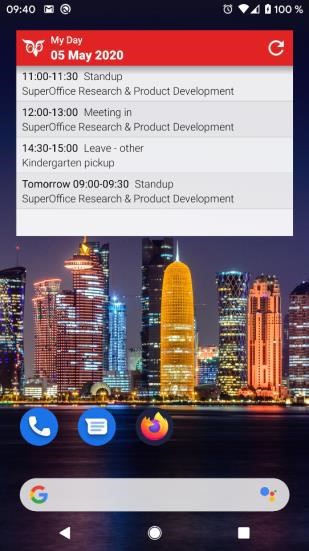
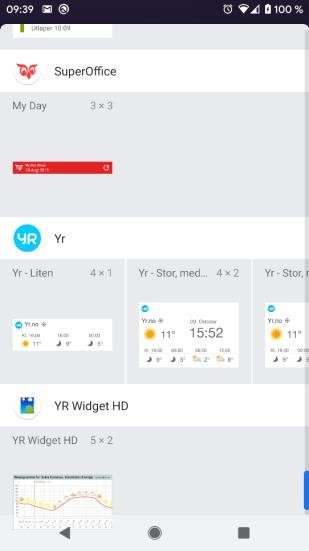 To add the SuperOffice widget:
- Tap and hold an empty space on your phone.
- Tap Widgets.
- Touch and hold a widget to see the images of your home screens.
- Slide the widget to where you want to it and save it by lifting your finger.
Improved design on the Document screen
The Document screen has been redesigned to provide better access to your documents available in a Company, Project or Sales screen directly from your mobile.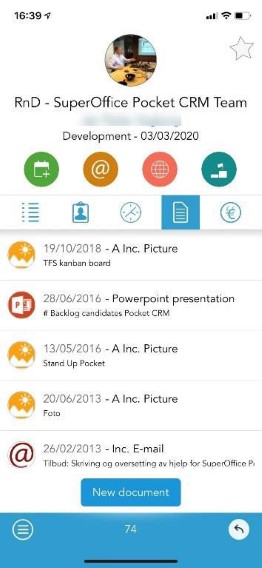 You can easily see what type of document you are looking from the word, excel, PPT, and PDF logos.
Clicking on any document will automatically open the document in the preview screen, where you can see the document directly on your mobile phone.
If your mobile isn’t able to open the document, you will be given the option to select another application to open the document in.
You can easily see what type of document you are looking from the word, excel, PPT, and PDF logos.
Clicking on any document will automatically open the document in the preview screen, where you can see the document directly on your mobile phone.
If your mobile isn’t able to open the document, you will be given the option to select another application to open the document in.
Android users will only be able to preview images!
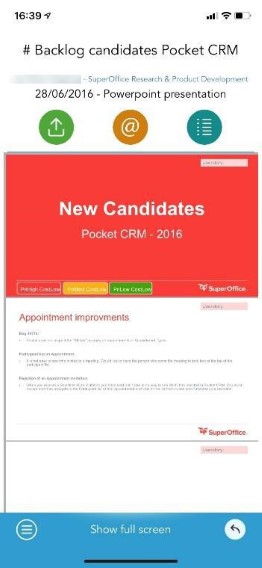
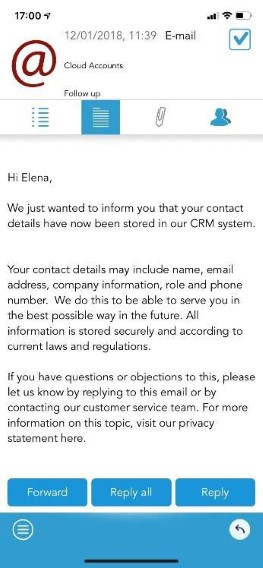 At the top of this preview screen you’ll see 3 useful buttons that allow you to share the document, email the document, and view the details of the document.
With the new document screen it’s easier to see, edit and share all the documents you’ve got save in SuperOffice CRM.
At the top of this preview screen you’ll see 3 useful buttons that allow you to share the document, email the document, and view the details of the document.
With the new document screen it’s easier to see, edit and share all the documents you’ve got save in SuperOffice CRM.