

The API details provided apply to SuperOffice v.9.2 and higher. Find searches do not yet support
custom entities or extra tables. SOAP API access via the Services88 endpoints, therefore online Apps must request Services88 to use this API.Steps
The steps used to perform a search are:- Get the list of available search entities.
- Determine which entity to base the search such as company, contact, sale, project, and so on.
- Get the data source used to perform the search, the name of a dynamic selection archive provider.
- Get the available data source columns, for specifying return fields and criteria.
- Set the search criteria.
- Perform the search.
- Read the results.
Get the search entities
The Find page dynamically displays all entities that support the new Find system.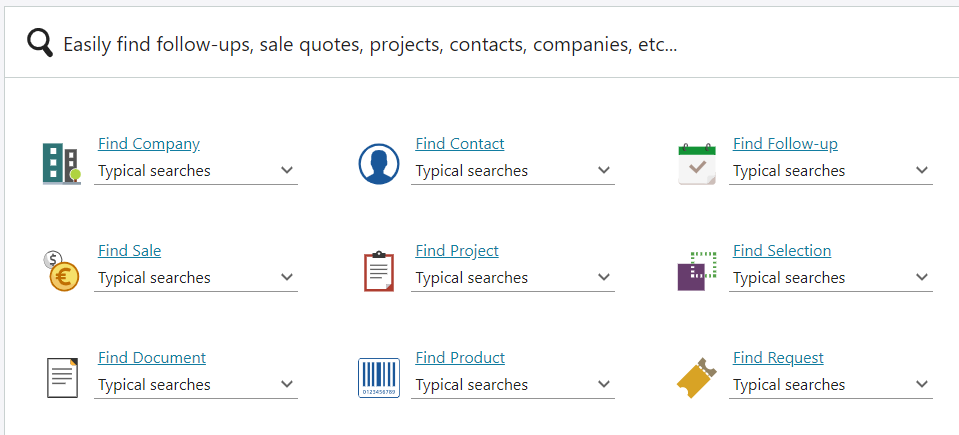
Your Find options may not be the same as shown. Available entities depend on the current user’s license.
SelectionMemberTypeV2 MDOList provider.
- REST
- Agent
- WebApi Client
ExtraInfo property to define the search entity.
Results (some properties omitted for brevity)
Use header options to specify an Accept-Language to replace the resource strings with localized labels.
Get the entity data source
You need 2 key pieces of information to get the data source, the archive provider and the selection ID. These are both available in a SelectionForFind instance. Use the ExtraInfo value from the previous results to get a SelectionForFind instance. Use theSelectionAgent.GetSelectionForFind(entityName, typicalSearchId) method to obtain the SelectionForFind type for a particular entity.
The value of typicalSearchId determines some internal logic.
- HTTP RPC Agent
- WebApi Client
SelectionForFind properties
The
ProviderName property is the name of the archive provider used to search. In this example, when contact is used as the entity name, the results return ContactPersonDynamicSelectionV2 as the archive provider name.
The SelectionId indicates the selection’s primary key for this associate/entity pair. The selection has a default list of criteria used to pre-populate a new selection of this entity type.
SelectionForFind result
The selection ID used here does not appear as an available Selection in SuperOffice. It’s only used for
Find purposes.Provider names
All dynamic Find Selections use an archive provider whose name ends with the V2 suffix. However, when using the Find API, do not rely on this list, instead use the API as shown to ensure you always get the correct provider.- AppointmentDynamicSelectionV2
- ContactPersonDynamicSelectionV2
- DocumentDynamicSelectionV2
- ProjectDynamicSelectionV2
- QuotelineDynamicSelectionV2
- SaleDynamicSelectionV2
- SelectionDynamicSelectionV2
- TicketDynamicSelectionV2
CriteriaGroups for specifying restrictions. Retrieve the SelectionForFind type, then use the provider name and selection ID to set the desired search criteria.
Get the search columns
Search columns are used to define what field to select and specify the criteria for limiting the result set.Selection criteria
Just like a SQL SELECT statement, where there are any number of select fields and any number of WHERE clause criteria, selections use archive provider columns to determine select and criteria fields. A selection criterion is set usingCriteriaGroups.
One CriteriaGroup is an ArchiveRestrictionGroup and contains an array of ArchiveRestrictionInfo, and each ArchiveRestrictionInfo is implicitly joined by an AND operator.
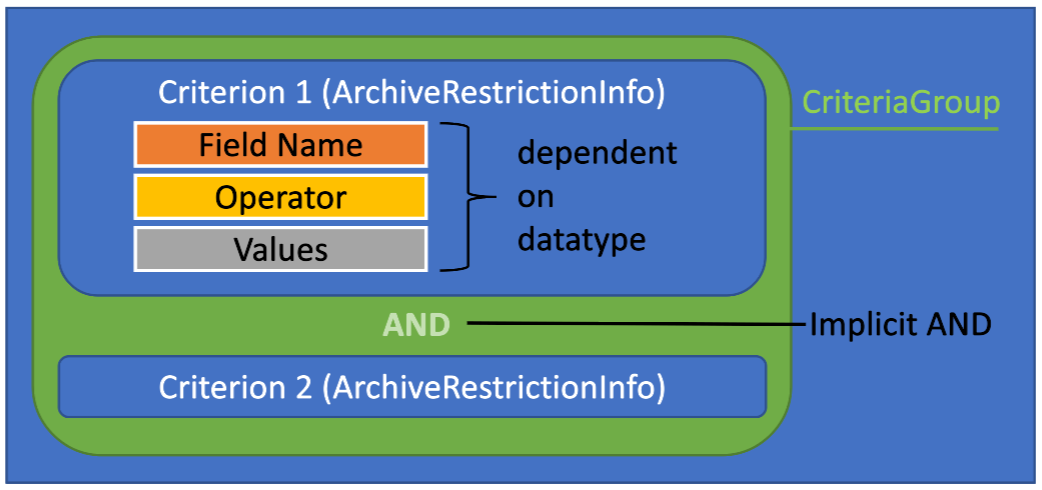 Take the following SQL, for example:
(C.name LIKE 'Super%' AND C.business_idx = 2) is a criteria group, comprised of 2 distinct criteria. To build the equivalent into an ArchiveRestrictionGroup, it looks like this:
CriteriaGroups is an array of ArchiveRestrictionGroup, and each group is implicitly joined by an OR operator.
As seen in the example above, the Name and Rank share the same numerical value, represent the order they appear in SuperOffice. The Name and Rank for the next ArchiveRestrictionGroup in the array is 1, and any subsequent group would increment accordingly.
Archive columns
To specify a field restriction you first need to get an ArchiveColumnInfo instance. While it’s possible to lookup archive provider columns using the NetServer documentation reference, it’s recommended to get and cache the columns using the API. This is required to set the required information in anArchiveRestrictionInfo.
Get archive provider columns
- HTTP RPC Agent
- WebApi Client
Get archive provider column results
JSON
Important ArchiveColumnInfo properties
Get field operators by data type
A field operator determines what type of operation the criteria performs, such as comparison or range. Use theRestrictionType property to get the available operators for a given data type.
- REST
- Agent
- WebApi Client
REST JSON results
JSON
Example: Working with columns and operators (WebApi client)
Set search criteria
Fetching and saving criteria
The new search routines introduce the concept of criteria groups, where all criteria in a group are connected by AND operators, and all groups in the array of CriteriaGroups are connected by OR operators.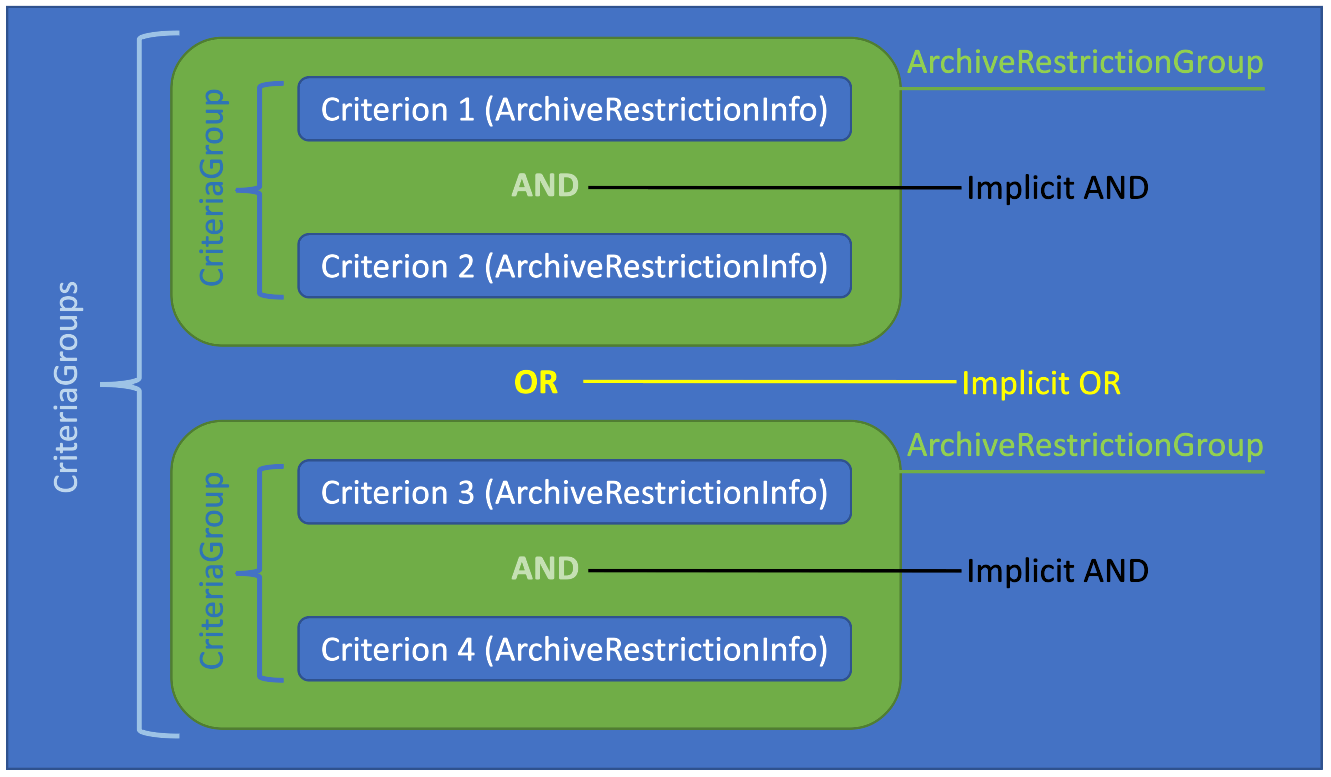 The main points to understand are:
- Each
ArchiveRestrictionInfoin anArchiveRestrictionGroupis implicitly joined by an AND operator. - Each
ArchiveRestrictionGroupis implicitly joined by an OR operator.
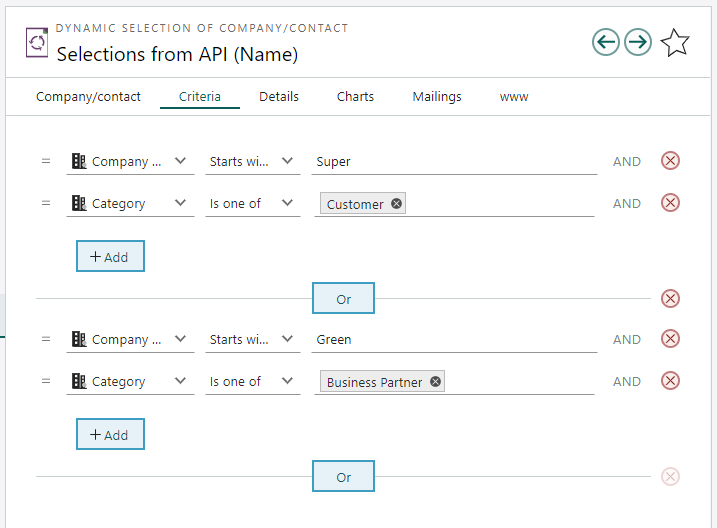 Selection criteria are fetched and stored using the
 GetDynamicSelectionCriteriaGroups and SetDynamicSelectionCriteriaGroups methods on the Selection agent. Using them will retrieve and save all groups, and avoid having to make assumptions about the StorageKey concept used in the Find agent methods.
This example demonstrates how to get existing CriteriaGroups for a given selection.
- REST
- Agent
- WebApi Client
SelectionForFind.SelectionId. The SetDynamicSelectionCriteriaGroups[Async] method returns the criteria groups that were passed in.
- REST
- Agent
- WebApi Client
HTTP
Perform the search
The search is performed using the Archive endpoint, which facilitates passing common parameters, including:- Provider name
- Desired columns
- Sort order
- Restriction
- Entities
- Page
- Page size
selectionId in these examples is obtained from the SelectionForFind.SelectionId property in previous snippets.
- REST
- HTTP RPC Agent
- WebClient API