

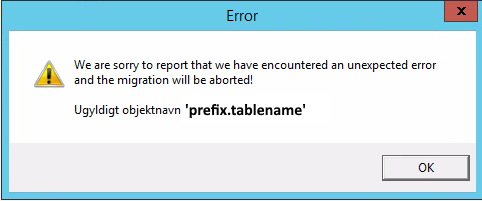
 When this error message appears, it’s generally the result of one or more custom tables created with the SuperOffice Dictionary SDK, a means to modify the database schema before we introduced Continuous Database (CDD) with version 8.1.
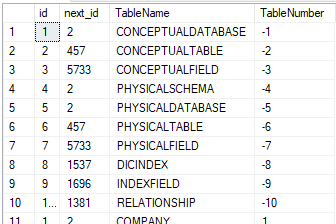
In earlier versions, when using the SODictionarySDK (deprecated), all database scema changes also updated the dictionary tables. These are all tables with a negative tablenumber in Sequence:
When this error message appears, it’s generally the result of one or more custom tables created with the SuperOffice Dictionary SDK, a means to modify the database schema before we introduced Continuous Database (CDD) with version 8.1.
In earlier versions, when using the SODictionarySDK (deprecated), all database scema changes also updated the dictionary tables. These are all tables with a negative tablenumber in Sequence:
 From 8.1 the database dictionary is moved into the databasemodel table as a compressed json string.
Any current use of the old SODictionarySDK will change the physical database scema and update the obsolete dictionary tables. However, it ignores the CDD databasemodel table, leaving the database in sort of a corrupted state.
All databases affected by these issues must be fixed prior to migration to CRM Online.
From 8.1 the database dictionary is moved into the databasemodel table as a compressed json string.
Any current use of the old SODictionarySDK will change the physical database scema and update the obsolete dictionary tables. However, it ignores the CDD databasemodel table, leaving the database in sort of a corrupted state.
All databases affected by these issues must be fixed prior to migration to CRM Online.
Solution
- LINQPad will allow you to change the JSON of the databasemodel directy. Download LINQPad. You need to download the version for .NET framework - currently LINQPad 5
-
Since we will be fixing this directly in the database, make sure you have a backup of the databasemodel. Use Management Studio (for Microsoft SQL databases) and run the following query to create a new database table (dbmb) where you store a copy of the current value:
If anything goes wrong, you may restore it later using:
- You will need some of the CDD files, these are all located in the Database imp exp tool you may download from this page. Unpack all files.
-
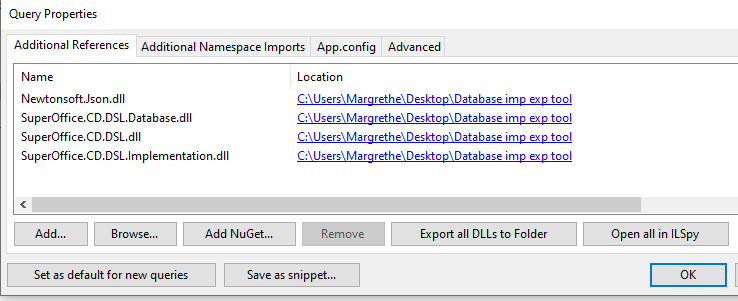
Start LINQPad and click F4 to bring up the Query Properties so you can add Additional References. Click browse and locate these 4 files from the download:
-
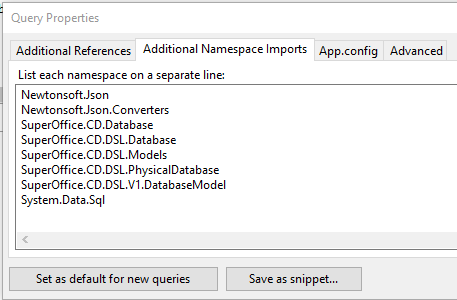
Go to Additional Namespace Imports and paste in these lines:
-
Now, paste the code below (written by Dr. Marek Vokáč) into the Query window. Update the connection in the first line with your database server name and database name. Add the correct PREFIX in the second line.
This example connectionstring use Integrated Security, you may replace the Integrated Security=true with User Id=myUsername;Password=myPassword
-
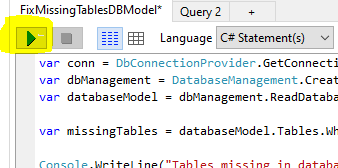
When run this will verify that all tables found in Databasemodel actually exists on the SQL Server and list those who do not:
-
Press y and ENTER to confirm you want to remove the tables that appears as missing.
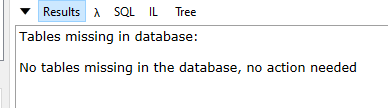
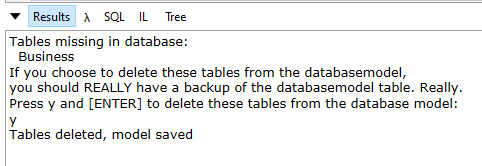 Next time you run this, these will be gone.
 Download Database Import Export ToolIn the zip you also get the nifty little DBUtil.exe - start it and read the helpfile. With this one you may actually choose to drop export of some database tables.