

From SuperOffice Online 11.13, SuperOffice CRM does not use Mail Link to send emails or invitations when the new email connectivity has been enabled in your tenant - even if Mail Link is installed. This rollout started for new online customers in 11.11 and continues gradually for all online customers from 11.13. Onsite installations are not affected.
Download and install
-
Go to downloadservice.superoffice.com and download the Mail Link installer (
SuperOffice.MailLink.Setup.exe). - Run the installer and follow the on-screen instructions.
- When the installation is complete, restart Outlook.
Configure in SuperOffice CRM
-
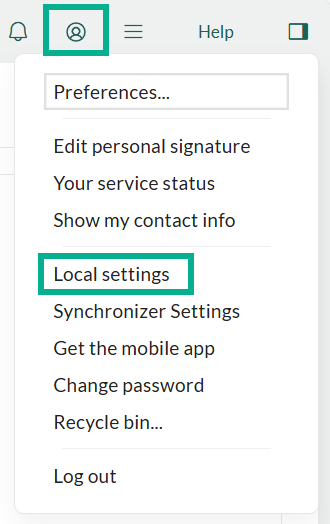
Click the Personal settings icon in the upper-right corner and select Local settings.
-
In the E-mail client field, select Microsoft Outlook.
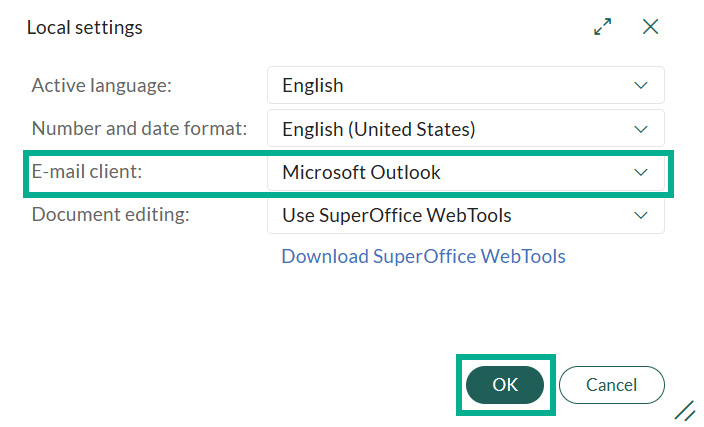
- Click OK.
Configure in Outlook
-
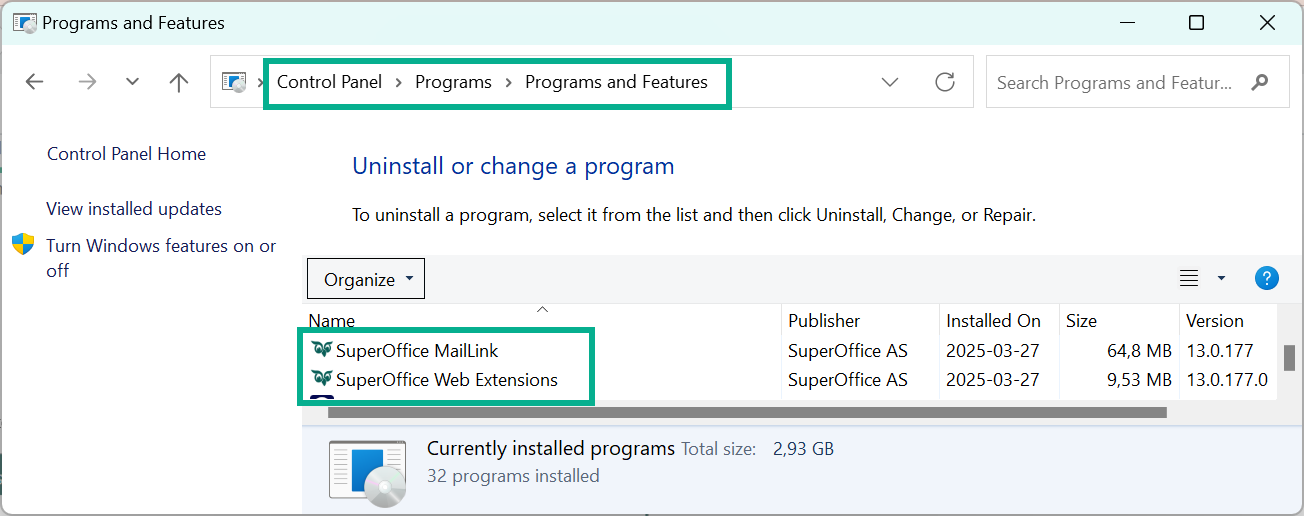
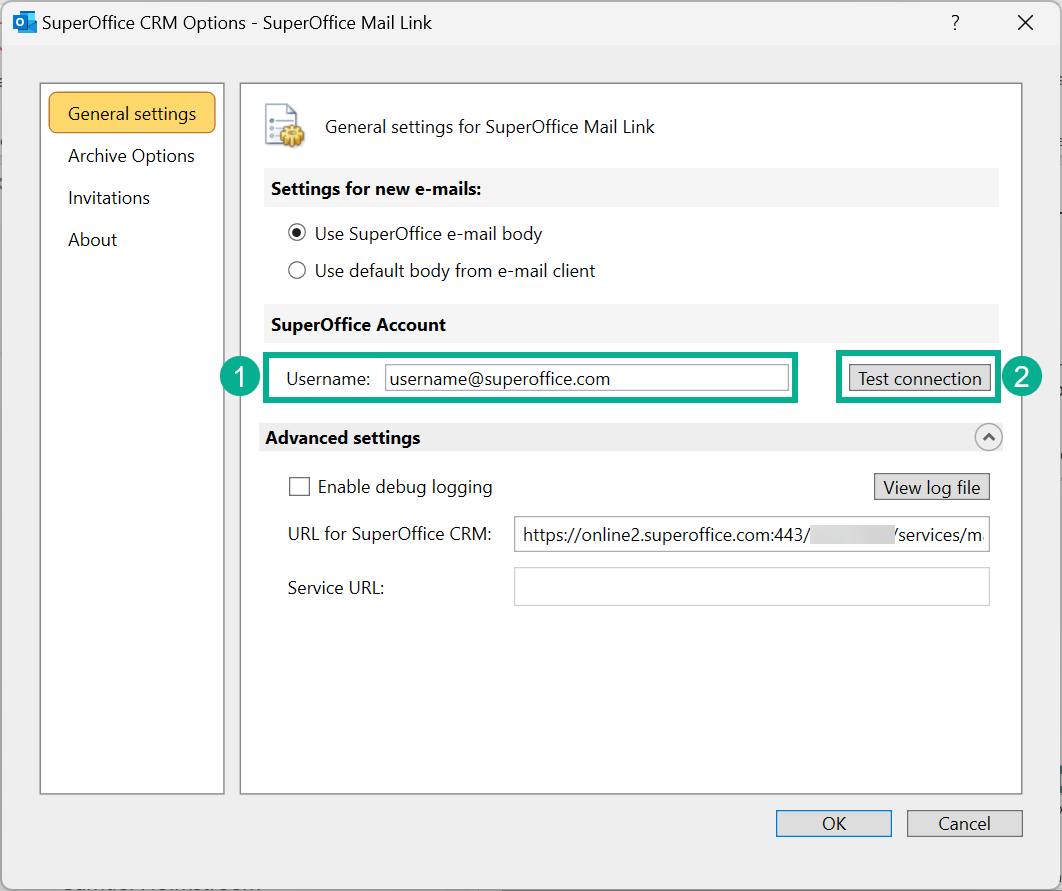
In the SuperOffice ribbon in Outlook, click the arrow next to the SuperOffice button to open the options dialog.
-
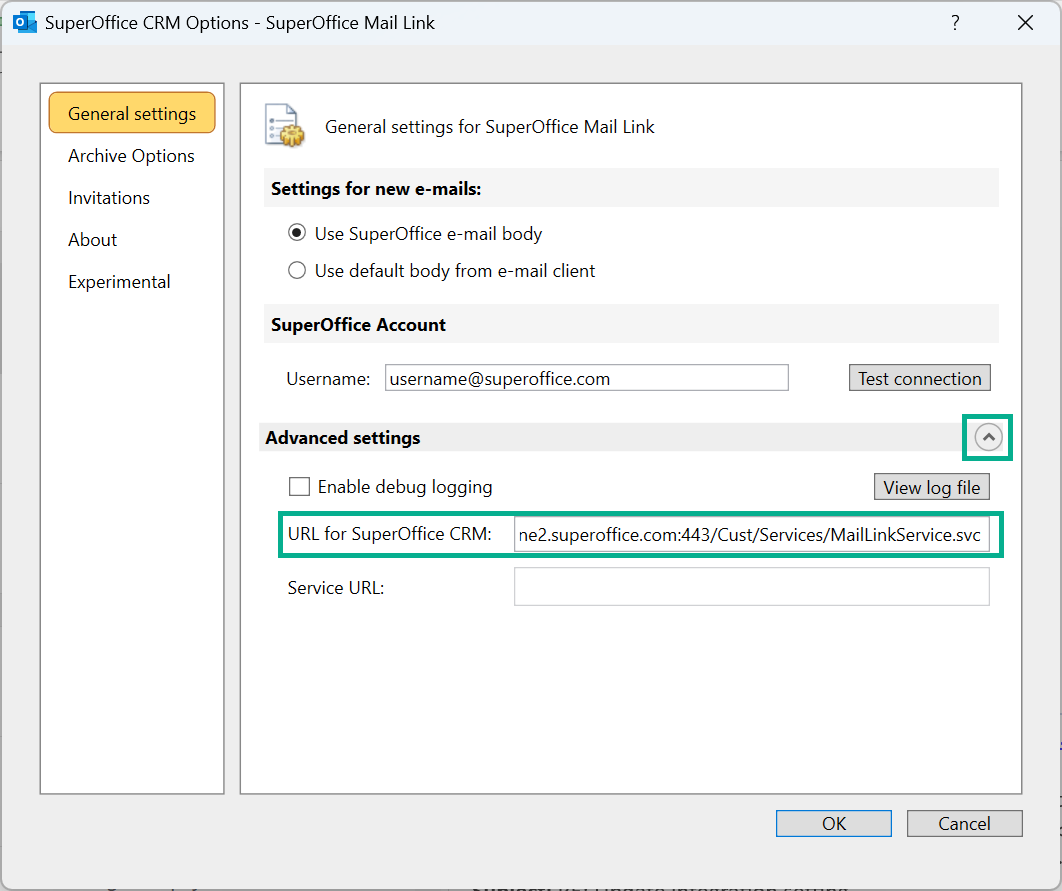
Expand Advanced settings and paste your SuperOffice CRM URL in the URL for SuperOffice CRM field.
-
In the User name field, enter your SuperOffice user name and click Test connection.
-
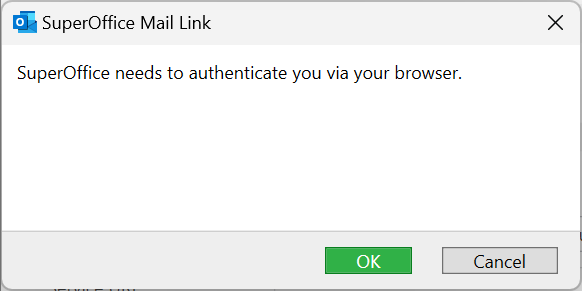
If prompted, authenticate via your browser and click OK.
-
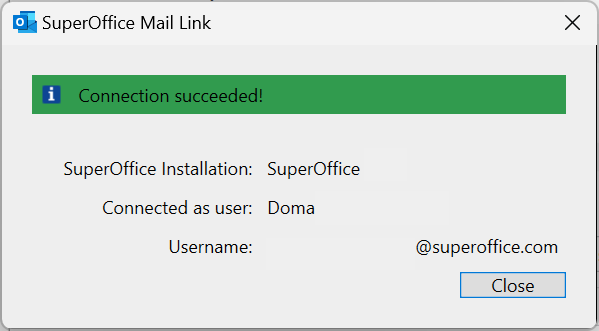
When you see Connection succeeded, click Close, then OK.
These steps also apply if Mail Link loses its configuration after a computer environment change, such as an OS update, new browser, or new computer.
Related content
- Connect email, documents and diary
- SuperOffice for Outlook - the recommended Outlook integration