Screen designer - Quick action buttons on request message
To create a better working space for your users, you may sometimes need to fine-tune the different screens in SuperOffice. By selecting the quick action buttons in the message on a request, you can customise the button bar to control what different users should see or not see. In the Screen designer, under the Request tab, you can edit the screen and select the Quick action button bar. Here, you can select which buttons to hide.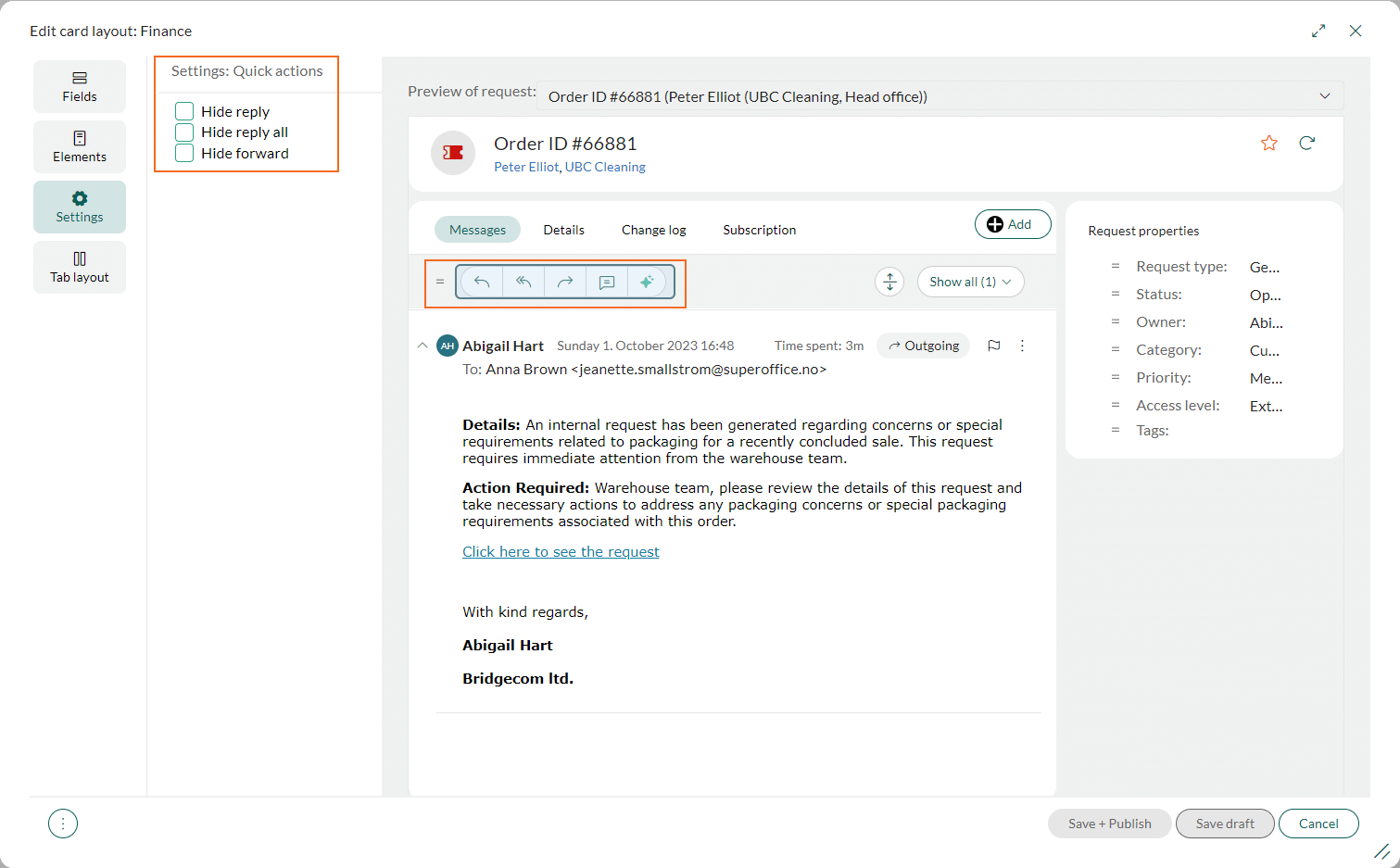
CRMScript - Use the Map class to define a list
In CRMScript, you can define list items using key-value pairs with the Map class. This approach simplifies logic when checking selected values in custom dialogs:- The key (ID) is the return value when a user selects an item.
- The value is the display label shown in the dialog.

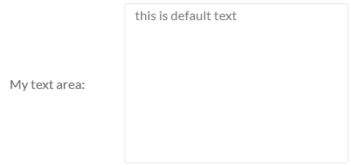
CRMScript - Add a multi-line text area
To include a multi-line input field in a CRMScript dialog, use theaddTextarea method. You can also specify default text, size, and layout parameters.