

New UI for SuperOffice CRM
The release of 10.5.1 contains a new user interface as well as some functional changes and additions. Hope you all enjoy the new UI and possibilities. The main changes are:- Colours, tabs, and buttons
- Top bar
- Diary
- Side panel favourites
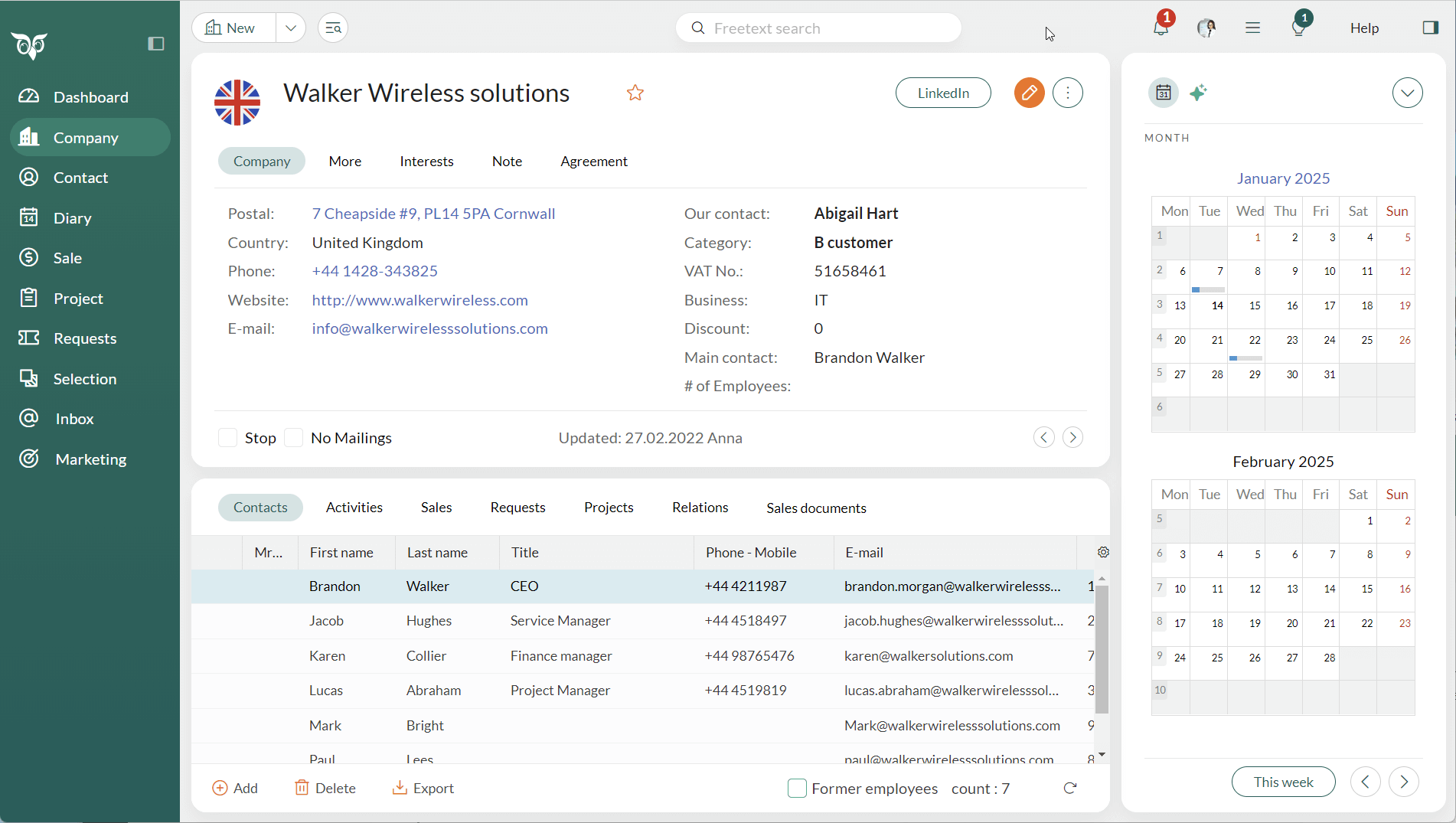
Top bar - New button
The New button has two different options, one New to create new context based content and one arrow or drop down to select between all content types. Ex. 1: If your current view are Company, clicking the New button will create a new company. Ex. 2: If your current view are Diary, clicking the New button will create a new follow-up.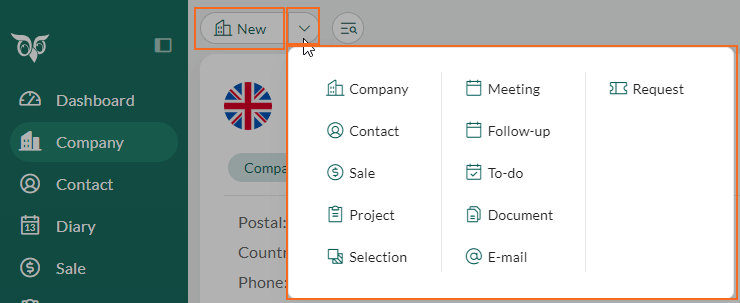
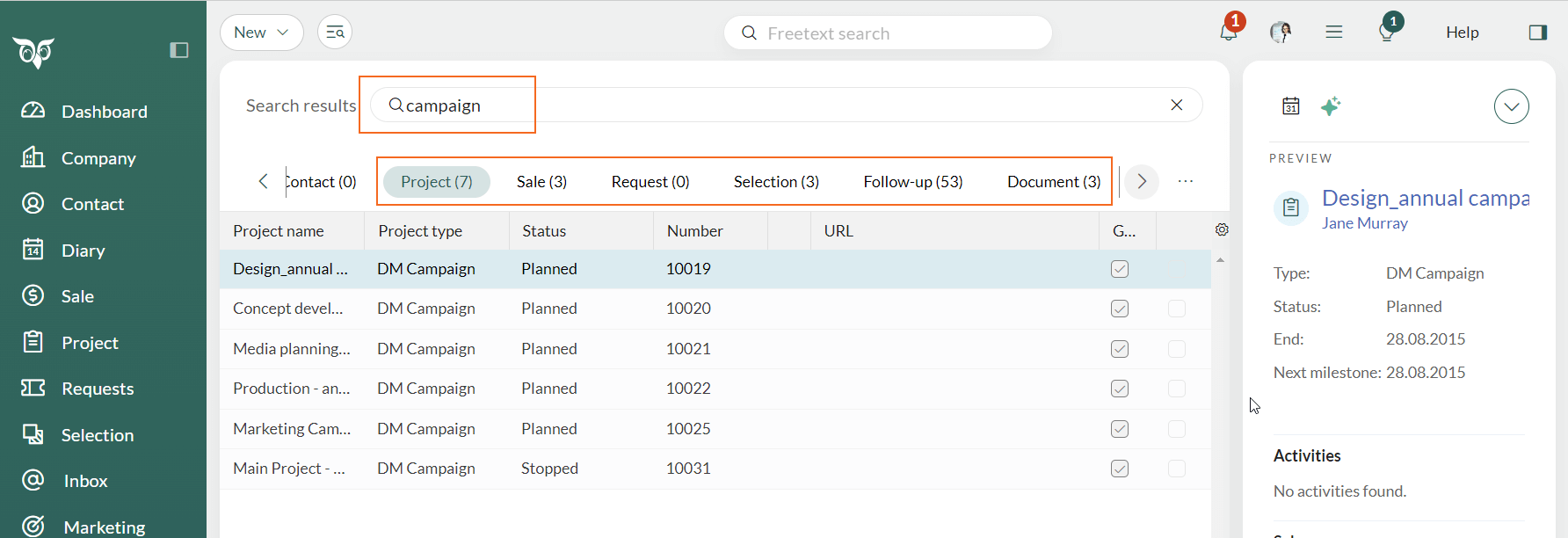
Top bar - Freetext search
The freetext search field are placed in the middle of the top bar, making it more accessible for you when searching through all content types for something.
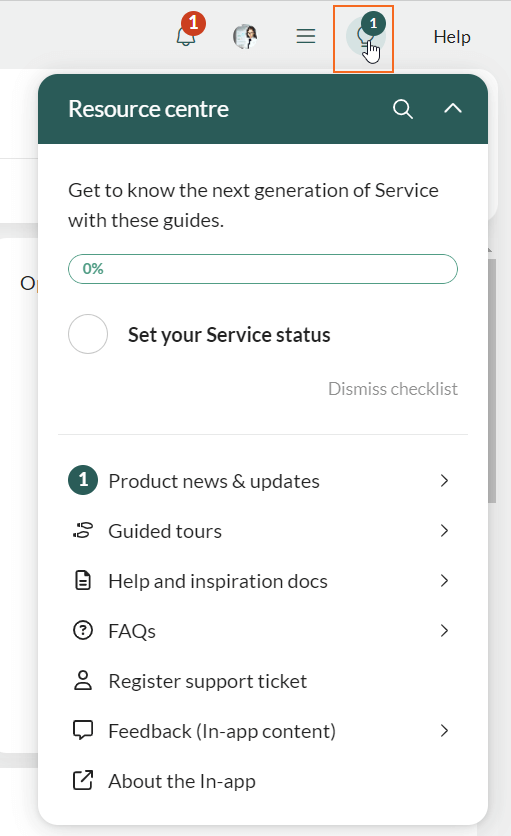
Top bar - In-app Resource centre button
The floating In-app Resource centre button has moved into the top bar, instead of floating in the bottom right corner. You have access to all help content in one corner and it makes it easier for you to seek help in your daily work.
Dashboard tiles and edit
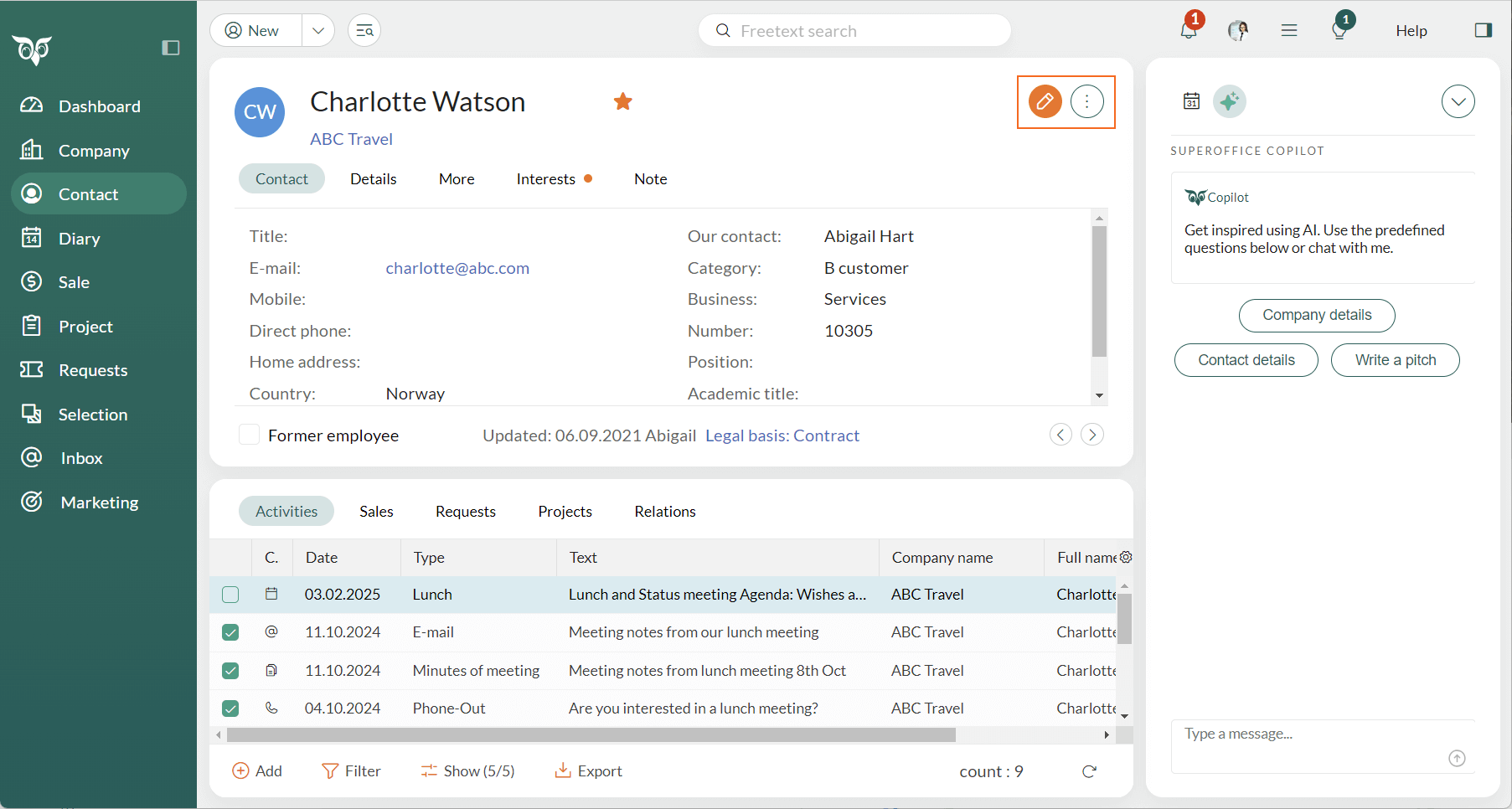
With the Edit button directly beside the Task button, you click one time and can start edit, add or delete dashboard tiles and save it just as easily.
Main cards - Edit and task moved to top
With the Edit and Task buttons in the upper-right corner of your main cards, it’s easy to edit and click on the Task button to your job more efficient. The following main cards have the Edit and Task buttons in the upper-right corner:- Dashboard
- Company
- Contact
- Sale
- Project
- Request (not Requests list)
- Selection
Diary - Move of Todo list and View tab with different previews
Diary - Move of Todo list
In Diary you have two options on how to view your checklist or to-dos for Activities and Sales:- To-do list in the top section with the Diary tabs.
- To-do list in the section tabs at the bottom.


Diary - View tab with different previews
As for the View tab, where you can see the calendar of more than one associates, you can choose two different previews where you swop between time grid view and timeline view:- Vertical/side-by-side view: See your team’s calendars organised in columns for a clear overview of each day.
- Horizontal/scheduling grid view: Plan across multiple days with a scrollable timeline.

Side panel favourites
You probably have a couple of side panels you like to use, depending on the different main cards you are on and what job you are doing. With the option to set side panels as favourites, you can easily swap between the different side panels by clicking the pinned favourite side panels. Just mark the side panel with a star ⭐ and it’s shown as a button in the side panel header.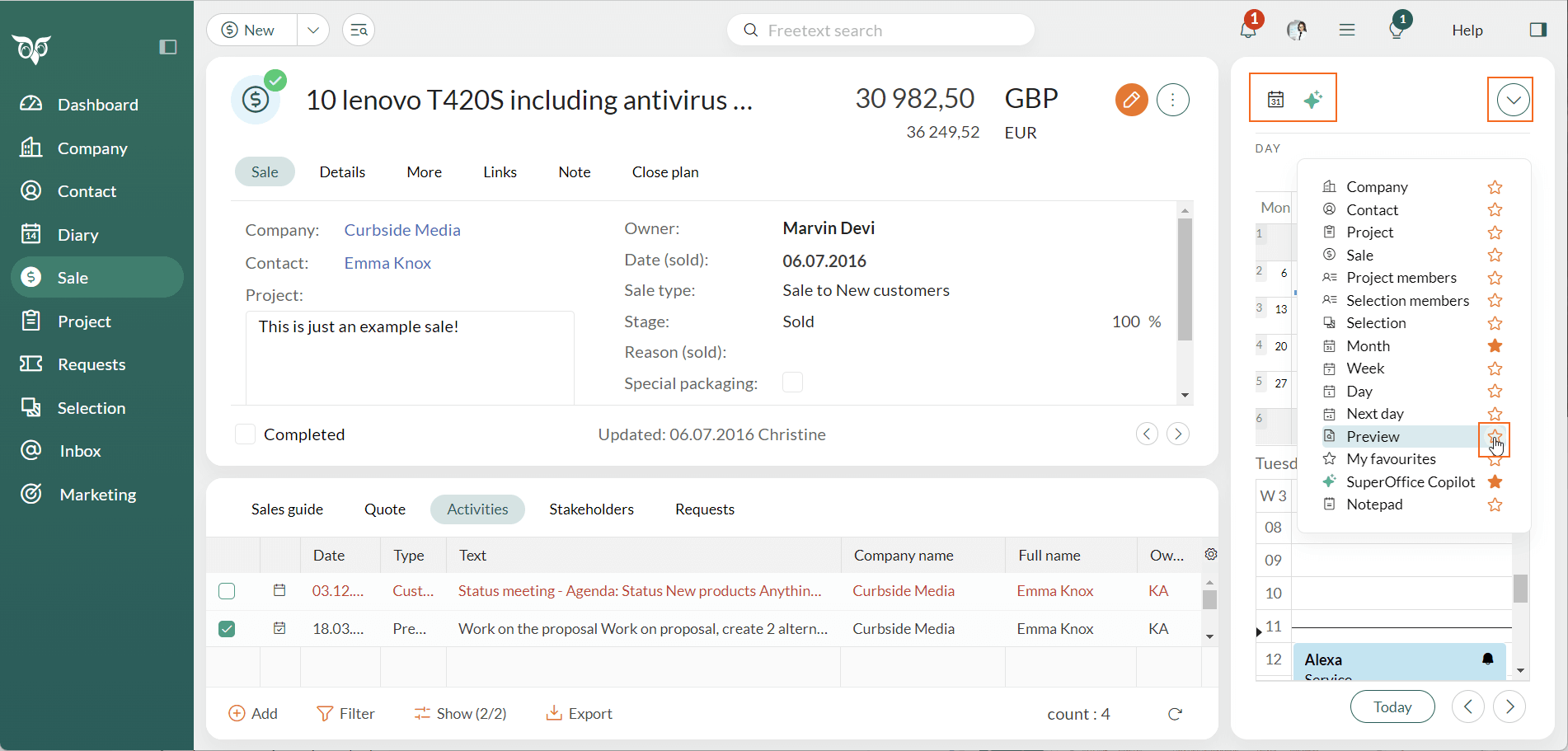
SuperOffice Copilot - Text editor with AI options
When you write a text in a text editor like a follow up (or any other place where you have a text editor), you sometimes want to make the text better and with more “oomph”, and it would have been so nice to get that help instant. With the AI text help ✨ in the formatting footer, you do have that option! You can create text, fix spelling, translate, use formal style, use casual style, lengthen text or summarise text. Read more about how to use the rest of the magic of SuperOffice Copilot.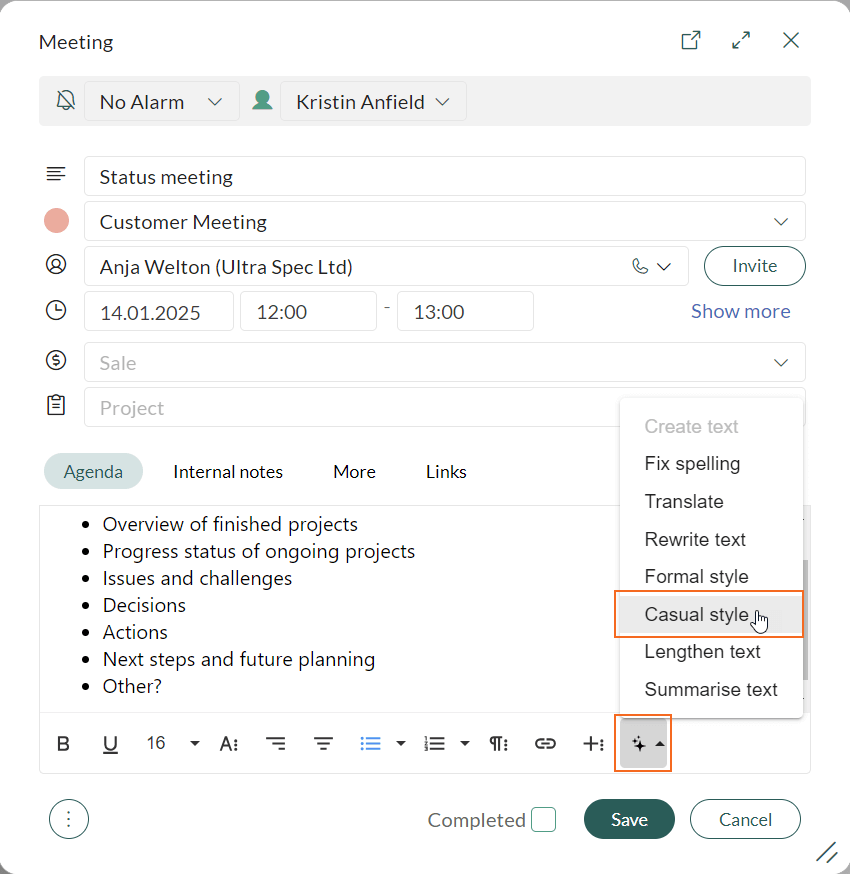

If you don’t have access to SuperOffice Copilot (AI Lab), you can read more about how to give your consent for AI Lab in Settings and maintenance.