

Feature updates
Follow-up - Description split into Title, Agenda, and Internal notes
With the changes to the Follow-up dialog in SuperOffice, the same changes are seen in the Mobile CRM app.The description field is now divided into three distinct fields: Title, Agenda, and Internal notes. You can also add a participant by entering only their email address. This is handy if the attendee is not already added as a person in SuperOffice.
Follow-up - View all links between different content
When working with follow-ups, you may need to link to other content such as documents, other follow-ups, sales, projects, and URLs. All these links are now visible in the Links section. Simply select the button to view all linked items.Please note, links can only be added from SuperOffice CRM, not from the Mobile CRM app.
Follow-up - Add email addresses as attendees
Working with follow-ups and invitations you may encounter issues when attendees are not in your SuperOffice CRM contacts.Now, you can add an email address as an attendee from the Task menu in the Participant screen. This allows you to send invitations immediately, even if the person is not a contact yet. You can consider adding them as a contact later.

Request types
All requests that are registered in SuperOffice have a request type. The default type is “Request”. A specific request type targets a set of attributes needed for a specific process. The main benefit of request types is efficient support.Mobile CRM supports changing a request’s type and adheres to available status-, priority-, and default values. You cannot filter which fields to show or hide.The possibility to configure Request types is available only to customers with a Service Premium plan.Learn more
Drill down on Dashboard
Working with dashboard sometimes gives you some numbers you are more curious about.With the drill down option on dashboard, you have the option to select the wanted section, see the details behind the section, and then even go further down to see the actual item in the section.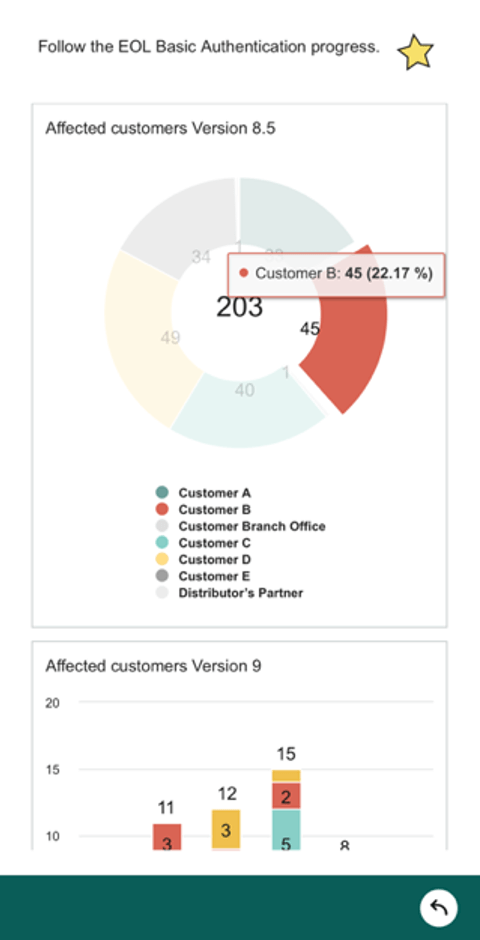
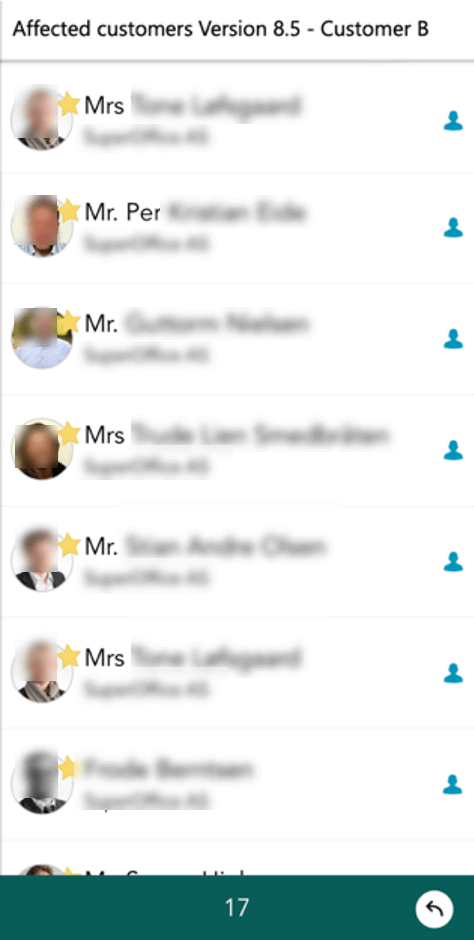 Tile entities not supporting drill down in Mobile CRM:
- Product
- Chat conversation
- Form submissions
- Mailings
Request with sale and project fields
When you are in a sales process or working with a project it’s neat to link this to incoming requests. Add wanted project and sale to the request, and you find the request under the request tab on the sales or project screen.Read more about requests in the Learn section.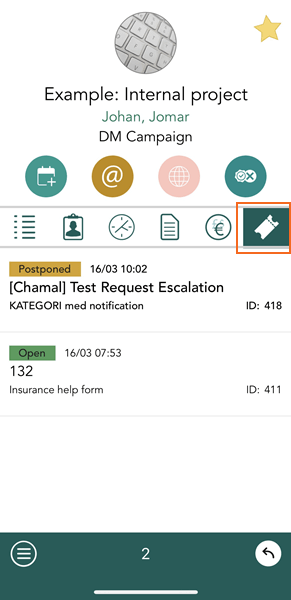
Filter icon on Task button for lists
When you view different lists, you can set a filter on what you want to see in the list. Going to a different contact or company or view, that the filter is still set will sometime give an empty list or a view not containing what you are looking for. Having the visual knowledge that a filter is on, it’s easier to remember to change the filtering or remove it and continue to view all items in the list.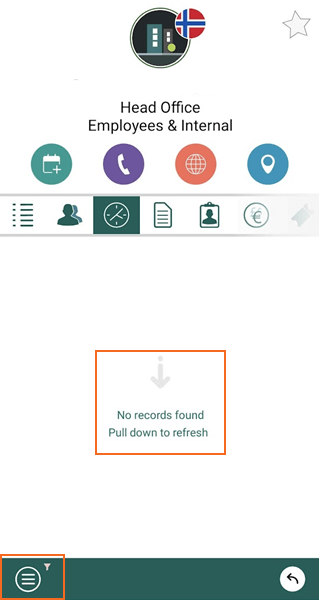
The floating +New button
With the floating New button it’s very easy to create new content wherever you are in the application. Go to any archive and click +New to add new entity.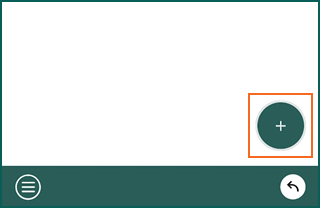
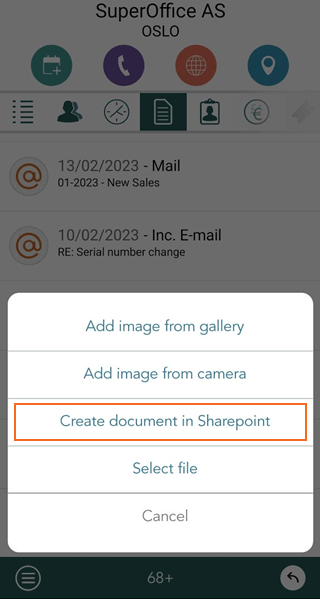
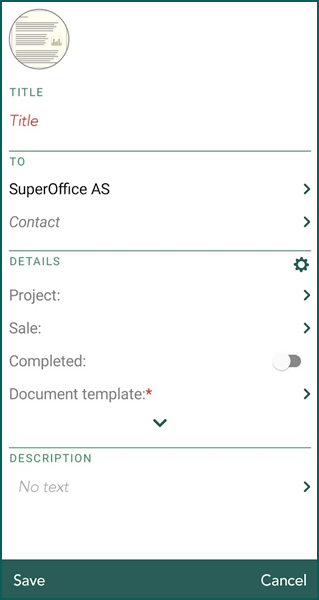
Create SharePoint documents
- Create your SharePoint documents from Mobile CRM.
- If you use a tablet you can also drag and drop files to Mobile CRM.
- Share SuperOffice SharePoint documents as links or attachments in emails.
- Drag and drop many attachments on a request message or on a request and a new request message will be created.
- Drop images or files into the Mobile CRM app.
- Share content or files with Mobile CRM from other apps.
- Share documents from Mobile CRM with other apps.
The experience is best with the Microsoft 365 apps installed on your mobile phone.
Custom tasks to run a CRMScript in Mobile CRM
Custom tasks running CRMScript that are defined in SuperOffice CRM can also be triggered from the Task menu in Mobile CRM if Shown in Mobile CRM is checked ON for the Task menu list in Settings and maintenance.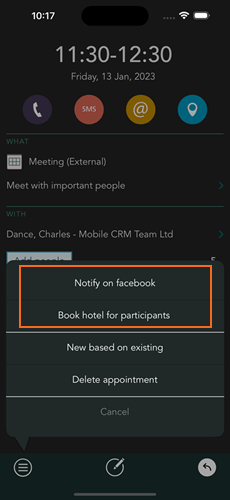 Make sure to log out and in again in Mobile CRM to make sure all your caches are updated after you have created a new Task menu definition in Settings and maintenance.Read more in the Core CRM section and how to set it up in Settings and maintenance.
Notifications - Notifications for Sale Quote approval
In Mobile CRM you will now be notified if someone needs approval for their sale quote to be sent to customer. You can see all the important details about the sale in Mobile CRM and Approve or Deny the sale quote. The person who issued the approval will get notified immediately. This makes the quote approval flow easy and without any friction. The sale must go on.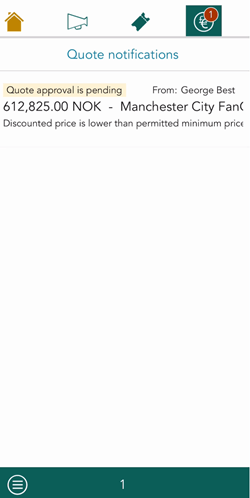
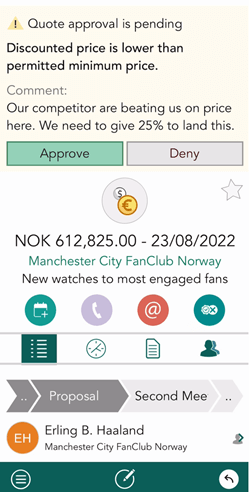
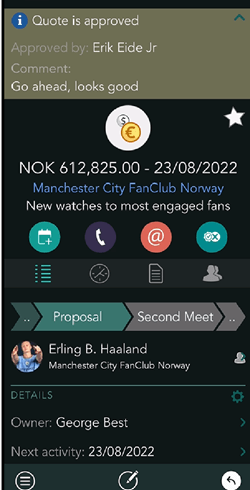
This feature requires SuperOffice CRM v10.1.5 or newer and Mobile CRM v10.2.2 or newer.
Search - Search for anything
The search engine for Company/Contact, Sale and Project gives you the option to search for any property within an entity, like phone number, email address, project number, and so on.You start the search from the Search button on your keyboard, which is closer to your thumb.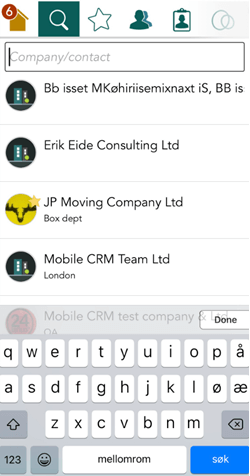
CallerID - Identify your calls with Mobile CRM
When you get incoming calls and the caller is not one of your contacts, you can choose to use Mobile CRM to show you the caller ID.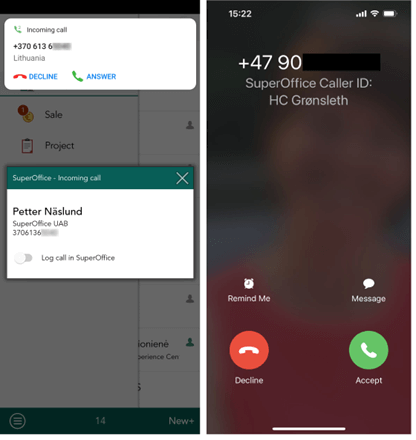
- Go to Settings and click on Allow call identification.
- Follow the procedure to set it up. Step-by-step instructions
There are more functionality available for the Android than the iOS. This is due to the limitations in the iOS platform. For Android we can also offer to save the call as a phone call in Mobile CRM after the call is finished.
Notifications - Request notifications
Both the Notification center/Notification drawer and the Notification screen in Mobile CRM will notify you about requests changes.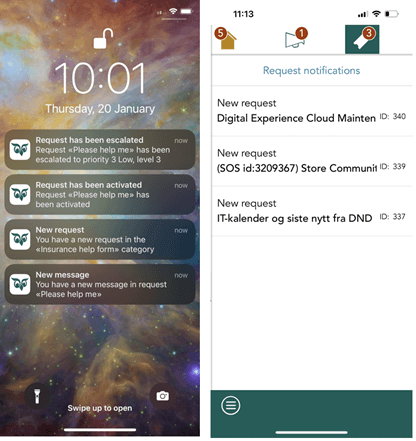 In addition, you can filter on type of Request notification so you see only a subset of the Request notifications. This is fine tuned in the Settings, Notifications screen.
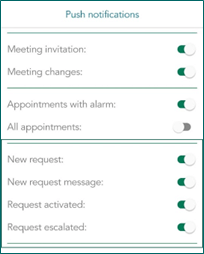 Notification Centre (iOS) / Notification drawer (Android): Get notification on various request events in Service in Mobile CRM when new requests are assigned to you, when your assigned requests have been changed or are updated and when requests are reactivated or escalated. Click the notification to open the request in Mobile CRM.Mobile CRM Notification screen: A new tab for Request notifications has been added to the Mobile CRM Notification screen. You will see the same Requests notifications as in the Notification Centre/Notification drawer. In addition, you can filter on type of Request notification so you only see a subset of the Request notifications.
Mobile CRM - Diary with drag-and-drop
With the drag-and-drop function in Diary, you can be pretty efficient to reorganize and move around your follow-ups like appointments and phone calls.- Click on the wanted appointment. It shows the appointment over the whole diary.
- Push down and then drag it to the new time you want the appointment.
- Release your finger when you are happy and the appointment is moved.
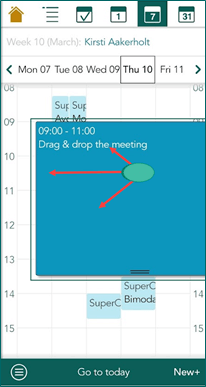
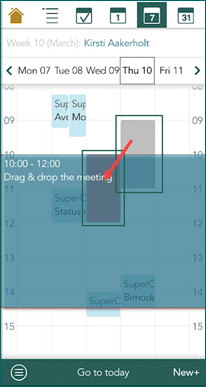 You can of course also drag and drop inside the diary to create new follow-ups.
This functionality is not new. However, earlier, scrolling up and down caused appointments to be moved unintentionally; now, the pause prevents this.
Mobile
Mobile CRM - Show stop on Company
The stop sign on Company can be used for a lot of things. The most common way to use it is if there are issues with payment, the customer is in the progress of canceling their engagement or the company needs to have some special treatment that you, as a user, need to be aware of.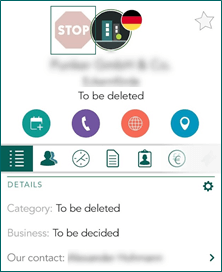 When a company is marked with the Stop sign, it’s useful to see it at once, instead of scrolling down the details list to see the check box on/off. The stop sign in the header will give you an instant warning before you do anything with the company.
Mobile CRM - Add multiple images to a request
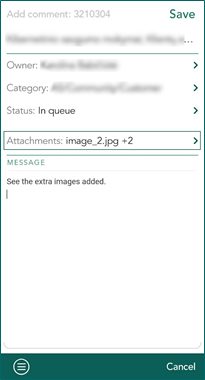
When replying to a request, you can add an image to the comment. It’s pretty nice to be able to add multiple images in one go.- Go to the Menu.
-
Select either Add image from gallery or Add image from camera.
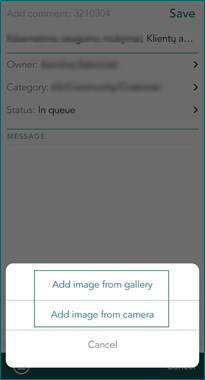
- Select the different images you want.
-
Confirm and then save your comment.
Scripts - Support of scripts in Mobile CRM
Mobile CRM adds support for executing additional CRMScript event triggers. The event scripts need to be defined in the Service web client.Mobile already supported triggers in these categories:- Service: new request
- Service: request changed
- CRM: before save
- CRM: after save
- Stakeholder
- Quote
- Relation
- Selection
- Selection member
One feature from CRMScript triggers that is currently not supported in Mobile is NavigateTo (neither custom or soprotocol navigation).
Mobile CRM - Dashboard support
The support of new functionality on Dashboard in the desktop client.You will see the Pinned and Favorites dashboards as tabs, together with the search for dashboards.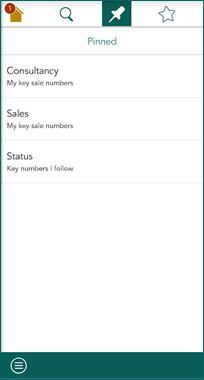
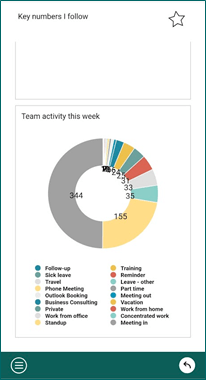 You also have the possibility to add existing dashboards as your favorites by clicking on the star, and with easy access from the Favorites tab.
DiaryVideo meetings
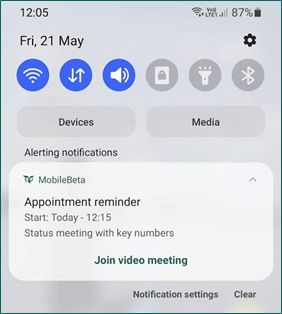
DiaryVideo meetings
Mobile CRM - Join video meeting from appointment
Using the Video meeting option in SuperOffice CRM, you can also join the meeting on the go with your mobile.- Open the appointment.
- Click the Join video meeting button.
- Your device will select the best option to attend the video meeting, either with an app or with the browser.
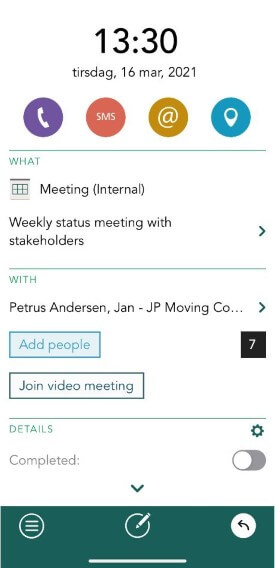 The activity list also shows an icon to indicate which appointment is a video meeting.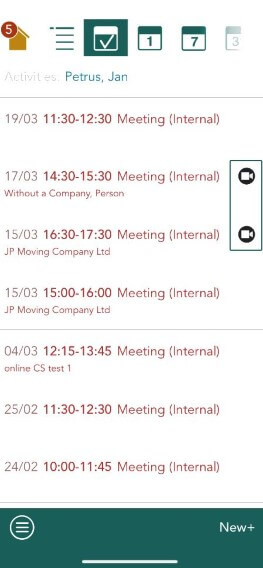
CompanyContact list
Mobile CRM - Save phone number to device from company screen
Some phone numbers you find on the Mobile CRM app might come in handy to have stored on your device.- Find the wanted company (or contact).
- Go to Task.
- Select Copy to contact list on your device.
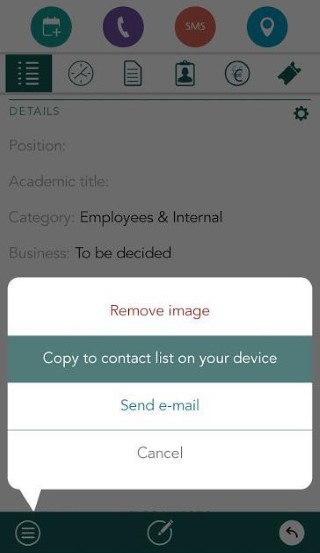 If you choose to save a contact, you also get fields such as the birthday and some company details.
Mobile
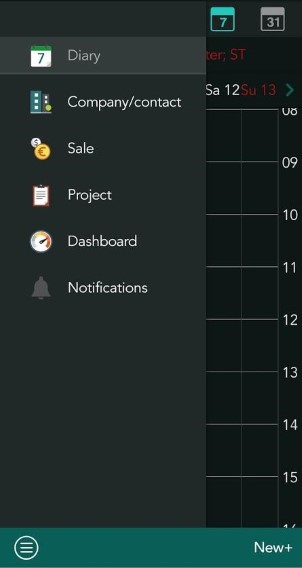
DiaryFollow-ups
Mobile CRM - new header in the Appointment screen
We have implemented a new and improved header to clearly show the date and time.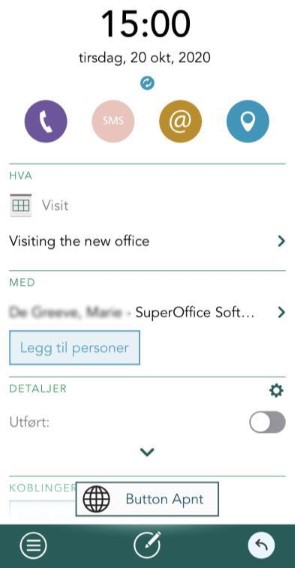 Action buttons have also been added for faster access to the most used functionality.
Mobile CRM - improved user experience for action buttons
When you click on any Action button that takes you to another application, (for example Maps, email) or starts a call or SMS, you will now go through an additional step.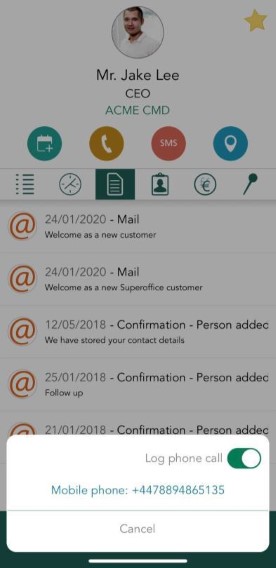 Before the action is carried out you will be able to see the address, email, phone number, and such that the Action button will use. You can then decide whether to continue with the action.
Mobile
Confirm swipe action on recurring meetings
Confirm swipe action added to canceled recurring meetings. Canceled recurring meetings are faster to confirm with a new swipe action feature added to SuperOffice Mobile CRM.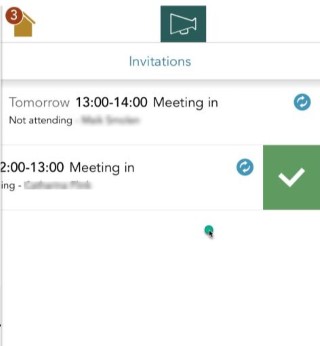 When you receive a cancellation notification, swipe to the left, and a tick option will appear. Simply click on the tick to confirm.
Multitasking on an iOS and iPadOS
Users of SuperOffice Mobile CRM installed on an iPad that supports multitasking will now be able to run the app together with other apps in a Split View. Split View allows you to display two apps on the screen in their own re-sizable panes.Business card scanner supports QR Code Scanner
The business card scanner in the SuperOffice Mobile CRM app now supports QR Code scanning - making it even faster to scan and add a new contact.Rank your web panels
WebPanels added to your SuperOffice Mobile CRM application via your SuperOffice Settings and Maintenance can now be ranked and chosen in a preferred order.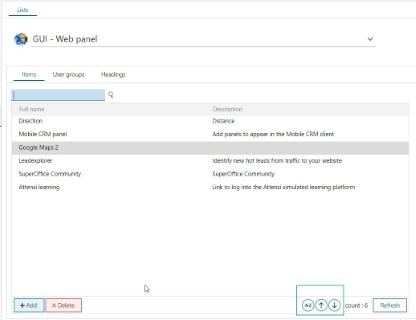
Choose icons for Web.Admin for web panels
Web.Admin for web panels now contains icons you can choose from for the web panels added to your SuperOffice Mobile CRM application.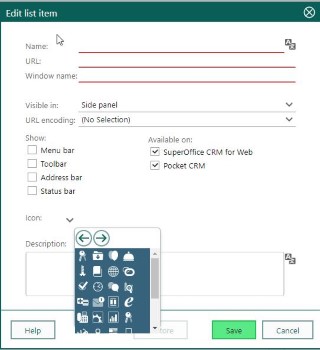
Mobile
SuperOffice has launched a new CRM app
We have released a new mobile CRM app: SuperOffice Mobile CRM. You can recognize the new Mobile CRM app from the green SuperOffice logo.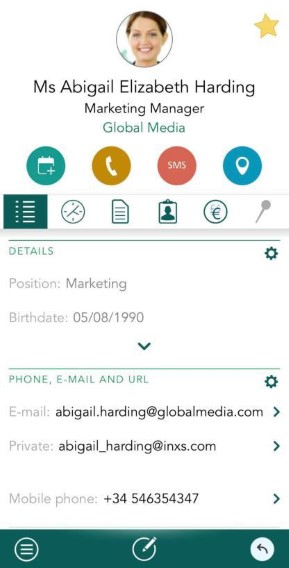
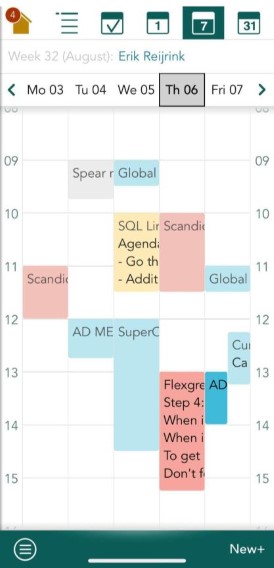 The new app has the new look and feel as the SuperOffice CRM version 9. It is also significantly faster to use. All new features will be added to the Mobile CRM application under the G9 roadmap.All users of SuperOffice 9 are advised to download and use the new mobile CRM app instead of the Pocket CRM app. If you use SuperOffice 9, you can continue to use Pocket CRM, however, we will not develop any new features for the Pocket CRM app.Users who use SuperOffice version 8.5 or lower can continue to use Pocket CRM as they are used to.Our previous CRM app, Pocket CRM, will still be available and show data from your SuperOffice database when you use SuperOffice 9. However, we will not develop new features for Pocket CRM.
How to upgrade
To be able to use the new app you need:- SuperOffice CRM version 9.1 or newer
- Android OS: version 5.0 or newer
- iOS: version 10.0 or newer (iPhone 5S or newer)