

Feature updates
Diary - Repeating follow-ups
Set up a repeating follow-up without leaving Mobile CRM. Repeat creates a series of occurrences directly on your phone or tablet, the same way recurring appointments and follow-ups already work in SuperOffice CRM.Without recurrence in Mobile CRM, a repeating series means creating each occurrence by hand, or switching to SuperOffice CRM.The mobile version trades SuperOffice CRM’s full pattern builder for a fixed set of presets, and requires every series to be bounded by an end date or a number of repeats. Whichever one you set, the other is calculated for you, so the series always has a defined end. Bounding the series at creation keeps performance predictable, since an unbounded series would force the platform to generate, store, sync, and render an ever-growing number of occurrences.You’ll find Repeat in the appointment form when you create or edit a follow-up, directly under the Starts and Ends fields. It’s set to Never by default; select Every day, Every workday (Monday to Friday only), Every week, Every month, or Every year to turn on a series, and the End repeat and Number of repeats fields appear once you do.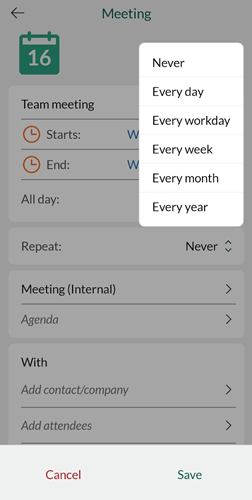 Set either an end date or a number of repeats. Whichever field you fill in, the other updates automatically to match, and you can change either one at any time before saving. Once saved, the follow-up becomes a series ending on the date you set. To turn recurrence off again, set Repeat back to Never. Both fields clear and disappear.
VoiceNote - voice-to-text notes on follow-ups
Capturing meeting notes without typing is possible directly from a follow-up: dictate the note, and an automatic AI refinement step cleans it up, removing filler words, adding punctuation, and tightening repetition, before it’s ready to save.In the task menu of a follow-up’s Edit agenda or Edit internal notes screen, select Add voice note, then stop recording when done. The refined text is shown for review and can be edited before it’s appended to the follow-up.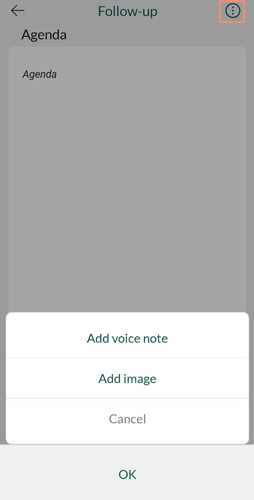
Get started - a clear welcome screen for logging in
The Mobile CRM welcome screen is built for clarity: rounded elements, theme-aware colors, and strong contrast make it easy to read whether the device is set to light or dark mode.The welcome screen appears when opening Mobile CRM, offering Log in now or, for anyone who needs to connect the app to a SuperOffice installation first, Are you an Onsite customer?.Tapping Are you an Onsite customer? allows the user to connect Mobile CRM to a onsite SuperOffice installation: by entering the server URL and tapping Connect.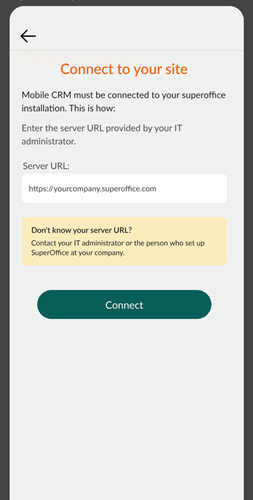
Request - View request relations
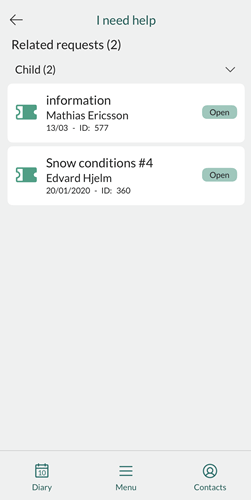
Keeping track of how requests connect to each other is easier when you can see those relationships directly in Mobile CRM. Complex service scenarios often involve requests that depend on each other - whether one request is the parent of another, or several requests are linked side by side - and losing that thread means slower resolution and more context-switching.In the Related requests section of a request, each connected request is listed with its relation type, ID, and title. Tap any entry to open that request and see its full details.You need to use SuperOffice CRM to add, edit, or delete request relations.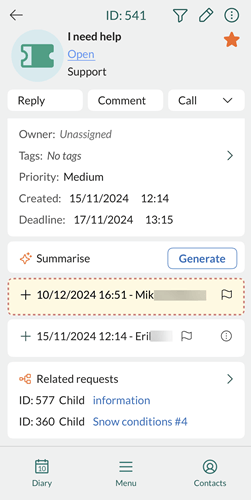
 Learn more about request relations in SuperOffice CRM.
Requests - Reply to a single message
Stay in context by replying to any individual message in a request thread, including to external contacts not registered in SuperOffice CRM.Long request threads can involve multiple contacts, and not every reply belongs to all of them.Open a request in Mobile CRM and tap any message to reply directly to it. When you reply, you choose exactly which contacts receive your response, internal or external, so the right people stay in the loop, even when you’re working on the go.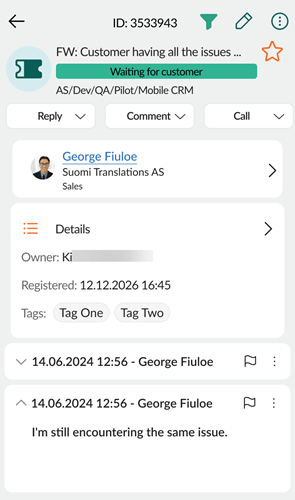
Move the + button (New button)
Keep important content visible by moving the + button away from wherever it overlaps your work. The + button sits in the lower-right corner by default, useful but easy to move if it overlaps content you need to see.Look for the + button in the lower-right corner of most screens. Press and hold it, then drag it to a position that works better for you. For example, if you’re often reading content in the lower-right corner, move the button to the left side instead.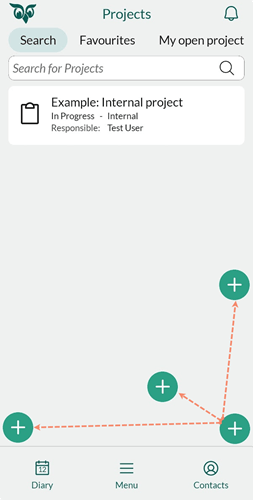
The position is saved per device. If you use both a mobile and a tablet, move the button on each device separately.
Biometric login for Mobile CRM
Log in to Mobile CRM with your fingerprint or face ID - no password needed. Passwords and two-factor authentication add friction to every login, especially on mobile.The option appears automatically when you open Mobile CRM for the first time after updating. Tap Yes when prompted to enable fingerprint or face ID login.Image background remover
A clean, neutral background makes profile and reference images look consistent and professional across your CRM. When adding or updating an image for a person, company, project, or document, you can take a photo directly in the app and remove distracting or noisy backgrounds in a single tap.You’ll find the option wherever you add or update an image in the app - for contacts, companies, projects, and documents alike.Simply take or select a photo, then use the remove background action () to clean it up before saving. Crop and rotate options are also available on the same screen.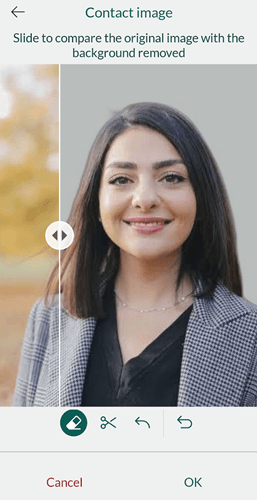
Request - Summarize messages
Get a quick overview of a request without reading every message.This feature provides fast, reliable insight directly in Mobile CRM, helping you stay informed and responsive wherever you are.When you are on the move and short on time, you can generate a summary of the conversation in a request. Simply select Generate in the Summarize section to instantly receive a concise overview of the messages. This makes it easy to understand the customer’s concerns and quickly identify any potential escalation signals.
To access this feature, you must be part of the AI Lab pilot program.
Lead categorisation - Automatic update of category on sale sold or lost
Managing leads often requires quick updates across multiple places. With Lead management, category updates for companies and contacts are now handled more automatically, where you set up different rules when sale is sold, lost, or registered.When a sale linked to a lead is marked as Sold, the category is automatically updated to the configured target category. You can also choose to prompt the user with a confirmation before updating the company or contact category.Company - Indicators for country and stop
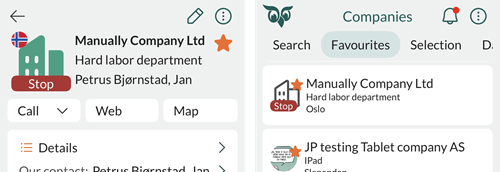
To work more efficiently with companies, it’s important to understand key information at a glance. The company list now displays:- The company’s country (as a flag)
- The Stop indicator, if the company is marked with Stop (indicates special handling is required for the company)
All day events in Diary
When using the Diary on a small screen, it can be easy to miss important information if you have many follow-ups. To help with this, all all-day events are grouped together at the top of your Diary, where you can choose to show or hide them as needed.If you have more than two all-day events, a link appears below the section showing +x more events, where x indicates the number of hidden events. Click this link to display all all-day events. Once they are visible, you can select Hide events to collapse the section again and see more of your Diary.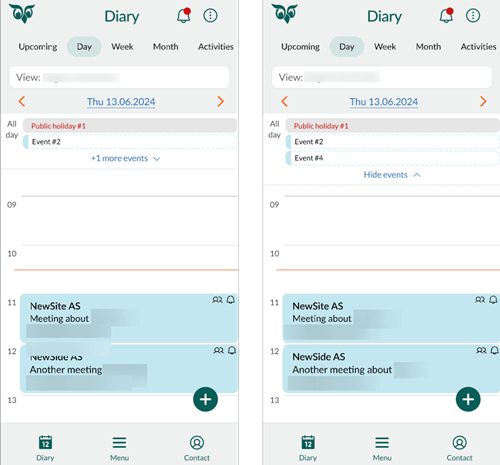
Sections for contacts - Show person type icon
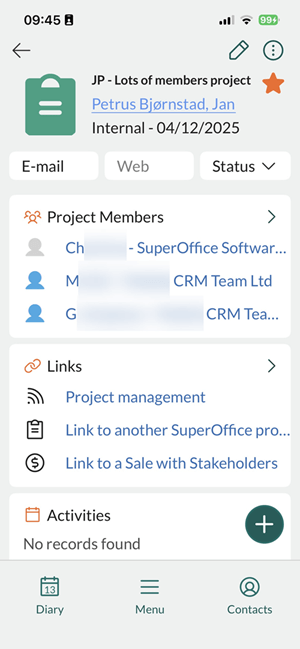
Screens such as Company, Projects, and Sales include a section for linked contacts. Selecting this section opens an overview of all related contacts.In the contact sections on the Company, Sales, and Projects screens, each contact in the list is displayed with an icon indicating their person type:- Green for yourself
- Blue for a colleague
- Grey for an external contact
New company - With company completion
Adding new companies can often be time-consuming and error-prone. Duplicate entries, misspellings, and incomplete details are common challenges when information is entered manually.With the Company completion functionality, you get smart suggestions that help you avoid these issues. You’ll see both existing companies already stored in SuperOffice and suggested company details from external sources. This allows you to quickly verify the information and add the correct company with just one click - a fast and efficient way to keep your data clean and accurate.Scroll through the list to review the suggestions:- Companies already in SuperOffice are shown with a company icon first in the list.
- New companies are shown without an icon last in the list, and you can expand the drop-down to view more details.
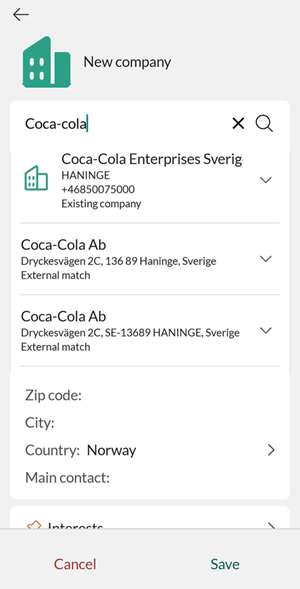 If none of the suggestions are relevant, you can select Skip and add the company details manually.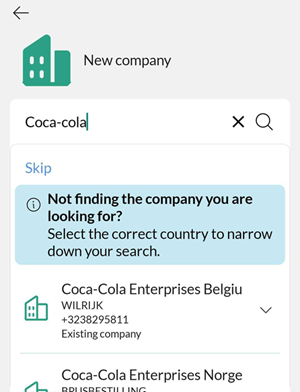
Company and Contact - Lead status
To support a structured lead qualification process, sales teams need to distinguish between new, in-progress, and disqualified leads.When setting up your lead categories, each category includes a Lead status field. This lets you define exactly where a lead is in its journey and fine-tune how leads are managed and followed up throughout the sales process.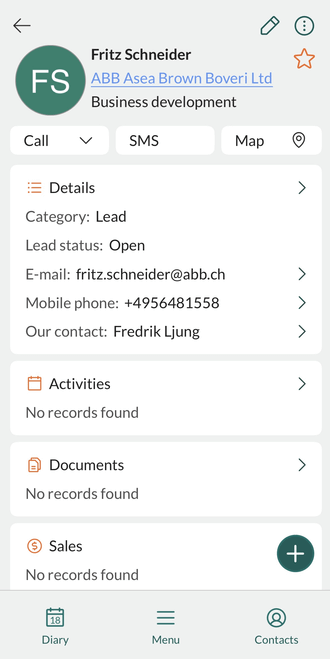
Follow-up - Complete follow-up by long press
Your Diary often contains follow-ups that need quick action - whether that’s completing, deleting, or reviewing them.To work more efficiently, simply long-press a follow-up to open a menu with key actions:- View follow-up
- Complete (toggle)
- Delete follow-up

Scan business card from the create menu
We uses AI to analyze the business card and achieved an almost 100% accuracy. Because of this you will not need to swap fields and values, like moving a post code number from the phone number field into the post code field.You can also initiate the business card scanner from the Project screen and by that automatically link the Contact to a Project.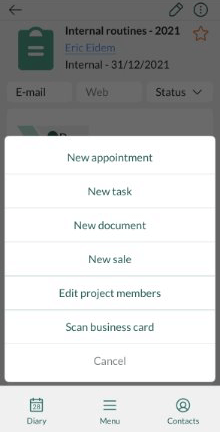
Follow-up - Create video meeting link
Using Mobile CRM on the go is important for many SuperOffice users. When creating a meeting, you can also add a video meeting link (if your system is set up for video meetings). An invite is then sent to all participants with the relevant details.To do this, simply create a new follow-up, add your participants, and click the Meeting URL field to generate a video meeting link.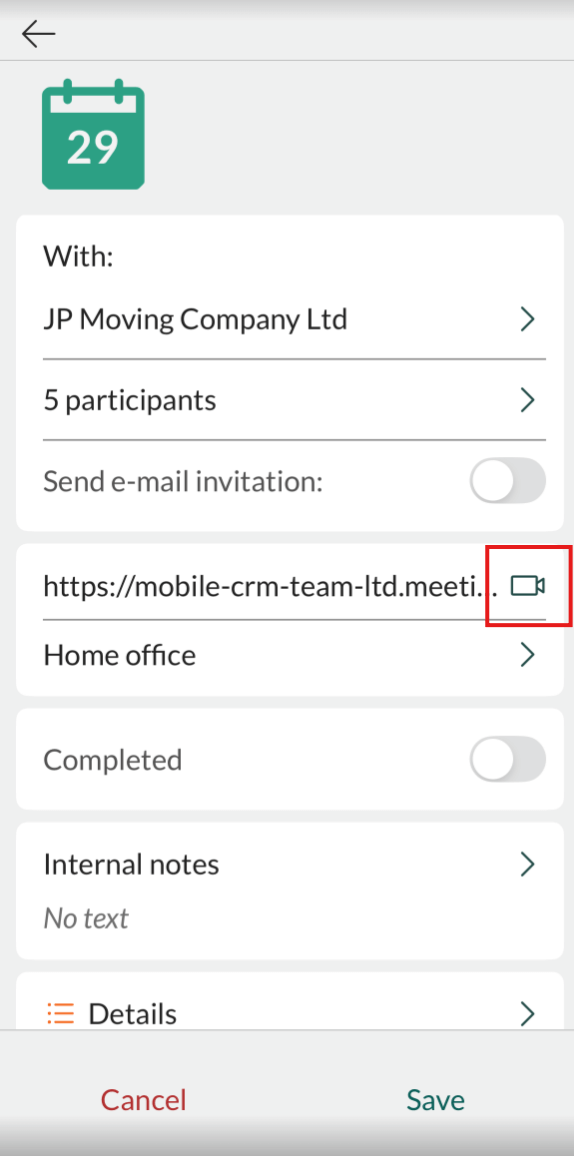
Project - Display links
When working on projects across multiple teams or systems, you often need to bring information together from different sources. The Links tab makes this easy by letting you connect activities, sales, projects, documents, or websites directly to your project.To access everything you need on the go, just open Mobile CRM, find the project and view all the connected links in one place.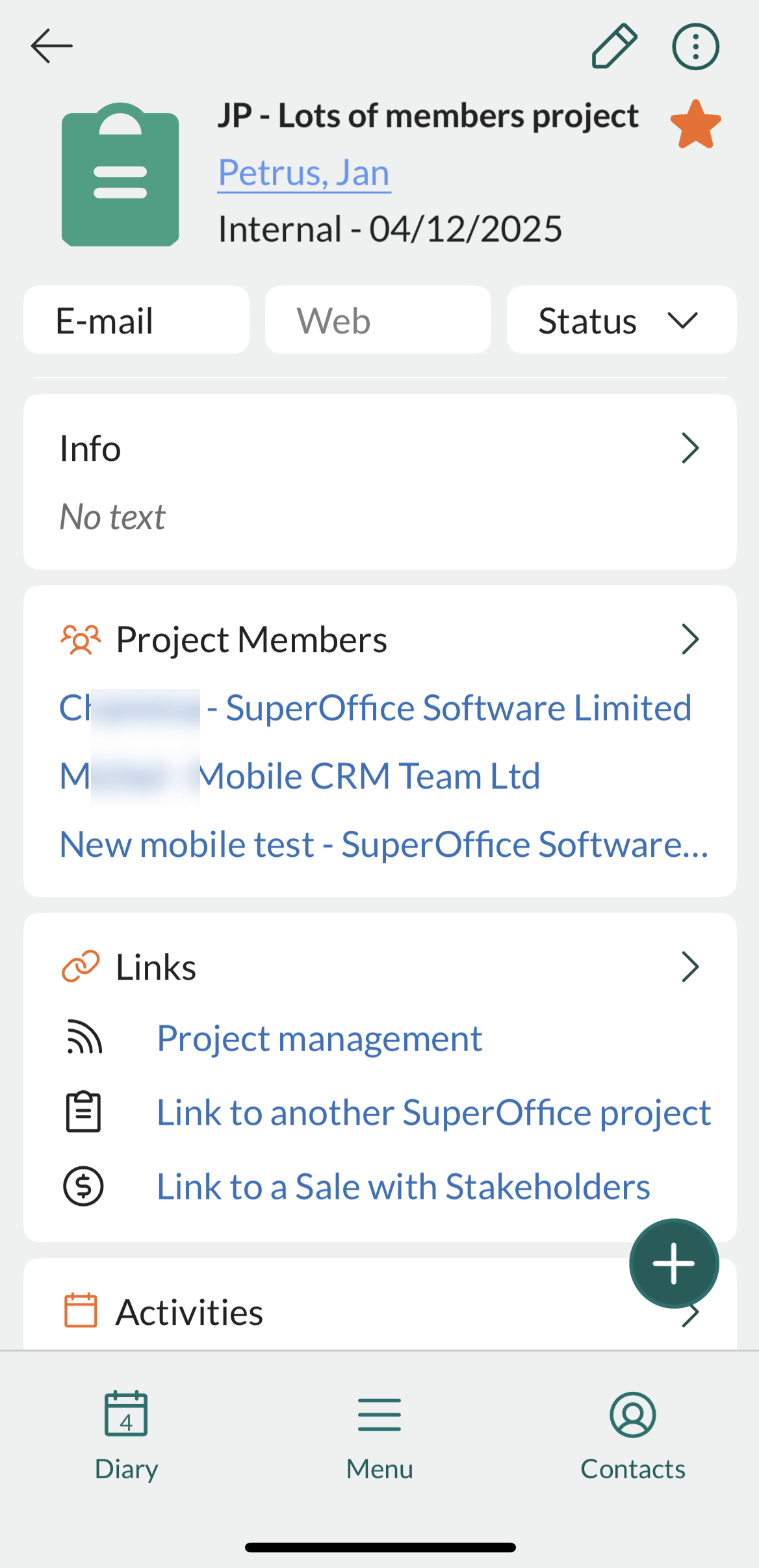
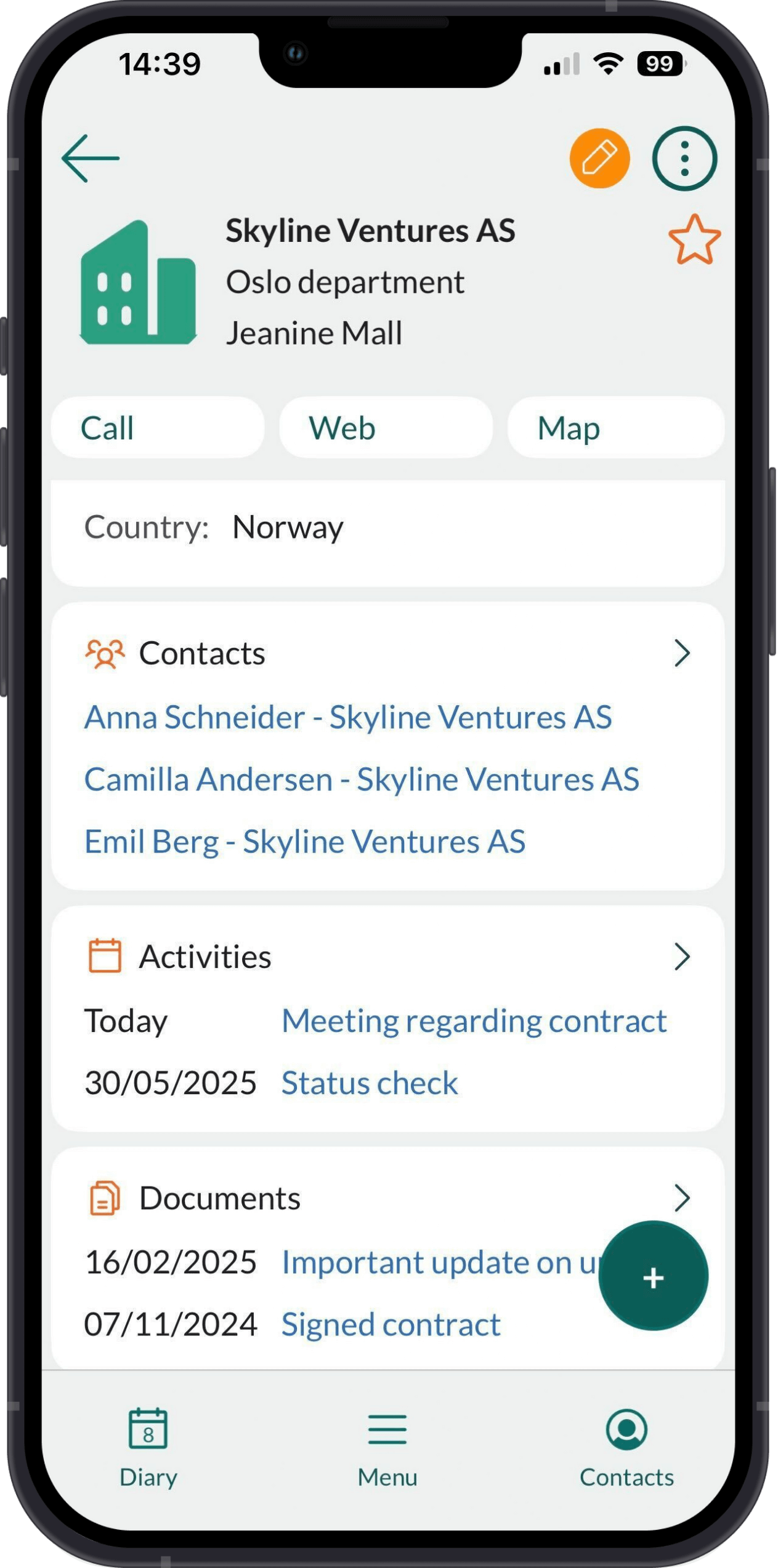
New mobile experience
SuperOffice Mobile CRM puts your complete customer relationship system in your pocket. Access customer information, manage activities, and close deals - from anywhere.Following our web interface update, we have enhanced the mobile experience to make daily CRM tasks more efficient while maintaining all the functionality you rely on. Key improvements:
- Scroll to access data, replacing tabs with compressed views.
- Split company/contact views to match the SuperOffice CRM experience.
- Thumb-friendly navigation for quicker access to key information.
- New screen for adding participants to meetings
- Improved readability and spacing to reduce eye strain.
- Updated colors and icons aligned with our latest design.
 Related content:
Time and date picker - time wheel and calendar
Available for mobile devices running Android OS.Need to select a date and time in Mobile CRM? With the time wheel and calendar selector, it’s easy to choose the precise time and date for any entry, whether it’s setting a follow-up or planning a sale.The time wheel lets you pick the hour first, followed by the minutes, so there’s no endless scrolling to get it right. For date selection, simply tap on the correct date in the calendar - it’s fast, intuitive, and hassle-free.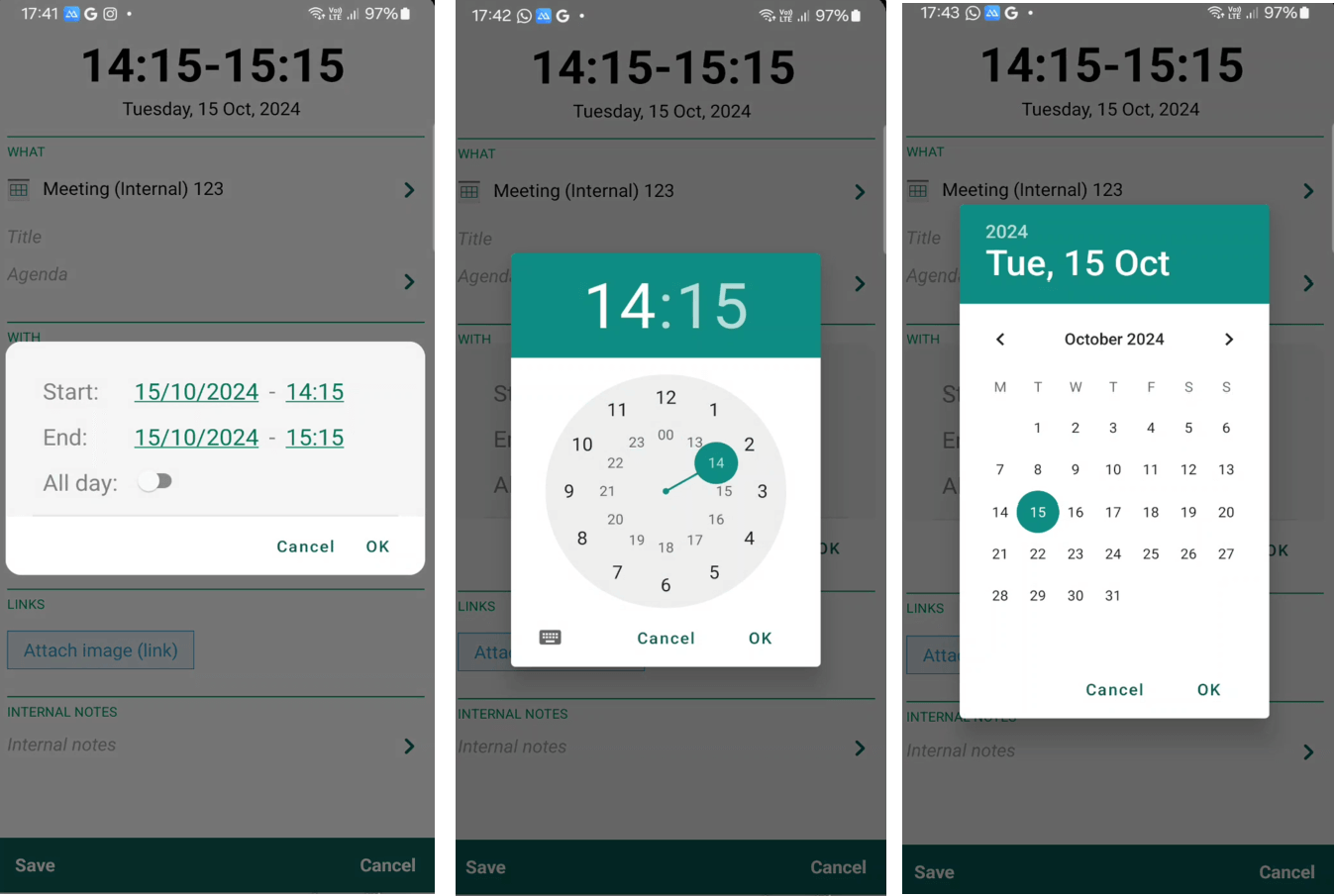
Mobile