

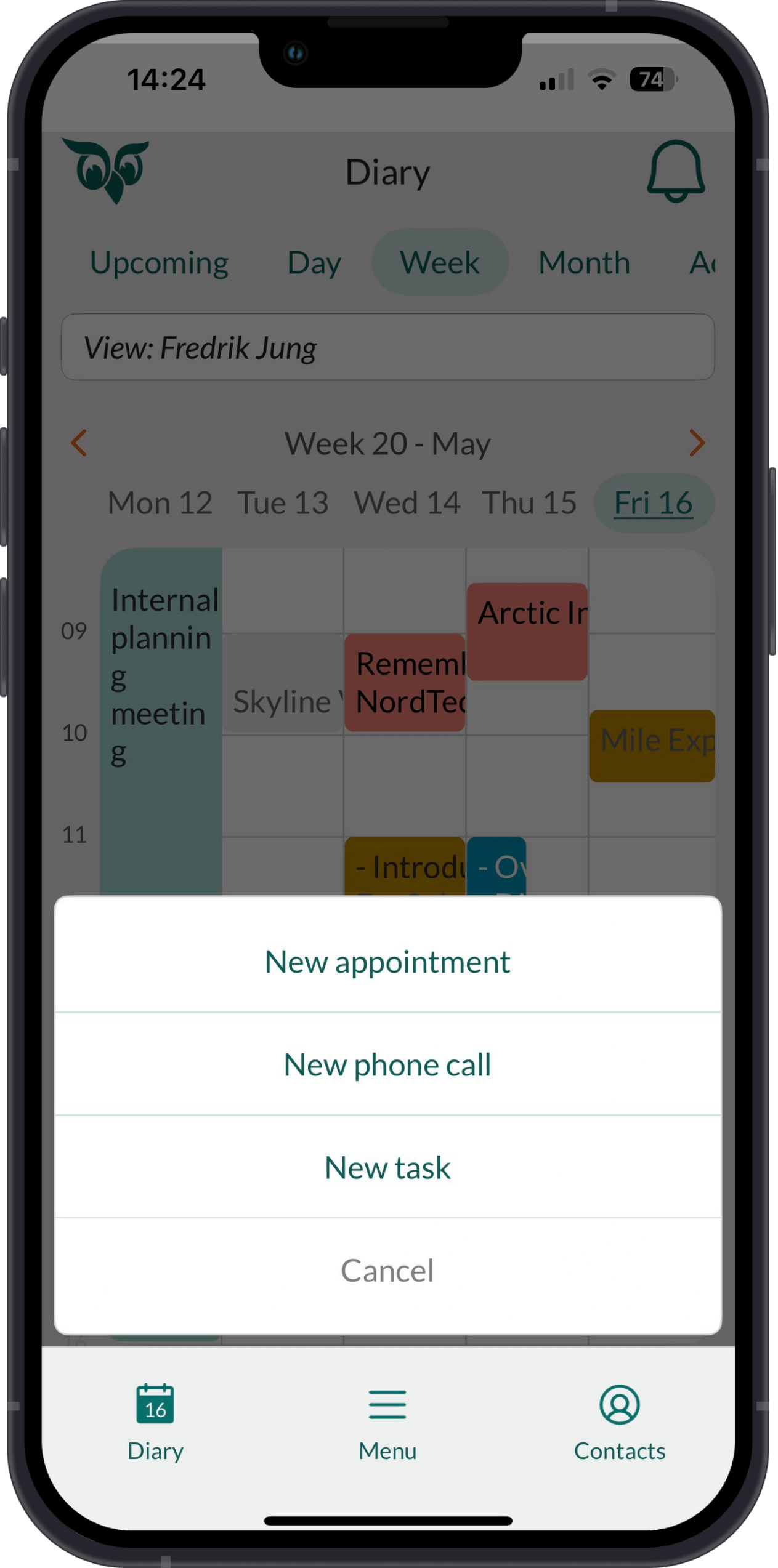
Steps
- Go to the Diary.
- Tap + and select New appointment.
- Specify the start and end date and time for the follow-up.
- Select a follow-up type and enter a title.
- In the With section, choose the company or contact the follow-up is with.
- Optionally, select any sale and/or project that the follow-up concerns.
- Add other details if needed:
- Set Busy or Free in the Show as field to indicate your availability.
- Enter Location or Video link if required.
- Save the follow-up. Now you can add more attendees if necessary.
If you see the conflict icon (), it means that you already have a follow-up at the time in question.
Create new follow-up based on an existing one
You can save time by duplicating an existing follow-up and editing its details.- Locate and open the follow-up you want to use as basis.
- Tap the Task button () and select New based on existing.
- Update the information as needed.
- Tap Save to create the new follow-up.
Create follow-up another person
You can create follow-ups directly in another person’s calendar, as long as you have access.- In the Diary, tap the name just below the row of tabs.
- Select the person whose calendar you want to use.
- Their name will display in red to indicate the switch.
- Tap + and follow the steps in Create a follow-up.
Set a repeating follow-up
You can turn a follow-up into a recurring series without leaving Mobile CRM, the same way recurring follow-ups already work in SuperOffice CRM.- In the follow-up form, tap the Repeat field, directly below Starts and Ends. It’s set to Never by default.
- Select a frequency: Every day, Every workday (Monday to Friday only), Every week, Every month, or Every year.
- Set an End repeat date or a Number of repeats. Whichever one you set, the other is calculated for you, so the series always has a defined end.
- Tap Save to create the series.
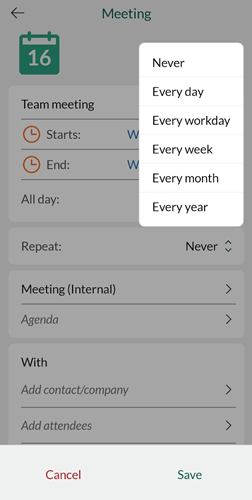
Mobile CRM offers a fixed set of frequencies rather than SuperOffice CRM’s full custom pattern builder, and every series must be bounded by an end date or a number of repeats.
Add attendee and resources
After creating a follow-up, you can invite attendees or book resources (such as a meeting room and projector).You must be the owner of the follow-up to add attendees and resources.
- Locate the follow-up.
- Tap to edit.
- In the With section, tap Add attendees.
-
Search for and select contacts.
- To add someone not registered in SuperOffice, tap , select Add email address, and enter their email address.
- Tap the arrow () to close the Attendees section.
- Optionally, tap the Location section and select the item you want to book.
- Tap Save to finalize.