Diary screen tabs
Symbols and visual cues
Viewing calendars
You can view both your own calendar and other users’ calendars directly from the Diary.View your own calendar
- Go to the Diary.
- Ensure your name is displayed at the top.
- If another person’s name is shown, tap it and switch to your own calendar.
- Select the Day, Week, or Month tab to browse your schedule.
- Tap a date to view all follow-ups for that day.
- Tap a follow-up to open it.

View other calendars
- In the Diary, tap the name just below the row of tabs.
- Select a person from the history list or search for them. Their name will display in red.
- Explore their calendar as described above.
You will only see information that you have permission to view when opening another person’s calendar.
Appointment screen
When you tap a follow-up, the Appointment screen opens, displaying its details.Header
- Title
- Date and time
- Edit () and Task () buttons
- Action bar: Call, Email, SMS
Sections
- Follow-up type and agenda: Tap to view the full agenda.
- With: Organizer and attendees (if any)
- Video link and location: Only visible for meetings.
- Completed status
- Internal notes
- Details: Information such as alarm and owner.
- Tap to expand and view all available fields.
- When expanded, a cogwheel () appears, allowing you to filter which fields are visible.
See who has been invited
If the follow-up has multiple attendees, you will see a number indicating how many people are invited (including the organizer).- Tap the number to reveal the participant list.
- Attendees without an icon have not yet viewed the invitation.
Complete a follow-up by long press
Press and hold a follow-up in a list to open a quick menu:- View follow-up
- Complete (or mark as not completed)
- Delete follow-up

All-day events
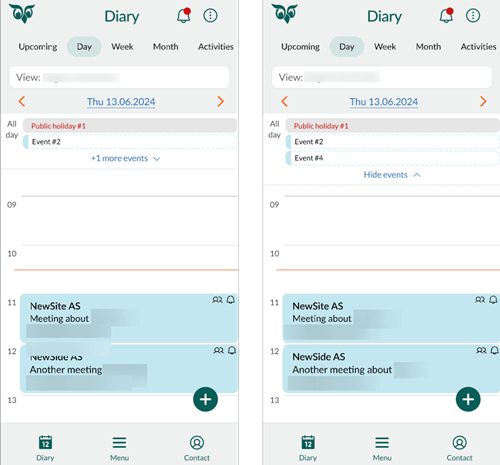
All-day events are grouped at the top of the Diary.- If there are more than two, tap +x more events to show them all.
- Tap Hide events to collapse the list again.