

main, the live site updates. It’s the shared home for facts specific to this org/repo’s deploy setup - generic Mintlify/GitHub App mechanics are linked out to Mintlify’s own docs, not duplicated.
Connection state
-
SuperOfficeDocs/docs: added via Mintlify dashboard Git settings (required an org-owner-approved GitHub App repository-access grant - see Authority below), then promoted to “Base” the same day. First deploy triggered manually; reachable at the defaultsuperofficeas.mintlify.site/.appdomain. No custom domain configured yet - an early soft-launch, not the final publicdocs.superoffice.comcutover. -
SuperOfficeDevNet/mintlify-docs: leftover from early Mintlify prototyping, in a different GitHub org (SuperOfficeDevNet) entirely, superseded 2026-08-06. No longer production.
Authority
GitHub App permissions
Requested by the Mintlify GitHub App onSuperOfficeDocs (see Mintlify’s GitHub integration docs for what each permission is for in general. This table only lists what’s granted here):
Deploy trigger mechanics
A push to the connected branch (main) triggers an automatic production deploy. A pull request against it gets its own preview deployment and check. A manual Deploy button in the dashboard exists as a fallback. See Deployments for the full mechanics - not duplicated here.
PR preview deployments
A PR opened againstmain from a branch in this repository gets an automatic preview deployment. The preview rebuilds on every new push. A mintlify[bot] comment posts a status table with a public View Preview link.
The preview stays reachable while the PR is open, and after it merges or closes for as long as the source branch still exists.
PRs from a fork do not get an automatic preview. See Manual (custom) previews for the workaround, and Reviewing a PR for what a reviewer should do when no bot comment appears.
A Preview authentication toggle (dashboard > Add-ons > Previews) can restrict preview access to signed-in Mintlify organization members instead of the public-by-default behavior. Not enabled for now. See Preview deployments for details.
Manual (custom) previews
Use a manual preview when a PR came from a fork, or to preview a branch outside of any PR.-
Push the branch into
SuperOfficeDocs/docsitself, under the naming conventionpreview/pr-<PR#>to avoid collisions between concurrent manual previews - Mintlify’s GitHub App only resolves branches it already has access to, so a fork’s branch needs pushing in first:git fetch origin pull/<PR#>/head:preview/pr-<PR#> && git push origin preview/pr-<PR#>. -
In the Mintlify dashboard, go to Previews > Create custom preview, enter that branch name, and create it.
- Share the resulting link on the PR.
Requesting a manual preview costs the docs lead’s time and is not instant - it depends on their availability. If you are iterating on a fork PR, mark it draft, make the full round of changes, then click Ready for review and
@-mention the docs lead to request one preview, not a fresh request after every small fix.Where to look when something’s wrong
-
PR/preview build failures surface directly on GitHub: a
Mintlify Deploymentcheck (red X, with a “Deployment Failed” detail line) plus a bot comment showing a per-project status table. - A PR with no bot comment almost always means it came from a fork (see above), not a build failure.
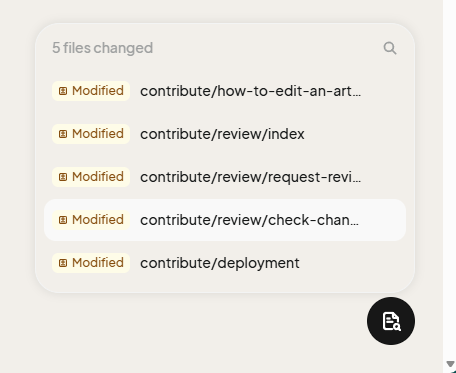
- Production deploy history lives in the Mintlify dashboard’s per-project Activity log (Live tab) - shows what triggered each update (a git push, or a manual update), status, and files changed.
Related content
- Configuring Mintlify - editing
docs.json’s split navigation/redirects config, a different concern from deployment. - Reviewing a PR - what a reviewer sees and does with a preview link.
- Deployments
- Preview deployments