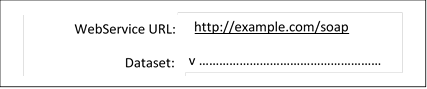
FieldMetaDataInfo objects. FieldMetaDataInfo details what data the connector will need to identify which ERP instance/client to connect to. For example, database server, database name, username, and password.
 In the GUI, the user can enter these connection fields (or selected, if the field type is a list).
Before this is sent back to the connector, SuperOffice generates a new GUID (globally unique identifier) which the connector will use to identify this particular connection in the future. This GUID will accompany every connection-specific call made to the connector.
SuperOffice sends the completed connection details to the connector and asks that it be saved in some form of persistent storage along with the Connection ID GUID. This way, ERP Sync will not have to resend the complete connection info with every call in the future. To save the configuration data, you can take advantage of the helper methods.
Once the connector reports back that the connection details have been saved, SuperOffice calls the TestConnection method to verify that the connection info is working as intended. The connector will then need to perform some kind of operation on the ERP system to verify this and report back.
SuperOffice will also store a copy of the connection details, in case the connector requests it to be resent in the future.
In the GUI, the user can enter these connection fields (or selected, if the field type is a list).
Before this is sent back to the connector, SuperOffice generates a new GUID (globally unique identifier) which the connector will use to identify this particular connection in the future. This GUID will accompany every connection-specific call made to the connector.
SuperOffice sends the completed connection details to the connector and asks that it be saved in some form of persistent storage along with the Connection ID GUID. This way, ERP Sync will not have to resend the complete connection info with every call in the future. To save the configuration data, you can take advantage of the helper methods.
Once the connector reports back that the connection details have been saved, SuperOffice calls the TestConnection method to verify that the connection info is working as intended. The connector will then need to perform some kind of operation on the ERP system to verify this and report back.
SuperOffice will also store a copy of the connection details, in case the connector requests it to be resent in the future.
GetConfigData
When the user has selected the sync connector (the URL) to use, SuperOffice will call the connector’sGetConfigData via SOAP to find out what configuration fields to use.
FieldMetaDataInfo objects might look something like this:
<ser#> for example.
The user then fills in the config fields in the dialog and clicks the Test button to verify that the settings are correct.
TestConfigData
SuperOffice calls theTestConfigData method with the values from the dialog, and using the FieldKeys as keys to the dictionary.
TestConfigData() returns IsOk = false, then the UserExplanation message is displayed as an error message, and the Save button in the configuration dialog is not enabled. See all members of PluginResponseInfo.
SaveConnection
The user clicks the Save button in the config dialog. SuperOffice generates a GUID for the connection and calls theSaveConnection method.
connectionId, so that later invocations (which are only passed the connectionId) can retrieve the parameters needed to communicate with the ERP system.
GetSupportedActorTypes
SuperOffice then callsGetSupportedActorTypes (with the connectionId) to find out what things the connector supports syncing. This response is cached in the SuperOffice database until the next time the connection is configured and saved.
The actor type names are not translated - they are constants.
Lists
If one of the fields is a list field, the name of the list is passed to the connector when the drop-down list is opened. TheGetList method should return a mapping of list-item ID to list-item text.
The connection ID is 0000-000-000 when you are setting up the connection for the first time. The connection hasn’t been saved yet, so no connection GUID has been created yet.
Sequence diagram
The process of defining and saving a new sync connection.