

- connectionID = {3aef3af6-8642-4fc1-8dc9-4e08bd76a6bf}
- actorType = “Customer”
Connecting
To connect a SuperOffice entity :-
Click EDIT and then click the right Actor Type link.
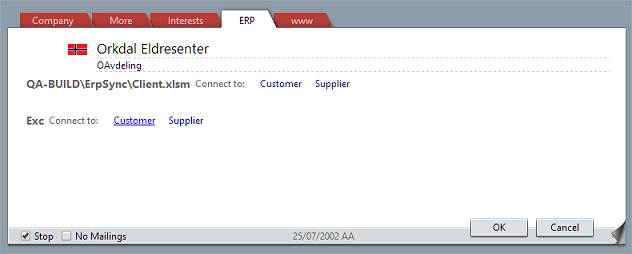 The list of Actor Type links is determined by the
 GetSupportedActorTypescall made when the connection was set up. -
This opens the Connect to ERP dialog, which calls the
GetSearchableFieldsfunction to find out what columns to present in the results list.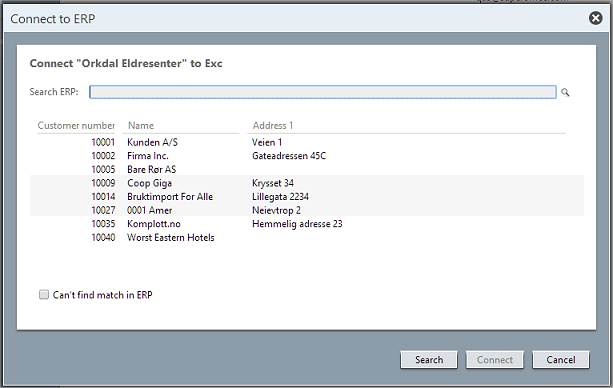
-
The SuperOffice client calls the
SearchActorsmethod to find out if there are any customers in the ERP with the same name. The connector is free to implement the search as it wants. It would be nice if the results were filtered according to the parameters, but this is not required.Example input:- searchText = “Orkdal Eldresenter”:
- fieldKeys: { “NUMBER1”, “NAME”, “ADDRESS1” }
- The returned actors are displayed in the results grid in the dialog.
Searching
-
If the user enters a different name,
SearchActorsis called again and the results are updated. -
If the user clicks the Advanced Search button, the search dialog appears and
SearchActorsAdvancedis called like during Import. -
If the user selects one of the actors and clicks the Connect button, the full Actor is retrieved from the ERP system using
GetActors.Example input:erpKeys: [0] = "erp831"fieldKeys: [0] = "NAME", [1] = "NUMBER1", [2] = "SUPPLIERLIMIT", [3] = "STDTERMS", [4] = "ADDRESS1"
- If some of the ERP Actor values conflict with the SuperOffice entity, these are displayed in the dialog:
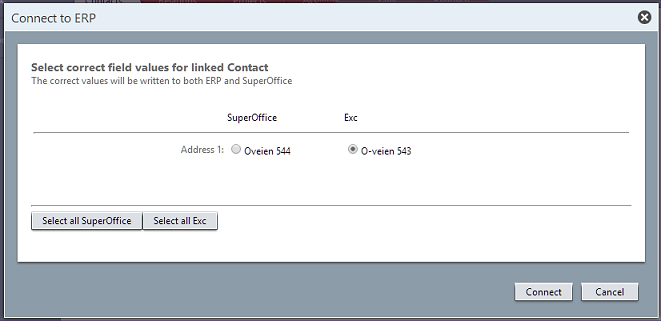 The user can select the values that they want to use, and the SuperOffice database is updated with new values.
Updating ERP
The ERP system is updated with the new values using a second call toGetActors, followed by a call to SaveActors.
Assuming we use the above call to GetActors(), we get back an Actor with [“ADDRESS1”] = “Oveien 543”. Let’s change that to “Oveien 544”.
The SuperOffice client will update the Actor with new values depending on what the user selected in the dialog, and then call SaveActors.
Creating
-
If the user can’t find a match in the ERP system, they check the Can’t find match in ERP checkbox.
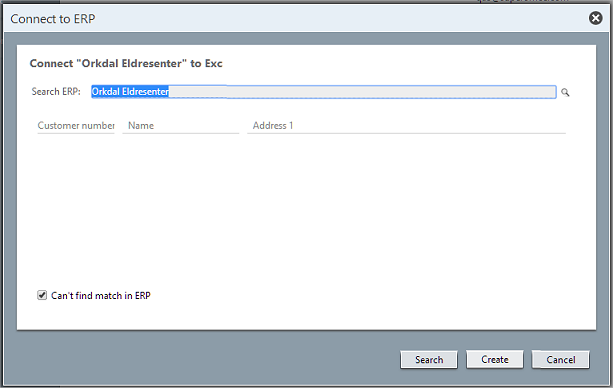
- The Connect button changes to Create.
-
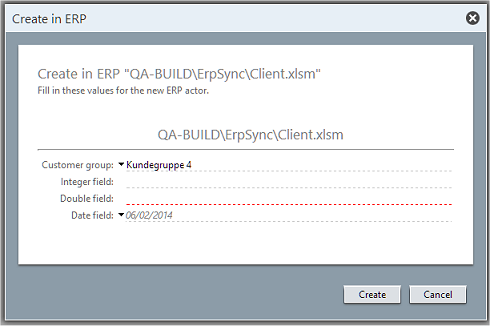
The user is presented with a dialog where they can fill in the defaults. The list of fields to present and the suggested default values are stored in the SuperOffice database.
-
The SuperOffice client calls the connector’s
CreateActorto create the actor, and to get back the ERP ID for the new actor:Example input:Example result: -
The returned actor’s
ErpKeyand last-modified date are stored in the SuperOffice database, and the link is created.
Viewing
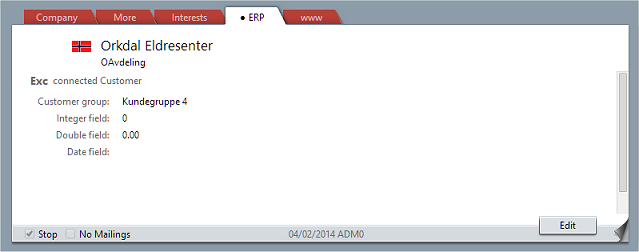 The connection links the SuperOffice ID with the ERP’s actor type and ERP key. Once a connection has been created, the connection is called whenever the ERP card is viewed.
-
The SuperOffice client calls
GetActorsfor the card being viewed, requesting the fields marked show in ERP card. Any list items that need to be shown are turned into text values by callingGetListItems.Example input:erpKeys: [0] = "erp831"fieldKeys: [0] = "CUSTGR", [1] = "NUMBER1", [2] = "DOUBLE", [3] = "DATE"
- The returned actors are displayed in the ERP tab under the connection name heading.
Disconnecting
To disconnect an active connection: In edit mode, click the Disconnect (ERP Type) link to show a confirmation dialog.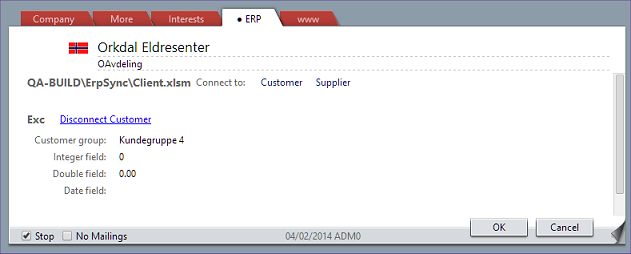 Answering YES to disconnect from the ERP system does not call the ERP sync connection.
It removes the link record from the SuperOffice database, which stops the connection from being called for more information.
We do not delete information from the ERP system, just because we have stopped sync with SuperOffice.
Answering YES to disconnect from the ERP system does not call the ERP sync connection.
It removes the link record from the SuperOffice database, which stops the connection from being called for more information.
We do not delete information from the ERP system, just because we have stopped sync with SuperOffice.