

How do I know if I am using SharePoint, SuperOffice WebTools, or not?
SharePoint: Create a new document. If it opens in Microsoft Office Online, you are using SharePoint. SuperOffice WebTools: Open the system tray in the lower right corner of your desktop and look for the SuperOffice icon .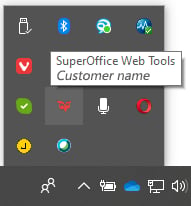
Steps
- Using SuperOffice WebTools
- Without WebTools
With SuperOffice CRM, you can log in from any PC using a browser, but your documents will then be saved on the central server. Downloading and uploading of documents are handled automatically by SuperOffice WebTools.
- Click New on the top bar and select Document.
- Enter the required information in the fields.
- Click the Create button to create a new document based on the selected document template. The Document dialog closes automatically, and the document opens in your default text-editing application.
- Type in the content of your document.
- Save it and close the text-editing application. The document is saved.
How to enter information
Many fields have a list of predefined values you can choose from. Click to expand the list. Then select a value for that field. Alternatively, start typing in the field to search for a specific value, such as a company name.
 Steps:
- Choose a document template. Select a language for the template. This option is only available if the selected template includes translated versions.
- Optionally, select a company or contact the document pertains to.
- Optionally, select a project and/or sale to link it to the document. You can choose any project/sale regardless of which company you chose earlier.
- Enter a document title in the Subject field. This text is shown in section tabs and in other lists of document.
-
Today’s date is set by default. Optionally, change the creation date (click to open the date picker).
You cannot change this date after clicking the Create button (the field becomes read-only).
-
Enter references:
- Our ref: Enter your own reference. The default entry for each template is defined in Settings and maintenance, but you can also edit the content of this field.
- Your ref: Enter the addressee’s reference from their communication.
Other settings (optional)
- In the the Details tab, enter a description of the document (or keywords) to aid free-text searching.
- In the Links tab, click Add link to link the document to other activities.
- In the More tab, set any user-defined fields configured in Settings and maintenance.
Upload document
- Click New on the top bar and select Document.
- Drag and drop the document from Windows Explorer to the Document dialog.
- (optional): Select the checkbox in the footer to mark the document as completed.
- Complete the fields with the required information.
- Click the Create button to create the new document in SuperOffice CRM. The document is added to the Activities section tab.