Use the Projects screen in Mobile CRM to manage workflows, track activities, and collaborate with team members-wherever you are.
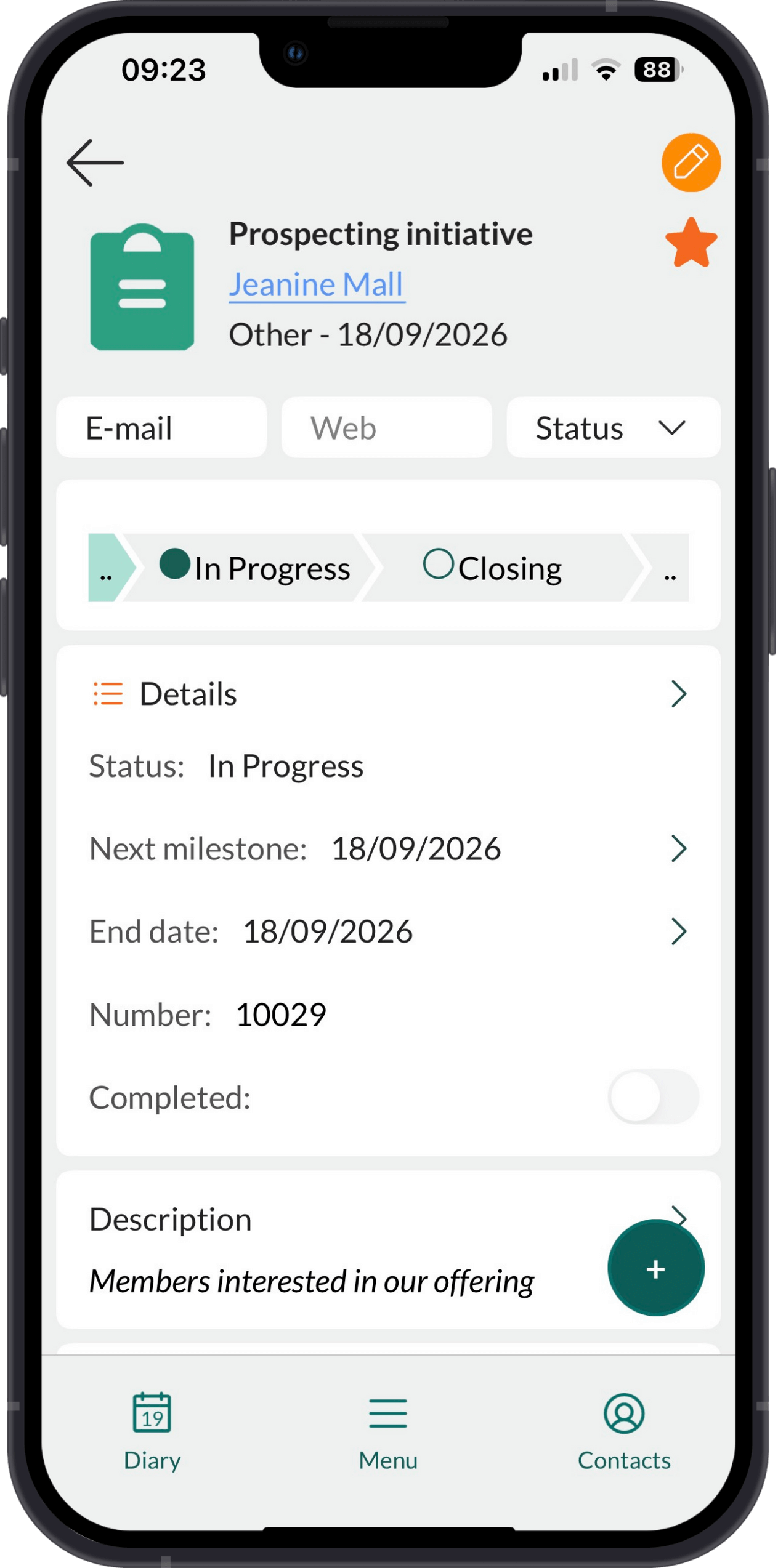
Tabs in the main Project screen
Viewing projects
View your own projects
-
Go to Projects.
-
Select the My open projects tab.
-
Tap a project to view its details.
The Stage field shows how far the project has progressed.
View any project (not your own)
When viewing other users’ projects, only the data you have permission to see is shown.
- Go to Projects.
- Use Search, Favorites, or your history list to find the project.
To list all projects, tap Search with the search field left empty.
- Project image or placeholder icon
- Project name (title)
- Responsible (owner)
- Type and date
- Edit button ()
- Action bar: Email, Web, Status (Move to next/previous status)
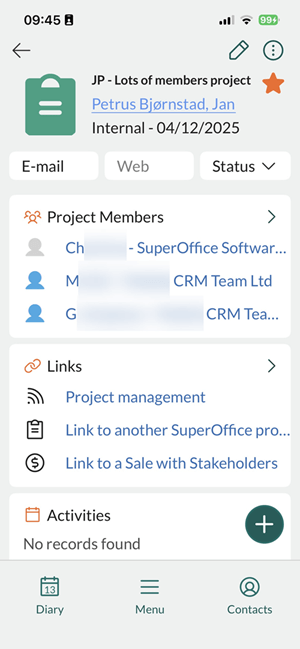
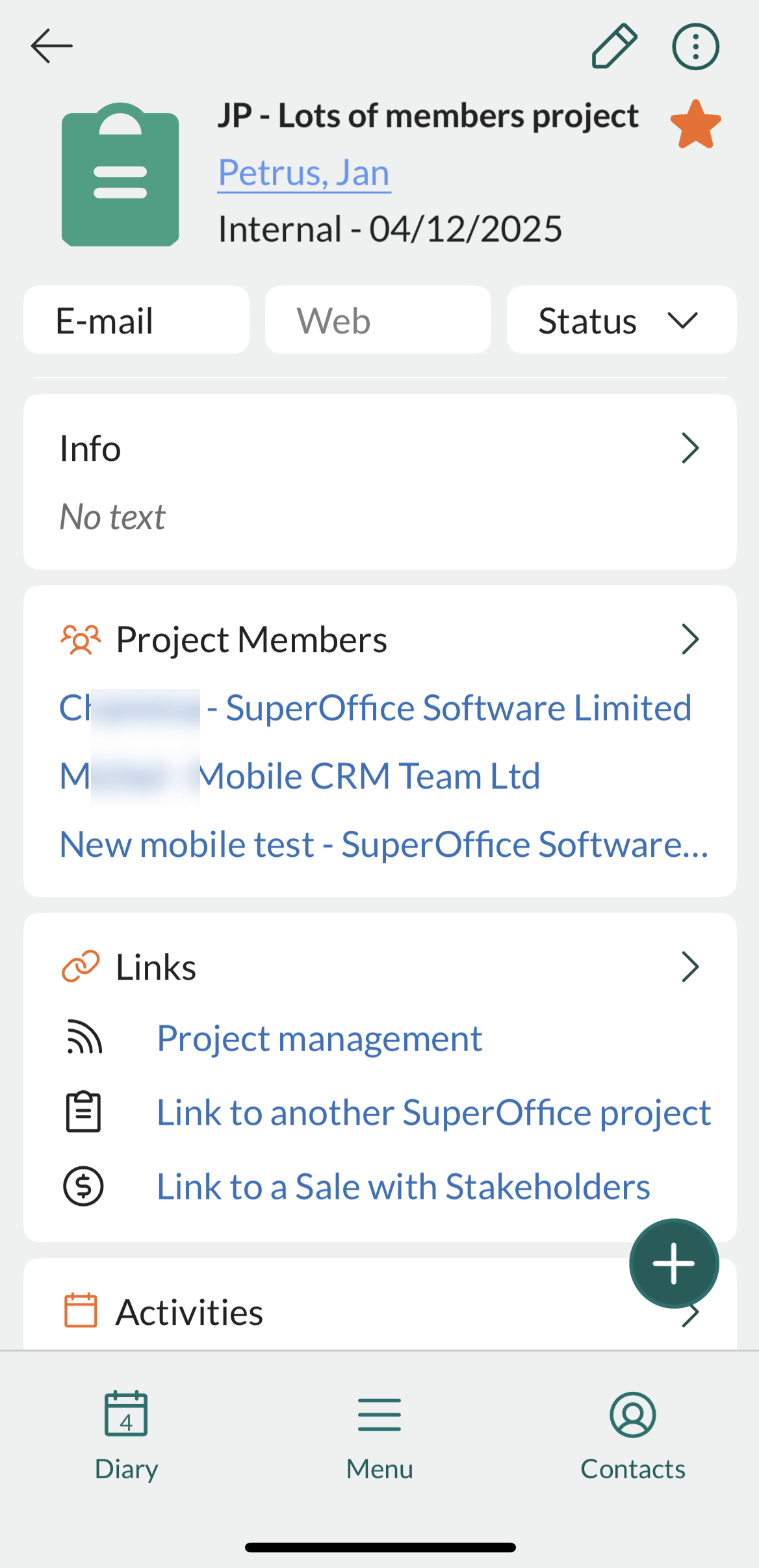
Sections
Tips
- Tap a linked item (such as person, activity, document) to open it.
- In the Project members list, each contact shows a person-type icon: green for you, blue for a colleague, grey for an external contact.
-
Each section shows only a few items. Tap to expand and view the full list.
-
Expand the Details section and tap the cogwheel () to configure visible fields.

