

Admin consent is a one-time, per-tenant step. Once granted, individual users can connect their own mailbox without further admin involvement.
Grant consent
Consent can be granted in three ways:- Using a generic authorization URL provided by SuperOffice, or by navigating directly to the app’s Permissions page in the Microsoft Entra admin center and granting consent there. This proactive action is recommended, because it can be granted before any user encounters a prompt.
- Using a URL that a user copies from the permission dialog they encounter when they try to connect their own mailbox.
- Directly from the sign-in prompt, using a Global Administrator account.
-
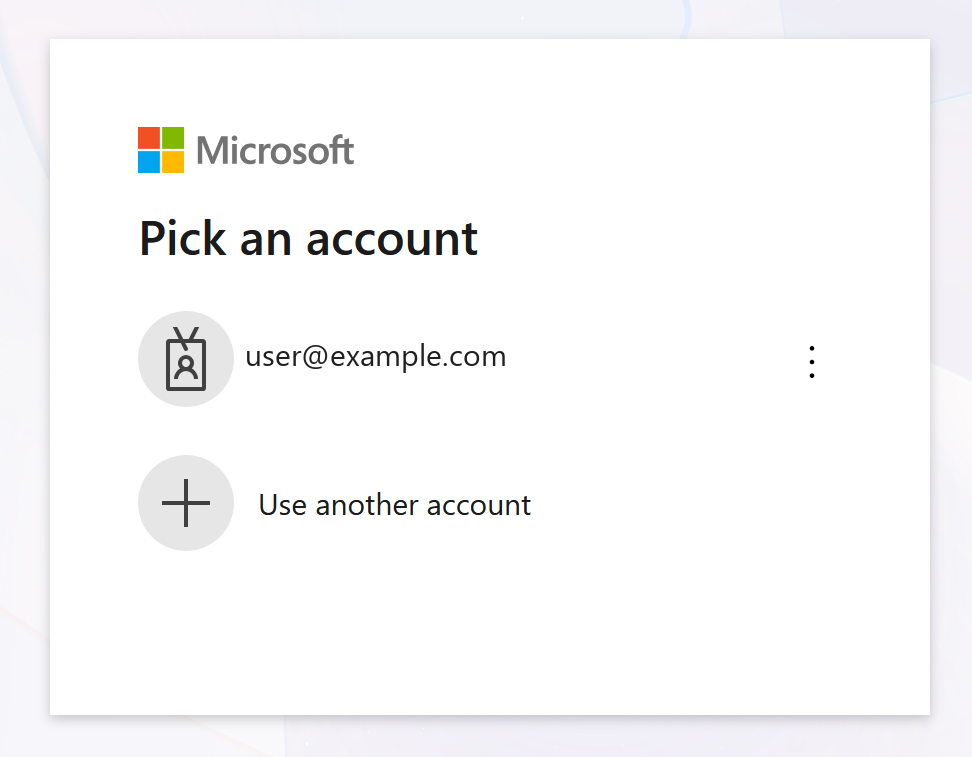
Sign in with a Microsoft 365 Global Administrator account.
If you are not already signed in, or need to switch accounts, choose the correct account or select Use another account.
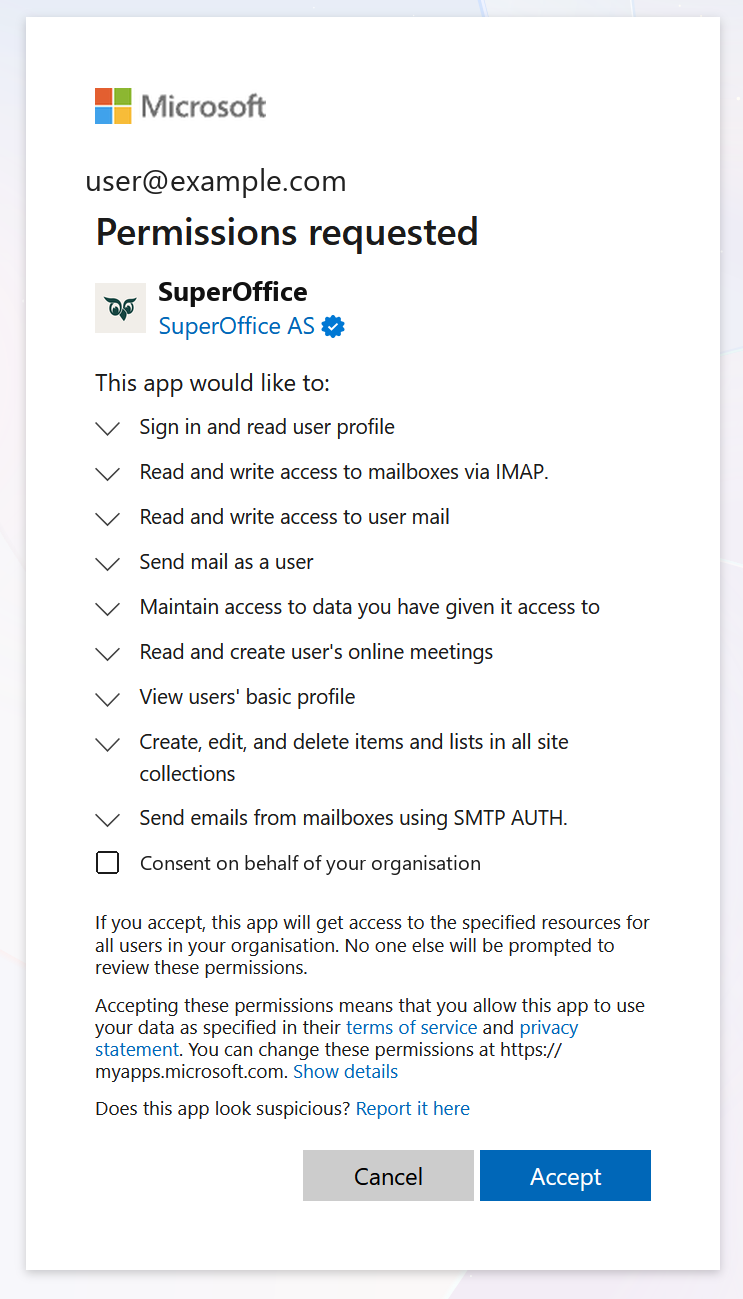
- Review the permissions SuperOffice is requesting. Two of the listed permissions cover the mail connection itself; see Permissions used for the mail connection below.
-
Select the Consent on behalf of your organization checkbox, then select Accept.
The checkbox is what makes the consent apply to every user in your organization. Without it, only your own account is covered, and each user is still prompted when they connect. With the checkbox selected, no one else in your organization is prompted to review the permissions.
-
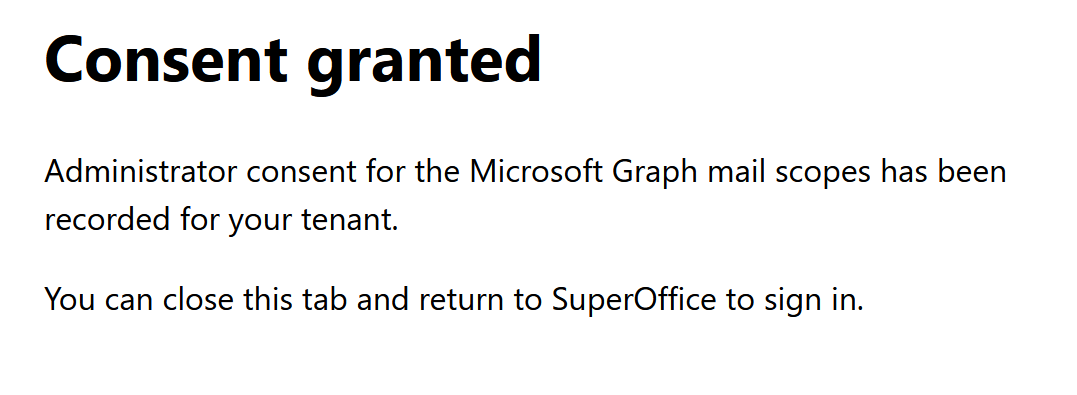
Once consent is recorded, you will see a confirmation. Close the tab and return to SuperOffice to sign in.
If a later SuperOffice update requires additional permissions, Microsoft may ask a Global Administrator to re-approve consent before the update takes effect.
Permissions used for the mail connection
Grant or review permissions in Microsoft Entra admin center
SuperOffice’s mail connection appears as an enterprise application in your tenant once consent has been granted for the first time. From the same page, you can also grant consent yourself, without waiting for a user to encounter a prompt.- In a browser, sign in to the Microsoft Entra admin center.
- From the left pane, select Enterprise applications.
- Search for SuperOffice, then select it.
-
Select Permissions from the left pane.
To grant consent, select Grant admin consent for
<tenant name>, then sign in again if prompted. The same permissions requested dialog described above appears. Review the listed permissions, select Consent on behalf of your organization, then select Accept.
To review permissions already granted, this same page lists them under Admin consent.
The same permissions requested dialog described above appears. Review the listed permissions, select Consent on behalf of your organization, then select Accept.
To review permissions already granted, this same page lists them under Admin consent.