

- Microsoft Graph (Microsoft 365): If your email address is already authorized for Microsoft Graph, SuperOffice sets up the account automatically. To stop SuperOffice from setting up the account automatically at login, an administrator can set Disable automatic e-mail login when logging in to SuperOffice to Yes under Settings and maintenance > Preferences > Global preferences > Email.
- IMAP and SMTP (Gmail, an on-premise Exchange server, or another provider): You sign in with your password, or enter the server settings manually under Advanced settings.
SuperOffice Inbox supports only one email account per user.
Before you begin
- Check that SuperOffice CRM is selected as your preferred email client in Local settings.
- If you connect using IMAP, ensure that IMAP is enabled in your email client.
- Confirm that the email address you intend to use matches the primary email address registered on your contact card in SuperOffice.
Connect your email account
-
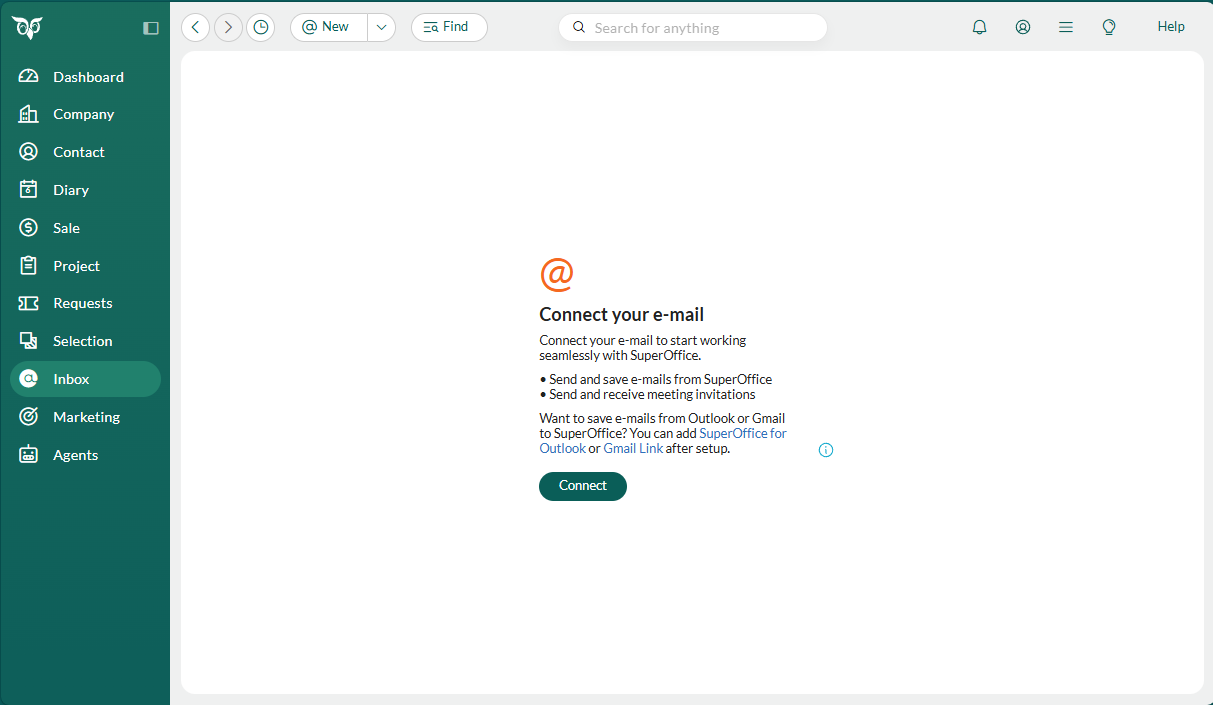
Click Inbox in the navigator.
If no email account is connected, the Connect your e-mail screen appears.
-
Click Connect.
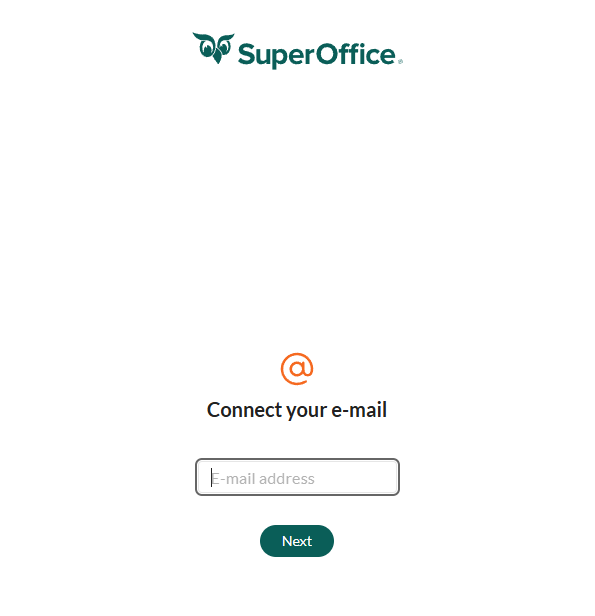
The E-mail setup window opens.
-
Enter your email address and click Next.
- If your email address is already authorized for Microsoft Graph, the account is set up automatically and the inbox opens.
- If your provider uses IMAP, for example Gmail, you are asked for your password. Enter it and click Log in. For Gmail, use an app password instead of your regular password. See Create and use app passwords in Gmail.
- If authentication fails or your provider cannot be detected, click Advanced settings to enter the server settings manually.
Configure advanced settings
If automatic setup fails, you must enter your email server details manually. All required fields must be filled in to ensure that email can be received and sent using SuperOffice Inbox.- Click Advanced settings in the E-mail setup window.
- Check that your email address is correct in the E-mail address field.
-
Enter incoming email (IMAP) settings:
- Server: Your IMAP server address.
- Default port: Leave blank to use your provider’s default port, or enter a custom port if your provider requires one.
- User name: Usually your full email address.
- Password: Your email account password.
- Use SSL/TLS (Recommended): Leave this on unless your provider tells you otherwise.
-
Enter outgoing email (SMTP) settings:
- Server, Default port, User name, Password, and Use SSL/TLS (Recommended): similar to incoming.
- Click Save to connect your account. To return to the previous screen without saving, click Back.
 These settings can be found in your email provider’s documentation. For Gmail, see Create and use app passwords in Gmail (as a user) and Turn POP and IMAP on or off for users (as an administrator). If you need more help, talk to your IT administrator.
Disconnect or change your email account
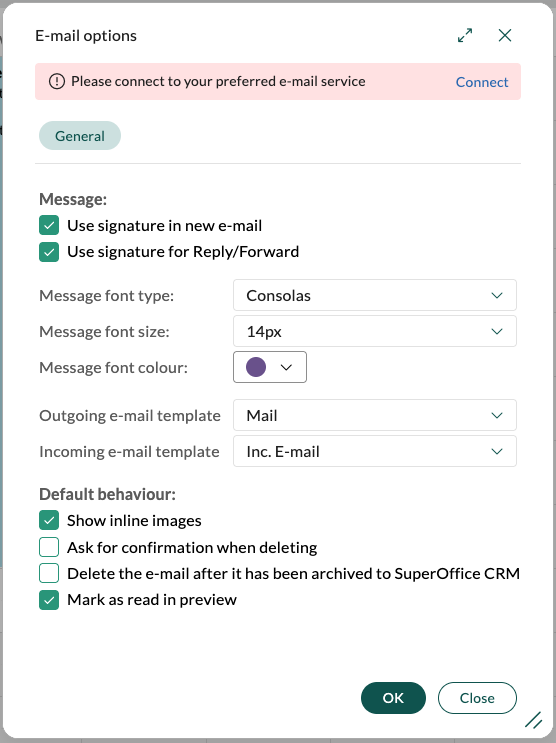
The banner at the top of Email options shows whether an email account is connected.- Click Personal settings () in the top bar, and then select Email options.
-
Check the banner at the top of the Email options dialog. When an account is connected, it shows Logged in with and your email address.

- Click Sign out to disconnect the current email account.
-
To reconnect, click Connect in the banner and follow the steps in Connect your email account.
Signing out does not delete your actual email account (for example, your Gmail or Outlook account). It only disconnects it from SuperOffice.
Troubleshooting tips
- The SuperOffice Inbox supports IMAP and Microsoft Graph. POP3 email accounts are not supported.
-
If your inbox is not updating, your email provider may be blocking the connection.
- Check your email account for a message about a blocked or unauthorized login attempt.
- Follow the instructions to allow SuperOffice to access your account.
- Gmail users: As of January 2025, IMAP is permanently enabled by default. If you are asked for a password, use an app password instead of your regular Gmail password.
- Microsoft 365 users: If your inbox connects fine but email won’t send, ask your admin to enable Authenticated SMTP for your mailbox in the Microsoft 365 admin center. This is a setting Microsoft can disable by default.