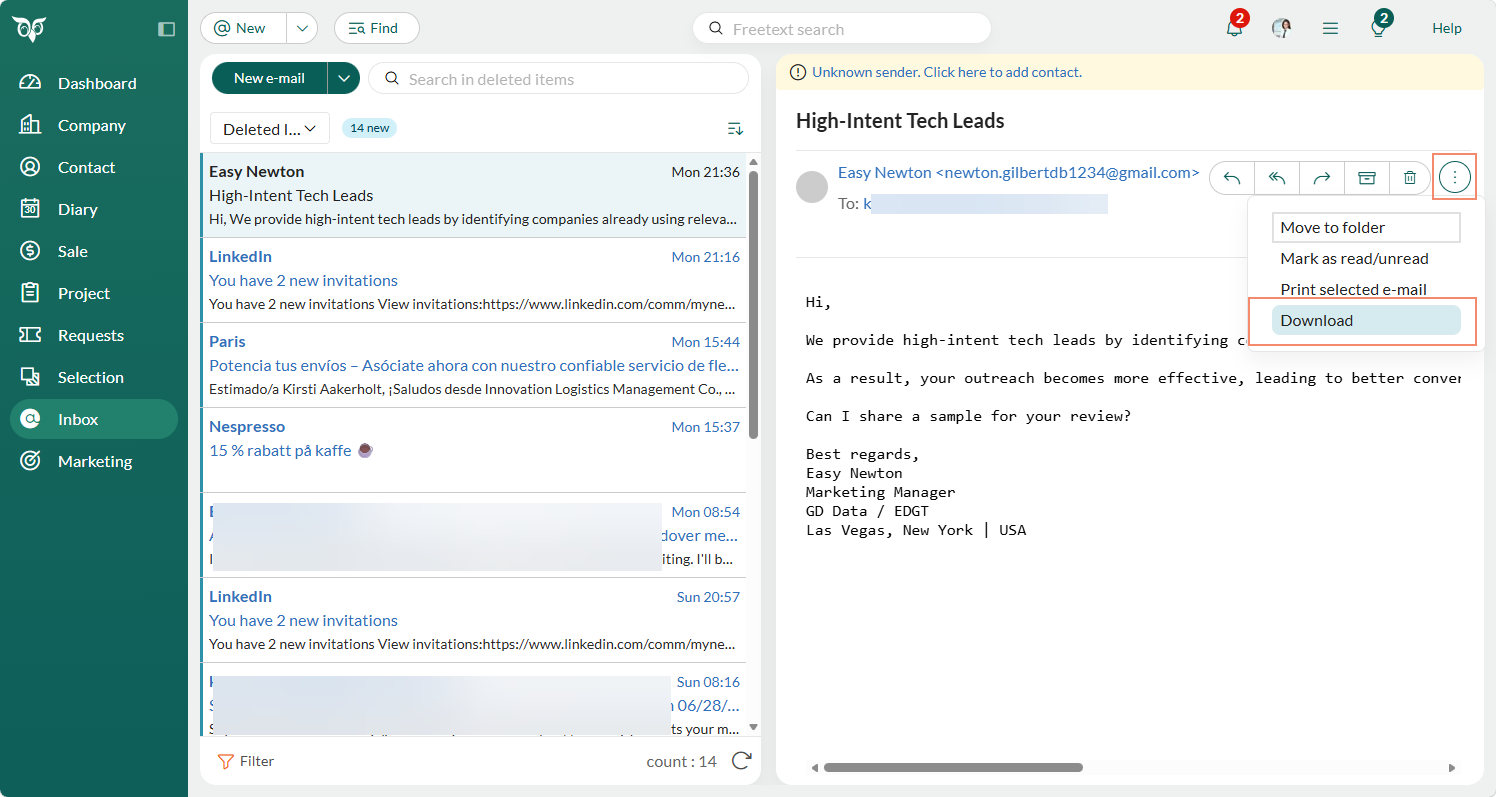
Preview pane
The preview shows the contents of the selected message, including recipients, attachments, and other details. If the sender exists in SuperOffice CRM, you can hover over their name to view the contact card.Show inline images
To display inline images in the preview pane:- Click in the top bar and select Email options.
- Go to the General tab.
- Check the box Show inline images.
- Click OK to apply the setting.

Open an attachment
Attachments are listed below the email header when a message is selected.- Click the next to the attachment name.
- Select Preview to open the file directly in your browser. Browser behavior may vary depending on file type and settings. For example, PDFs might open in a new tab.
Mark emails as read or unread
Emails are not marked as read automatically unless you enable this setting.Enable automatic marking
- Go to Personal settings > Email options > General.
- Select Mark as read in preview.
- Click OK.
Mark messages manually
-
To mark a single message:
- Select the message.
- Click and select Mark as read/unread.

-
To mark multiple messages:
- Ctrl+click (Windows) or Cmd+click (Mac) to select the messages you want to update.
- Use the Mark as read or Mark as unread buttons in the message pane.

Move email to folder
You can move messages to other folders in your email account. The list of folders comes from your email provider (for example, Outlook or Gmail). You cannot create, rename, or delete folders from inside SuperOffice CRM. To manage folders, open your email account directly.Move a single email
- Select a message in the inbox.
- Click and select Move to folder.
- Choose the destination folder.
Move multiple emails
- Select the messages you want to move: Ctrl+click (Windows) or Cmd+click (Mac) to select multiple messages.
- Use the Move to folder button in the message pane.
Print an email
- Select a message in the inbox.
- Click and select Print selected email.
- The message opens in a browser preview window.
- Use your browser’s Print option to print the message.
Download an email
Downloading an email saves a copy of the message, including any attachments, in a format you can open from Outlook or another email client.- Select a message in the inbox.
- Click and select Download.