

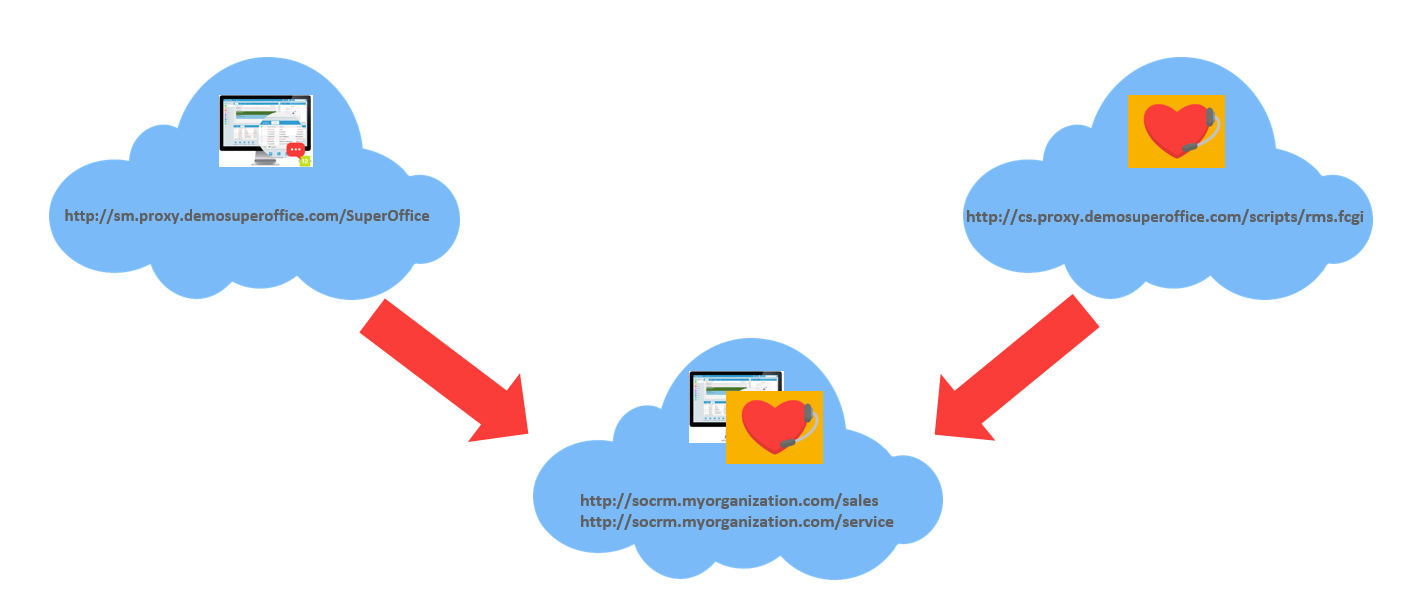
- Run SuperOffice SM.win SetupExe.exe installer to upgrade the server and the database.
- Run SuperOffice.CustomerService.exe to Install Service and choose to let the installer create the IIS website.
- Run SuperOffice Web client Setup.exe to install SuperOffice Sales web client on the newly created Service domain.
- Start the Web client and set the new Web Base URL preference in Settings and Maintenance client.
-
Under Move to new server there are some steps explained to update the database to see the new domain used.
- Stop the current service and add “frozen” to the config file located in the old Service program folder.
- Update database table Config and Registry with the new paths.
- Copy/move attachments/templates and customer center folders from the old installation to the new.
- Run queries to update the absolute that will be found in the database.
- Consider if a redirect should be added so customers using old URLs will be redirected correctly to the new.
- Run
upgrade.exe -d newdomainto make sure Service is upgraded as well.