

Steps
- Click New on the top bar and select Sale.
-
Enter a sale title (mandatory, marked in red). This is the main identifier for the sale.

- Enter the Amount and currency to estimate the sale’s value.
- Choose the Sale type from the dropdown (mandatory). Sale types define the process and may include stages or guides. Values are predefined and set up in Settings and maintenance.
-
(Optional) Provide additional information in the Sale tab, such as:
- Link the sale to a Company.
- Associate the sale with an ongoing Project.
- Adjust the expected close date for the sale.
- Use the large text box to provide an optional description of the sale.
- Select the current Stage of the sale (if applicable). Stages track the sale’s progress.
If the sale type for the sale does not have any stages linked to it, the sale has the status Open. - Select the Details tab to add financial info, such as cost, profit, and competitors.
-
Add more details:
- Go to the More tab to enter custom fields.
- Go to the Note tab to add notes.
- Go to the Links tab to connect activities, documents, or websites to the sale.
- Click Save to store the sale. The sale card is now created.
Copy an existing sale
You can also create a sale by copying an existing one. This saves time for renewals, repeat orders, and the same opportunity for another company.- Open the sale you want to copy.
- Click the Task button () in the upper-right corner of the Sale card, and select Copy sale. You can also right-click a sale in a sale list and select Copy sale.
-
Review the original sale under From. These fields are read-only.
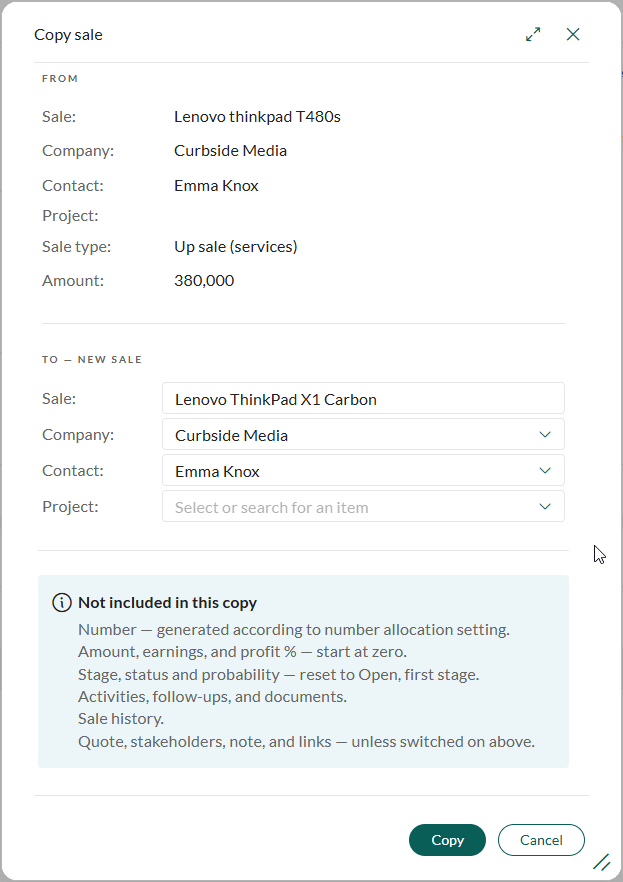
- Under To – New Sale, edit the name of the new sale if needed. By default, COPY is added to the end of the original name.
- (Optional) Change the Company, Contact, or Project. If you change the company, the contact is cleared.
- Under Copy Options, select the items you want to copy: Quote, Stakeholders, Note, and Links. All options are off by default, and only items the original sale has are shown. An item that cannot be copied is shown as Not available, with the reason.
- Click Copy. If an item you chose can no longer be copied, select Copy anyway or Back. If an item could not be copied, the new sale is still created. Select Keep sale or Cancel and delete sale.
Key fields explained
The following fields are available in the Sale card. Some fields are filled automatically, while others require manual input.Fields and layout may vary based on Screen designer configurations and other UI customizations.
- Sale tab
- Details tab
- Links and Note tabs
- Title: A mandatory field for identifying the sale.
- Description: Optional text box for summarizing the sale.
- Sale type: Predefined types that define the process, potentially linked to stages or sales guides. Set up in Settings and maintenance.
- Stage: Tracks the progress of the sale. Available stages depend on the selected sale type.
- Amount and currency: Estimated value of the sale. (Currency must be activated in Settings and maintenance to use this option.)
- Probability: The likelihood of the sale succeeding. Based on the current stage but can be updated manually.
- Company: The company associated with the sale.
- Contact: The contact person at the company linked to the sale.
- Project: Links the sale to an ongoing project.
- Owner: The user responsible for the sale. Defaults to the currently logged in user but can be updated.
- Sale date: The expected close date for the sale.
- Next activity: Automatically populated with the oldest uncompleted follow-up. Dates prior to today are highlighted in red.
- Stalled checkbox: Marks the sale as on hold and enables fields for Re-open date and Reason (stalled).