

Screen designer - Configurable archives/section tabs
This feature requires a license for Development Tools. This is an additional cost per site. When you personalize the layout for the main cards and archives/tab sections it will match your organization’s information needs. You can edit the layout by adding or removing section tabs/archives on the following main cards:- Company
- Contact
- Sale
- Project
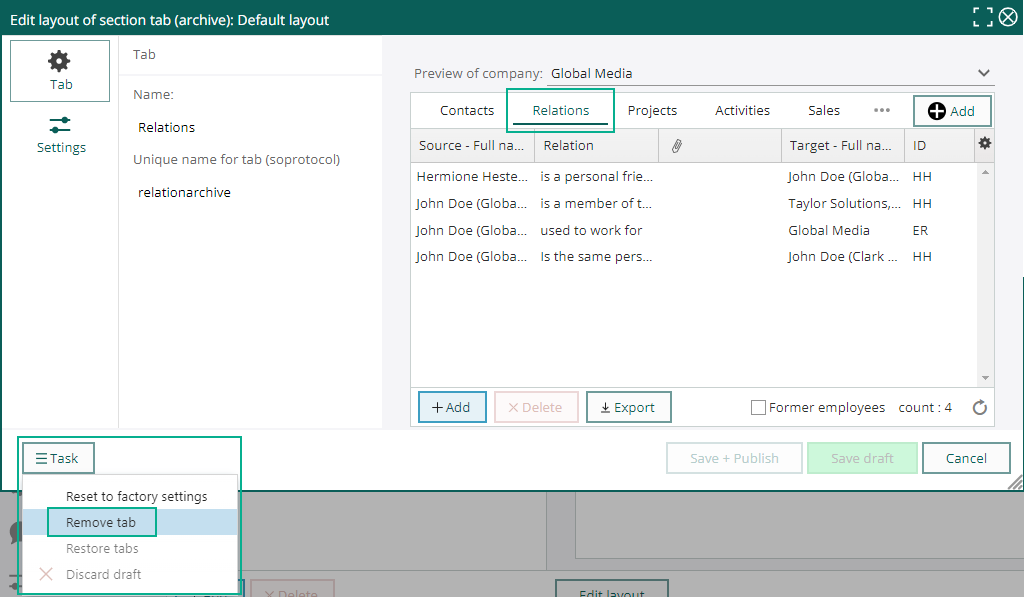 To add a new section tabs:
- Click the Add button, write the new tab name and add a description to it.
-
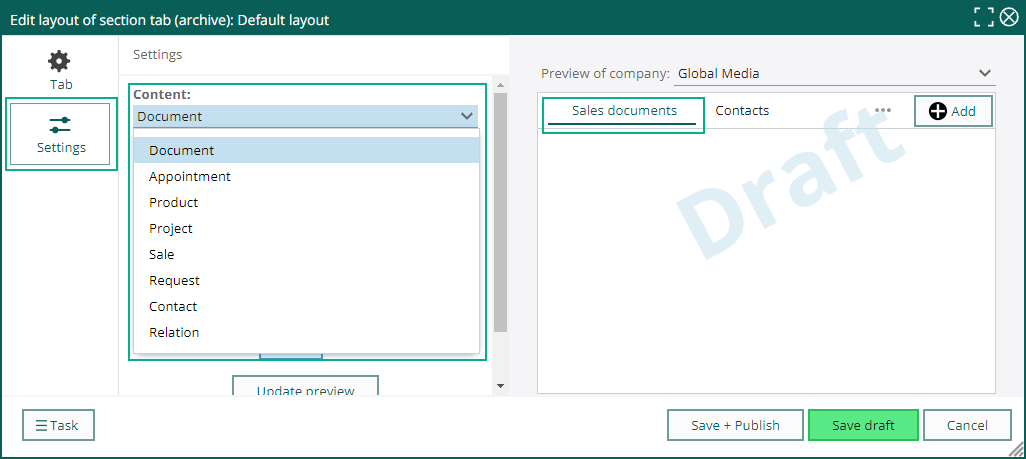
In Settings, select the content you want to show in the new tab. Depending on the main card chosen, the options are:
- Document
- Appointment
- Product
- Project
- Project member
- Sale
- Sale stakeholder
- Request
- Contact
- Relation
- All that is left, is to decide the different criteria to filter the content to your specific needs. You also can set up different actions in the advanced option.
 Multiple layouts are supported. That means each user group can have unique section tab layouts.
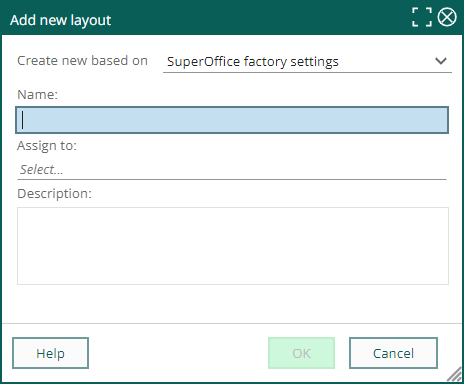
Create the new layout, name it, select the user group(s) in the assign to section and add a description.
Multiple layouts are supported. That means each user group can have unique section tab layouts.
Create the new layout, name it, select the user group(s) in the assign to section and add a description.
 Read more about Configurable screens on the Help Center and Community.