

Document editing in Local settings dialog
The Document editing setting in your Local settings lets you choose between using WebTools or handling files manually. WebTools simplifies the management of your documents and files in SuperOffice.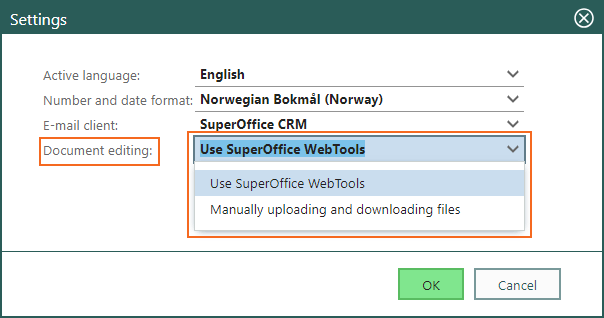
If you use Google Workspace or SharePoint Documents, select Manually uploading and downloading files.
Browser security question for opening files
When you access and edit a document, file, or email in SuperOffice, your browser prompts you with a security question regarding the file download. To open the file, you must select the Open/Allow button.Browser-specific dialog
The dialog is slightly different in Chrome, Edge, Firefox, and Safari. Chrome: Select Open URL:SuperOffice-Extensions. Edge: Select Open.
 Firefox: Select Open Link.
 Safari: Select Always Allow or Allow.
