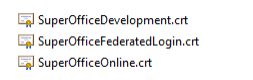
 You find these in the certificates download. SuperOfficeOnline.crt is stored in the RootCertificate folder, the 2 trusted people certificates are stored in the environment folder.
This procedure must be completed on all computers that will be hosting your application in all 3 environments: development, stage, and production. If you don’t have access to the certificate store, you need to implement a programmatic override to validate the certificates.
You find these in the certificates download. SuperOfficeOnline.crt is stored in the RootCertificate folder, the 2 trusted people certificates are stored in the environment folder.
This procedure must be completed on all computers that will be hosting your application in all 3 environments: development, stage, and production. If you don’t have access to the certificate store, you need to implement a programmatic override to validate the certificates.
Import root and environment certificates
Pre-requisites:- you have added the Certificates snap-in
- Open the Microsoft Management Console (MMC).
- Select Certificates (Local Computer).
-
Start the certificate import wizard:
- Right-click Trusted Root Certification Authorities
- Point to All Tasks
- Select Import
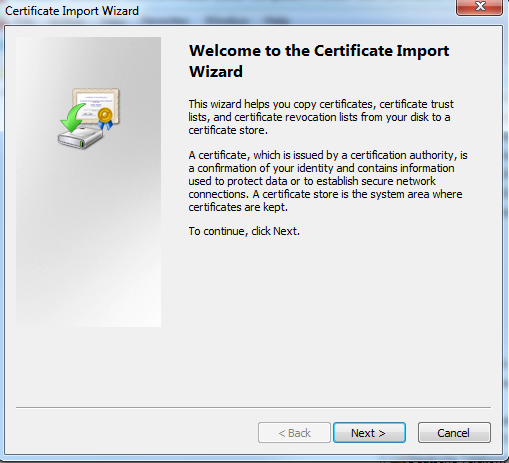
- Click Next
-
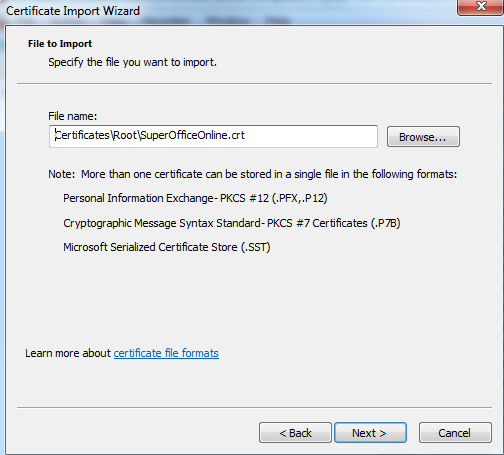
Select the certificate file from disk and click Next.
-
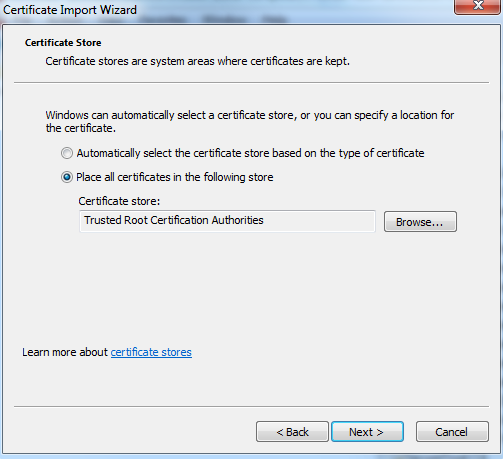
Select Place all certificates and click Next.
-
Click Finish.
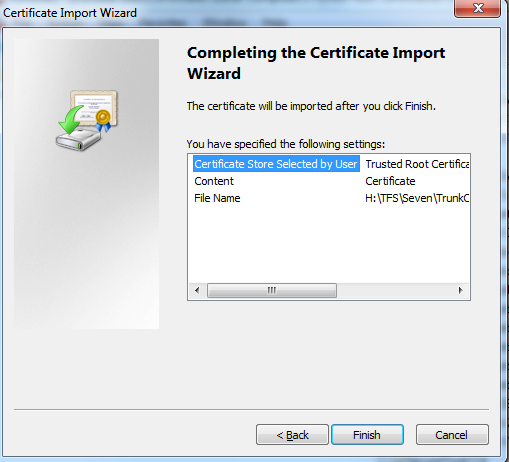
Remember to step through this procedure for both SuperOfficeRoot.crt and the SuperOffice{Environment}.crt certificates!
Import subject (login) certificates
Pre-requisites:- you have added the Certificates snap-in
- you have imported the root and environment certificates
- Open the Microsoft Management Console (MMC).
- Select Certificates (Local Computer).
-
Start the certificate import wizard:
- Right-click Trusted People
- Point to All Tasks
- Select Import
- Click Next
- Select SuperOfficeFederatedLogin.crt from disk and click Next.
- Select Place all certificates and click Next. Then click Finish.
How do I verify that certificates are configured correctly?
On the computer in each hosting environment:- Open MMC.
- Select Certificates (Local Computer).
- Select the certificates folder of Trusted People.
- Select the federated login certificate for your environment.
- Verify the hierarchy on the Certificate Path tab.
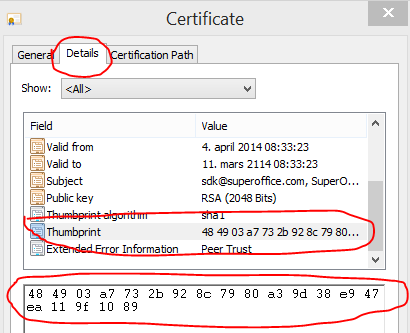
- Verify the thumbprint on the Details tab.
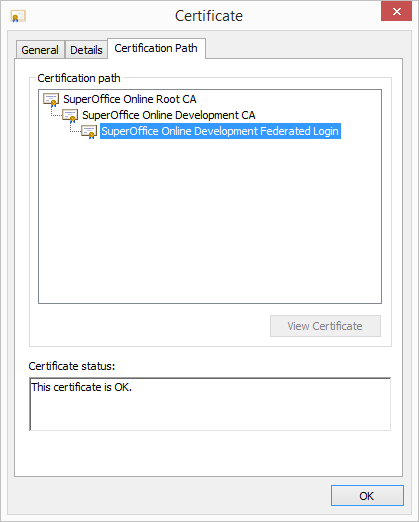
Following image shows Stage certificate