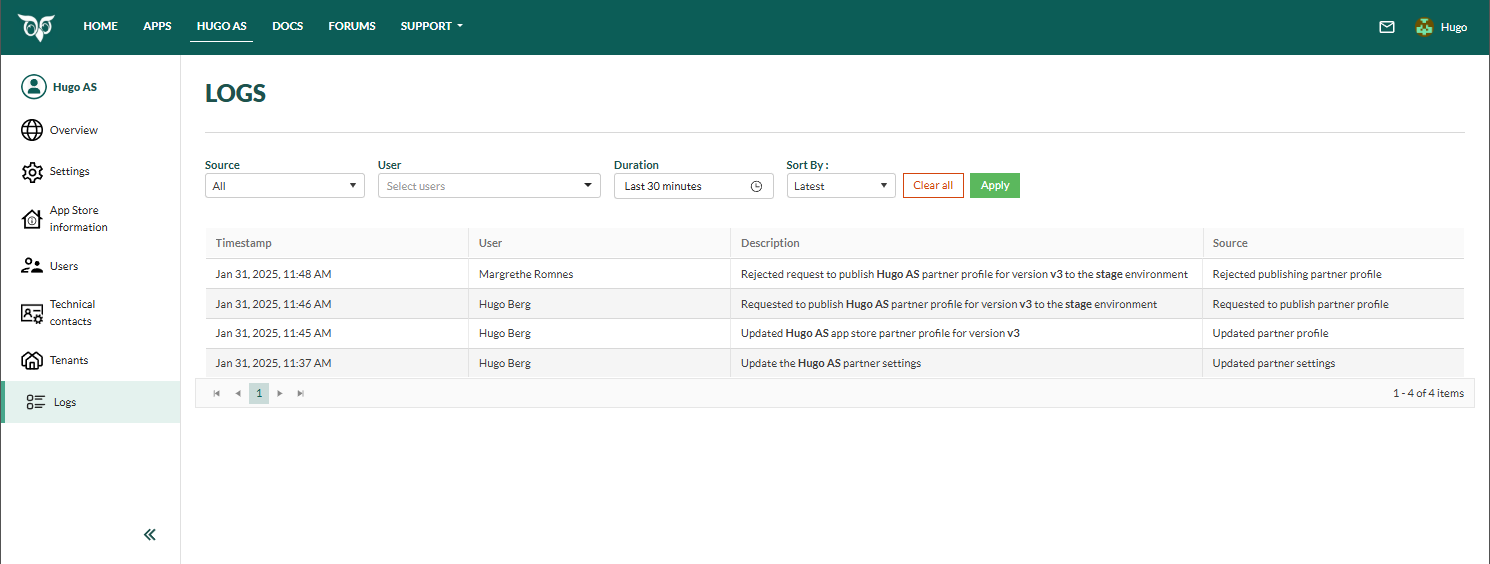
The event log allows partners and app developers to track changes related to their applications and partner settings. This provides a clear audit trail of key events, ensuring transparency and accountability.
Accessing the logs You can access logs from two locations:
From your partner page: Displays logs for all applications by that partner.
From a specific application page: Automatically filters the log to show only entries related to that specific application.
To populate the list with log records, you must click the Apply button after selecting any filters.
Filters and search options You can refine logs using the following filters:
Source: The type of the logged event (such as, request to publish, ownership update ).
User: Filter actions performed by a specific user.
Duration: Select a predefined or custom date range (such as, last 30 minutes, 24 hours).
Sort By: Order logs by latest, oldest, or other criteria.
Use Clear All to reset filters before applying a new query.
Log entries Each log entry contains:
Click on a row to observe the details of the log entry.
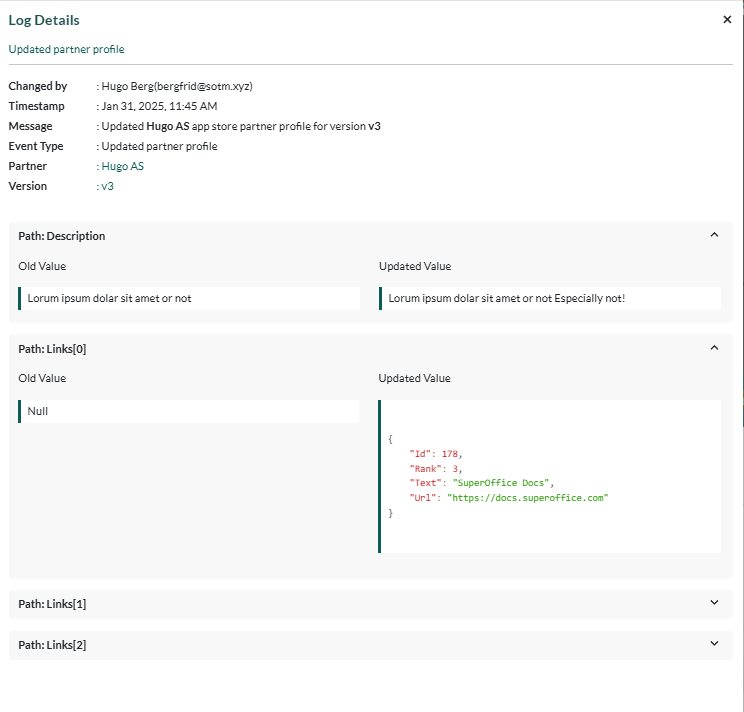
Viewing log details To see more details about a specific log entry:
Click on an entry in the list.
A Log Details panel will appear, displaying:
Changed by
Timestamp
Message
Event type
Partner/App
Version (if applicable)
Events that modify fields include old vs. new values. Click Read more to inspect each field.
Click X in the upper-right corner to close the panel.
Events (source) Application
Partner
App Store
Created application
Deleted application
Updated application settings
Changed application’s ‘developed by’
Changed application ownership
Changed application’s technical contact
Created application configuration
Updated application configuration
Requested to publish application configuration
Published application configuration
Rejected publishing application configuration
Created application profile
Updated application profile
Requested to publish application profile
Published application profile
Rejected publishing application profile
Reported application failure
Updated partner settings
Changed partner’s administrative contact
Changed partner’s technical contact
Created partner profile
Updated partner profile
Requested to publish partner profile
Published partner profile
Rejected publishing partner profile
Assigned user to partner
Removed user from partner
Updated partner user permission
App Store uninstall application
Problem report from App Store