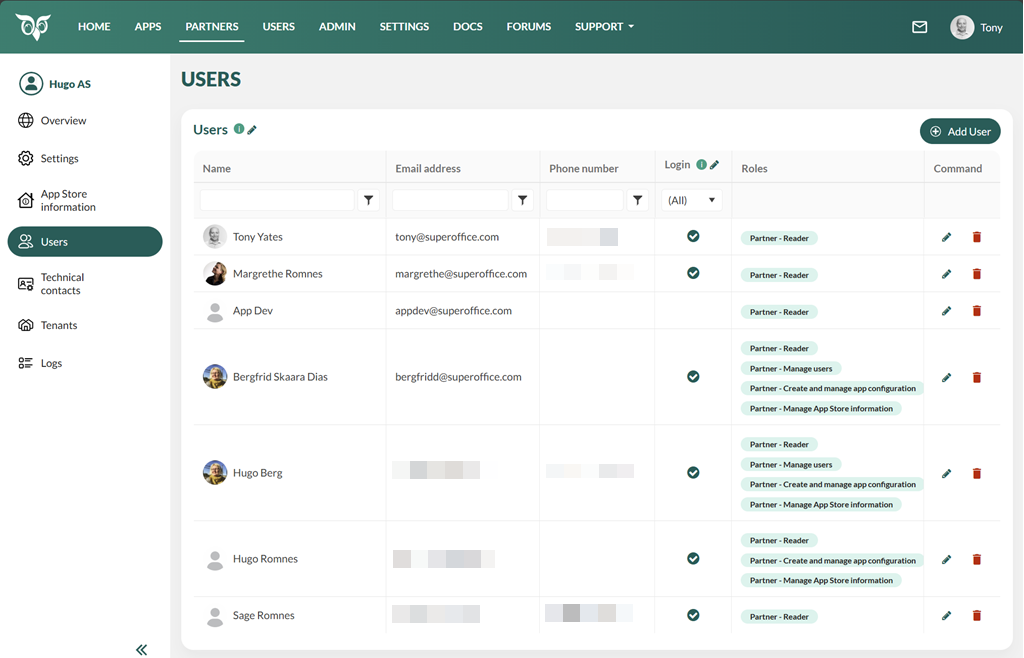
 This task requires User management permission.
- Partner Admin
- DevPortal Admins
Who can I add?
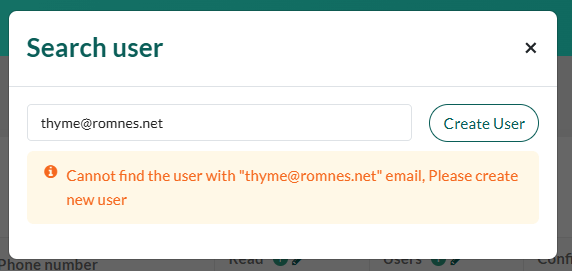
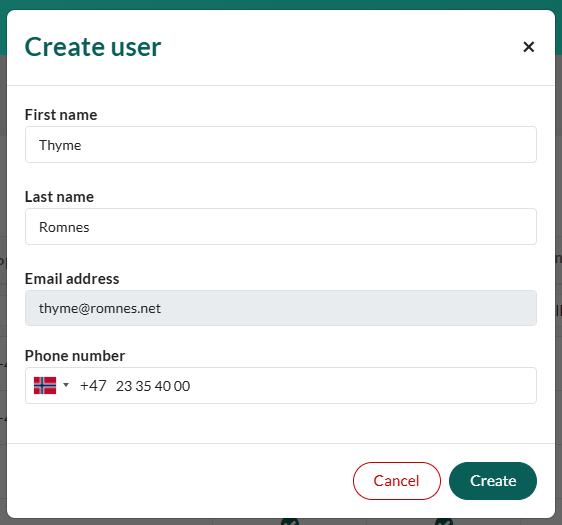
You can add any known user by name or email address that shares one or more tenants with you in production. You can’t add users that don’t share a tenant with you. If you want to add a user that doesn’t share a tenant with you, you must first add the user to your tenant by creating a new user in the target SuperOffice instance Settings and maintenance.- If it matches an existing SuperID user account, select and add the user to the partner. If you know this user is a SuperOffice CRM Online user, make sure you use the correct UPN -
firstname@company.comversusfirstname.lastname@company.com - If the search results are empty, ensure the active user belongs to at least one of your shared tenants in production. If not, you can’t add them to your partner.
How to
- In the Developer Portal, go to your partner page.
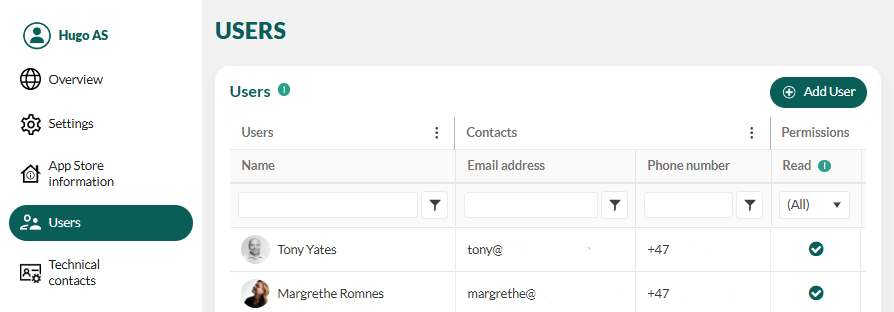
- Select Users from the left menu.
-
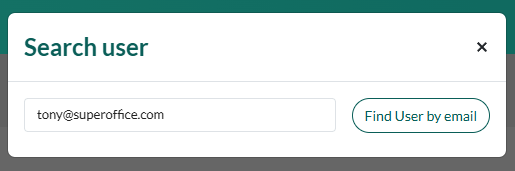
Click Add User button.
-
Enter a valid name or email address, then select the user from the list.
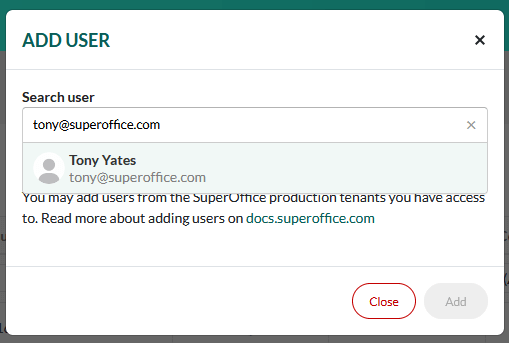
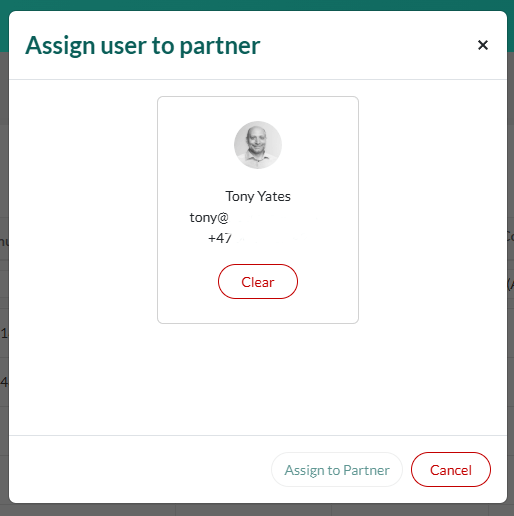
- Selected the user from the list, then click Add.
- The user is added to the Partner Users collection.
- You can now assign permissions.