This task requires User management permission. Administrators can disconnect a SuperID user from a partner in the SuperOffice Developer Portal. This action does not delete the SuperID user account, nor does it impact the user’s access to tenants. The user retains the ability to sign in to their tenants and, if associated with multiple partners, can still access the Developer Portal and carry out tasks based on the permissions granted by those partners.

Steps

  1. In the Developer Portal, go to your partner page.
  2. Select Users from the left menu.
  3. Find the user in the list and click Remove.
  4. Click YES to confirm.
  5. If the user is a contact person, their responsibilities must be reassigned prior to removal. Follow the provided instructions to make necessary updates.
    • Technical contact for applications: Select a new technical contact for ALL the listed applications.
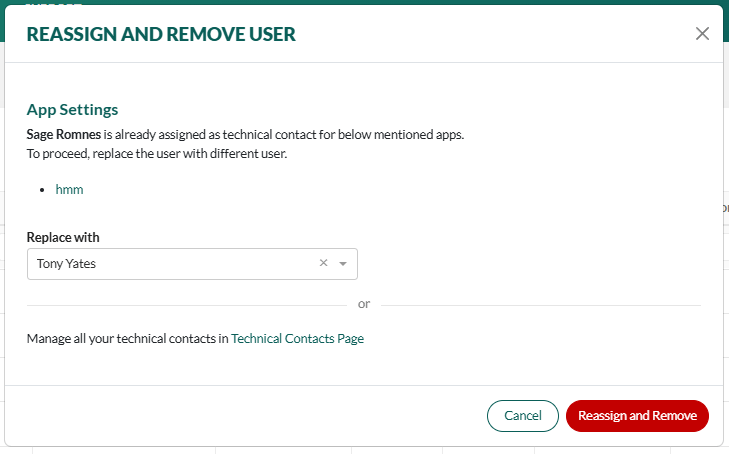
    SuperOffice Developer Portal: reassign and remove user -screenshot
    • Administrative and/or technical contact for partner: Select new contact persons.
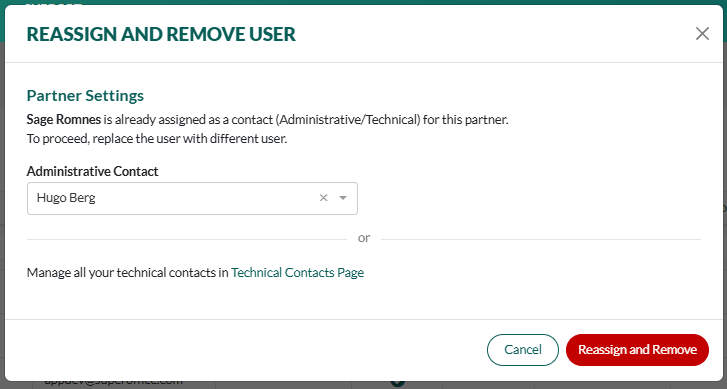
    SuperOffice Developer Portal: reassign and remove user -screenshot
    • Contact person for both partner and apps:
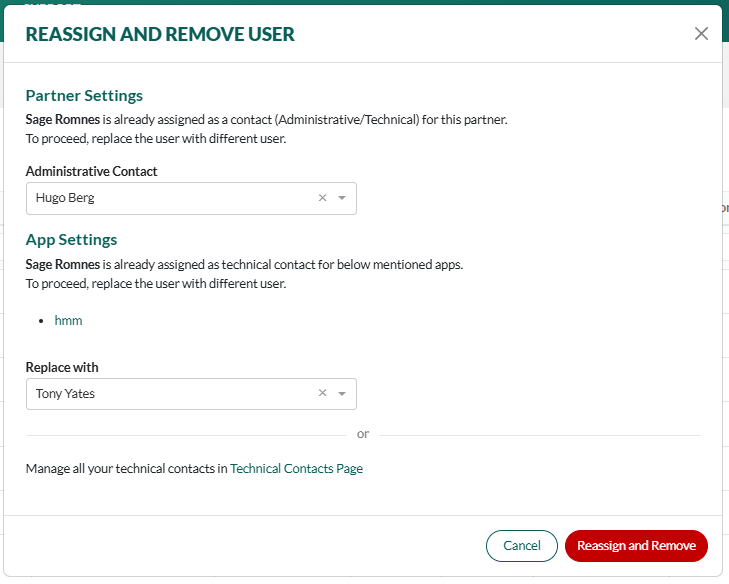
    SuperOffice Developer Portal: reassign and remove user -screenshot
    Alternatively, click the link below the horizontal OR bar to review and update all your technical contacts.
  6. Click Reassign and Remove to finalize the process. (The button stays grayed out until all reassignments are OK.)