Lead Agent is coming soon. This page describes a feature that is not generally available yet. It requires CRM Suite Plus or above.
Find your agent
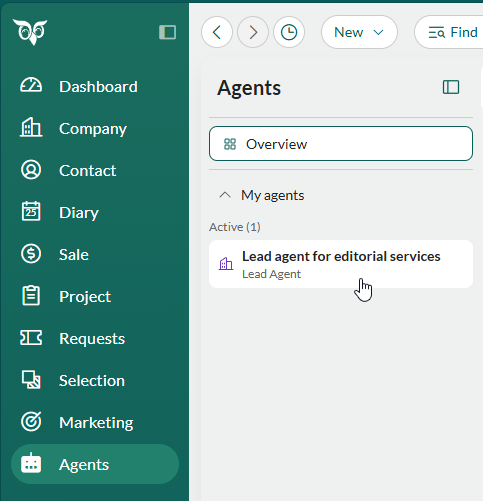
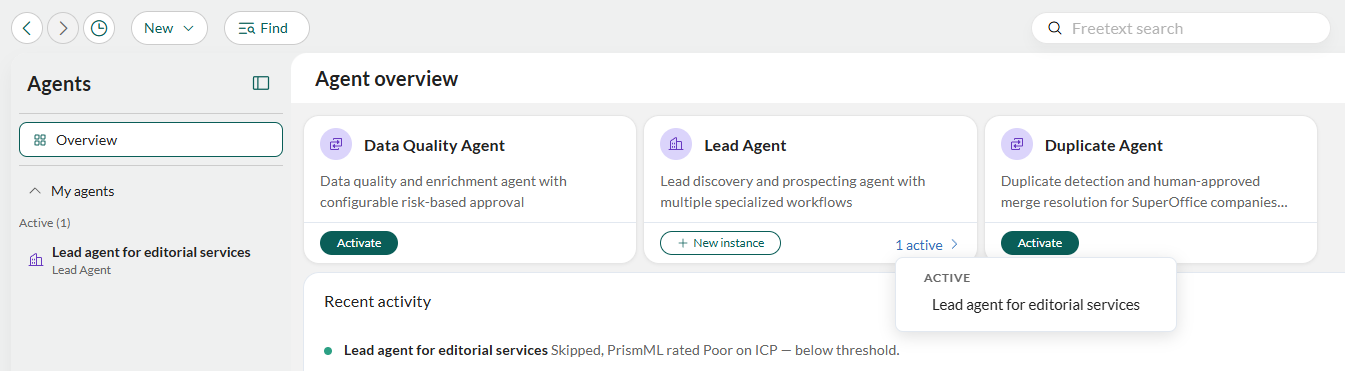
- Select Agents in the Navigator.
- Select the Lead Agent instance from the My agents list or the Lead Agent card in the Agent overview.
The agent workspace
Across the top are three tabs.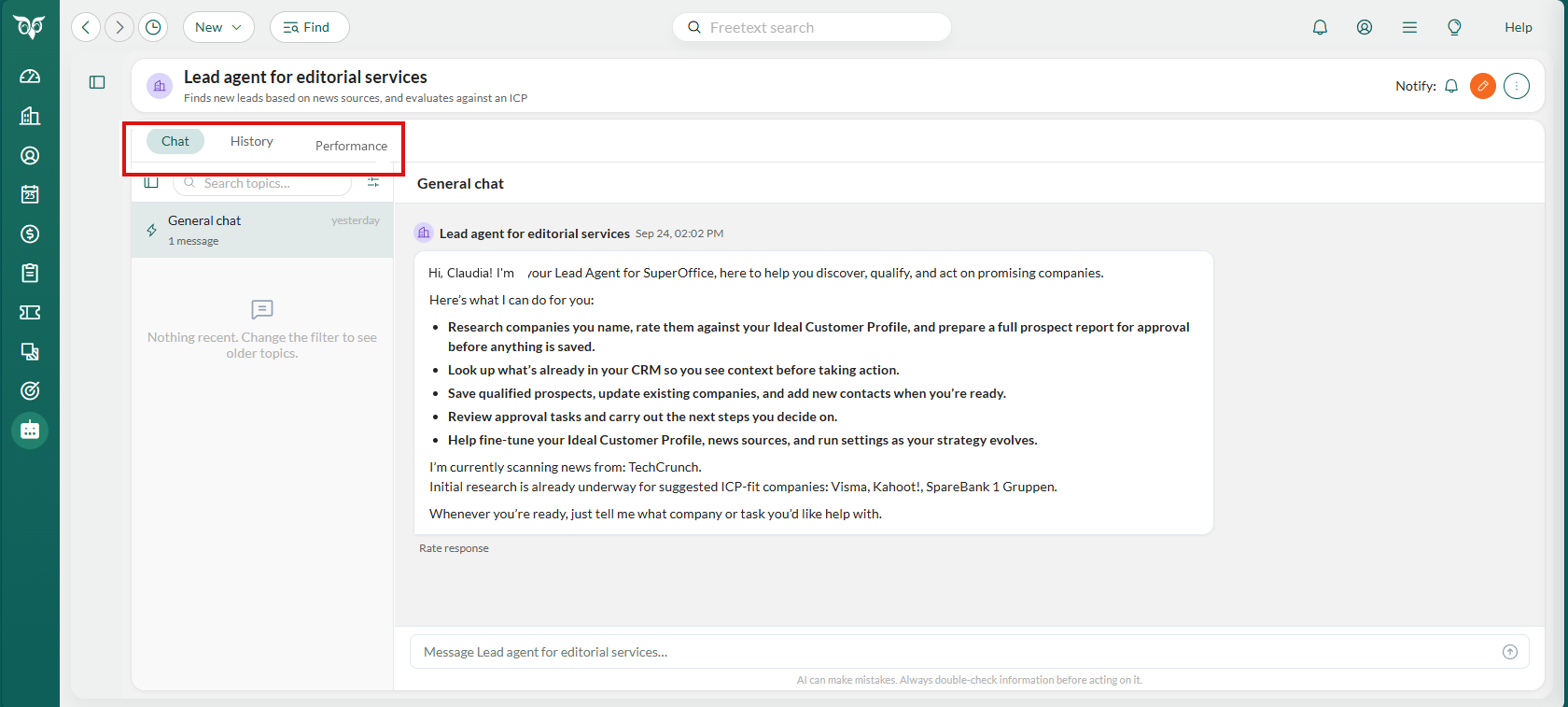
Chat tab
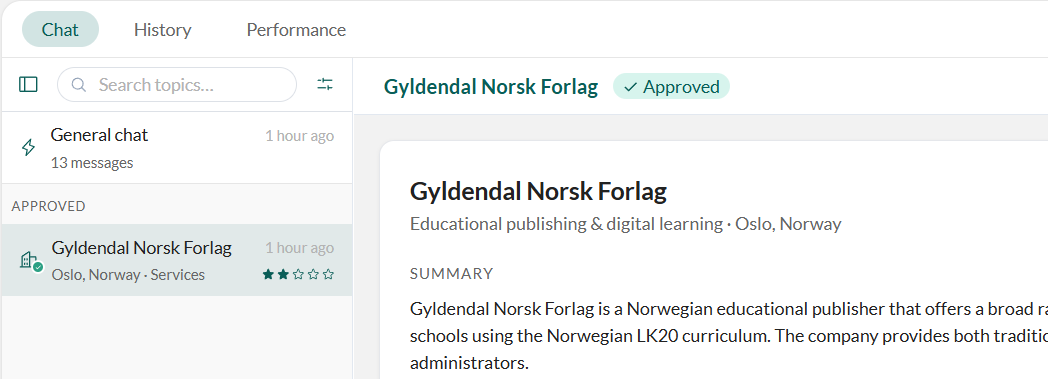
In the Chat tab, you can talk to the agent and review discovered leads.- General chat: a free conversation with the agent. Ask it to look into a specific company and watch it work through the steps. A genuine lead found this way raises a normal approval task, just like one found on the daily run.
- Lead threads: each discovered prospect arrives as its own thread, named after the company. This is where you approve or reject the lead.
History
The History tab is a detailed log of everything the agent has done: companies processed, ratings, reports sent for approval, prospects saved, and any items skipped, with the reason why. Select a Period (last 24 hours, 7, 30, or 90 days) to narrow it down. Long histories are paged.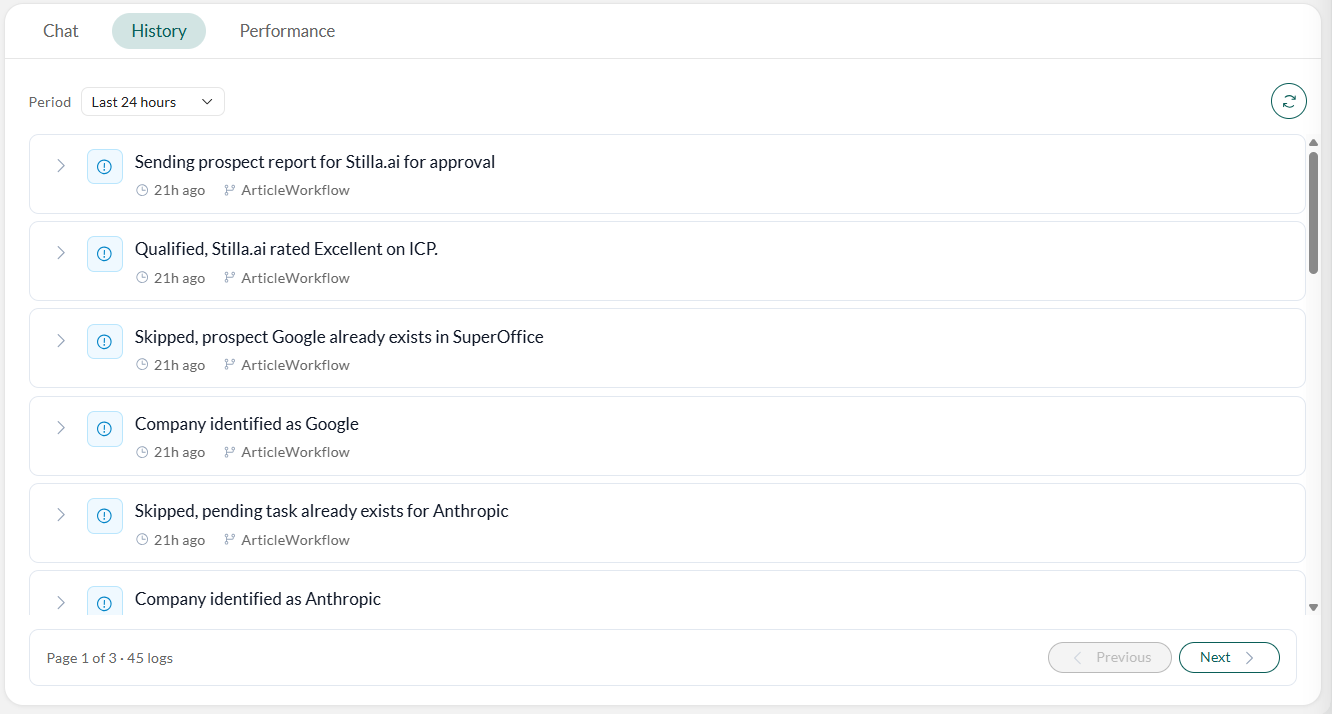
This tab is available only to the agent’s owner and its approvers.
Performance
The Performance tab shows how the instance is performing over a period you choose: links processed, leads qualified, leads researched, leads sent for approval, approved, rejected, expired, and runs completed. Each metric appears as a trend chart.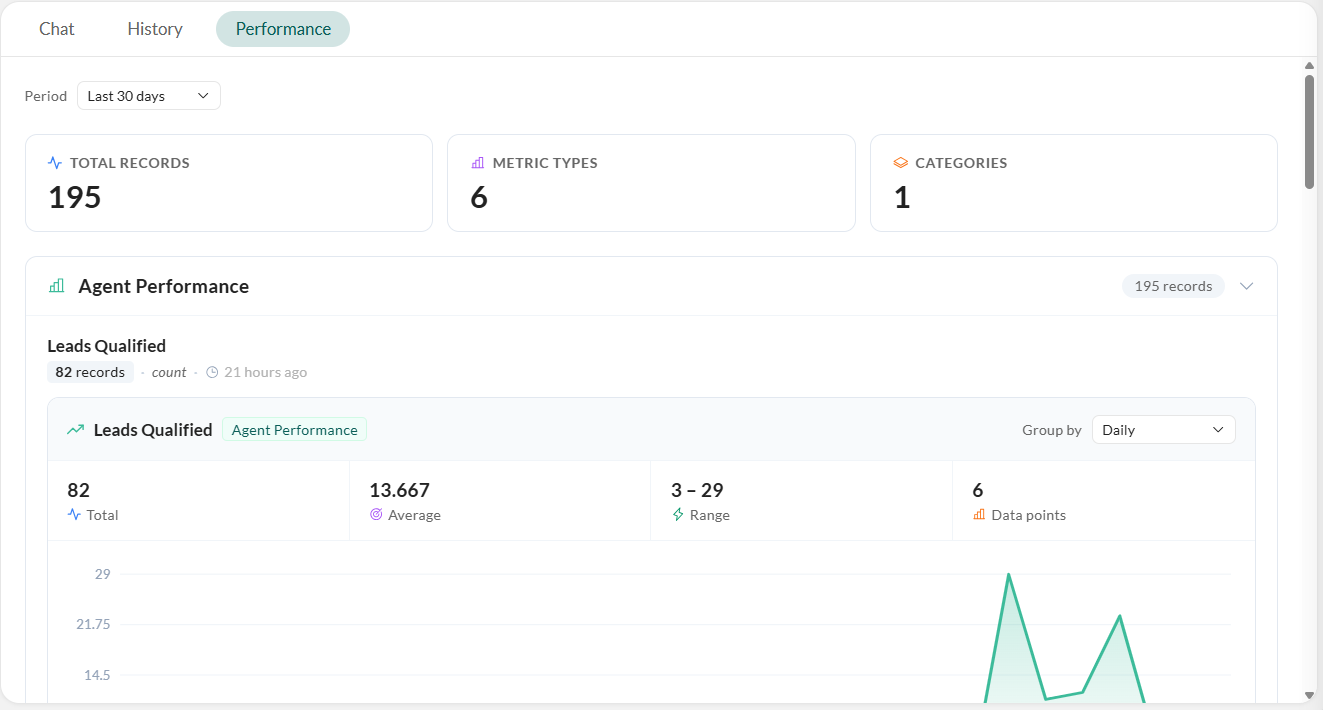
Review a prospect
- Select the Chat tab.
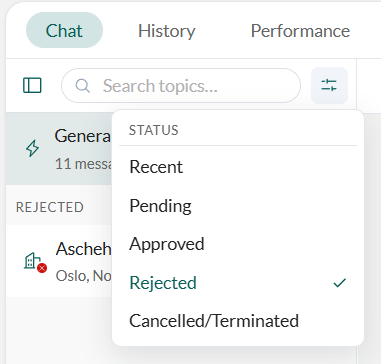
- Select and select Pending.
-
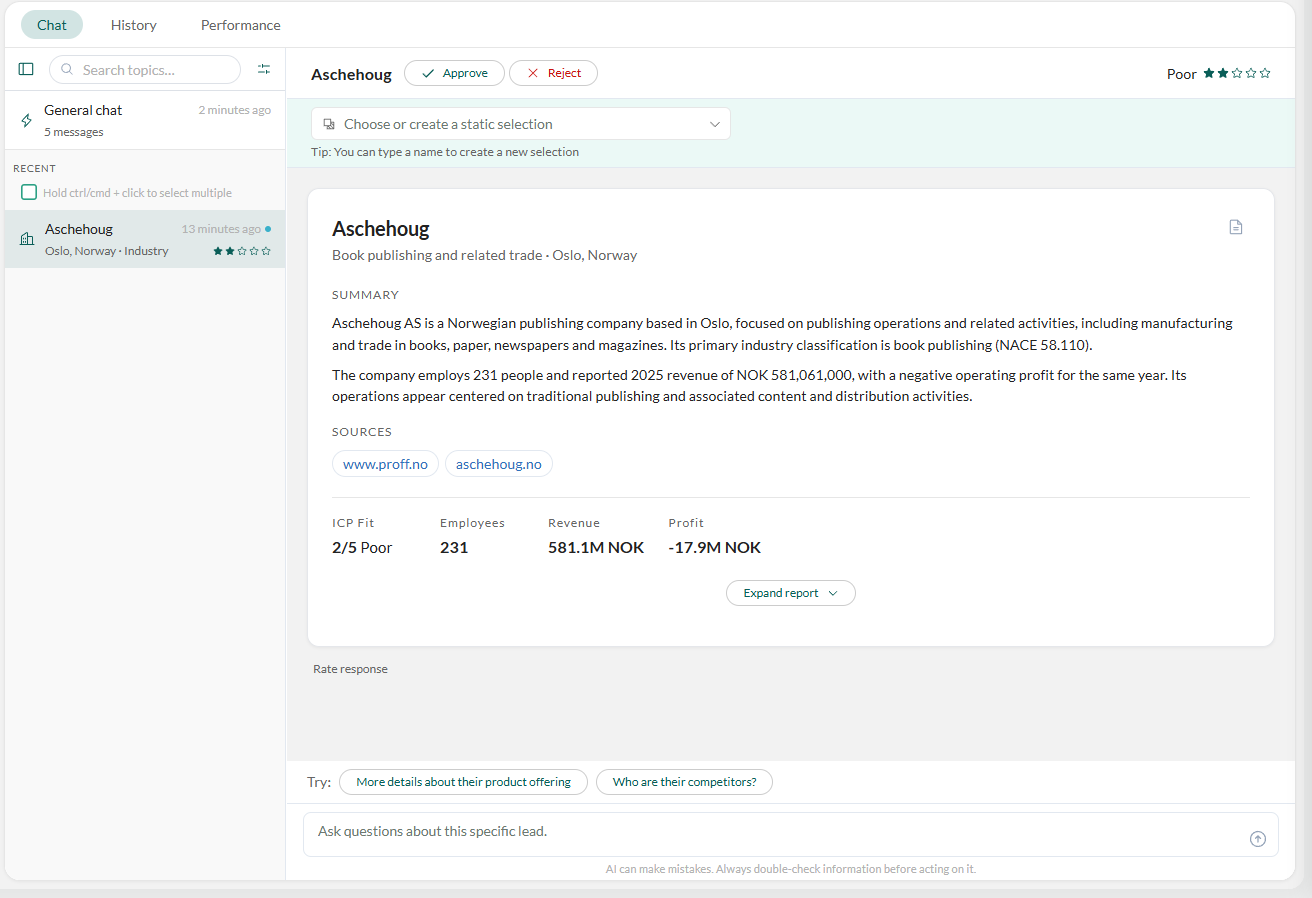
Choose a lead from the list to show the agent’s prospect report.
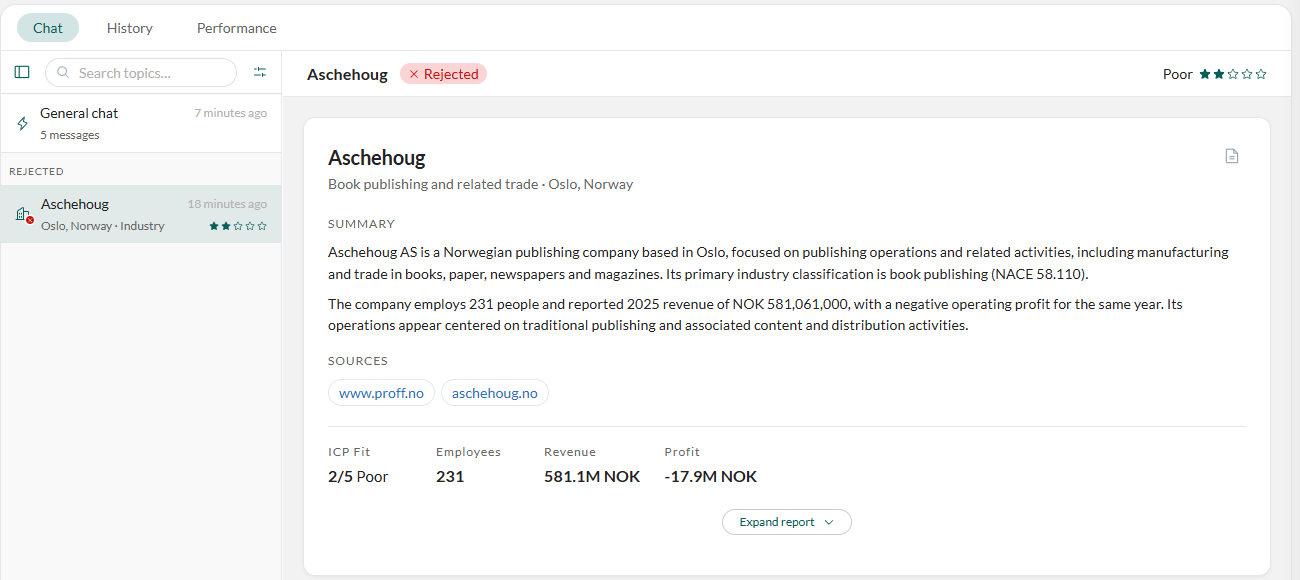
- The report opens collapsed to the essentials: a fit rating, the sources it used, and key stats.
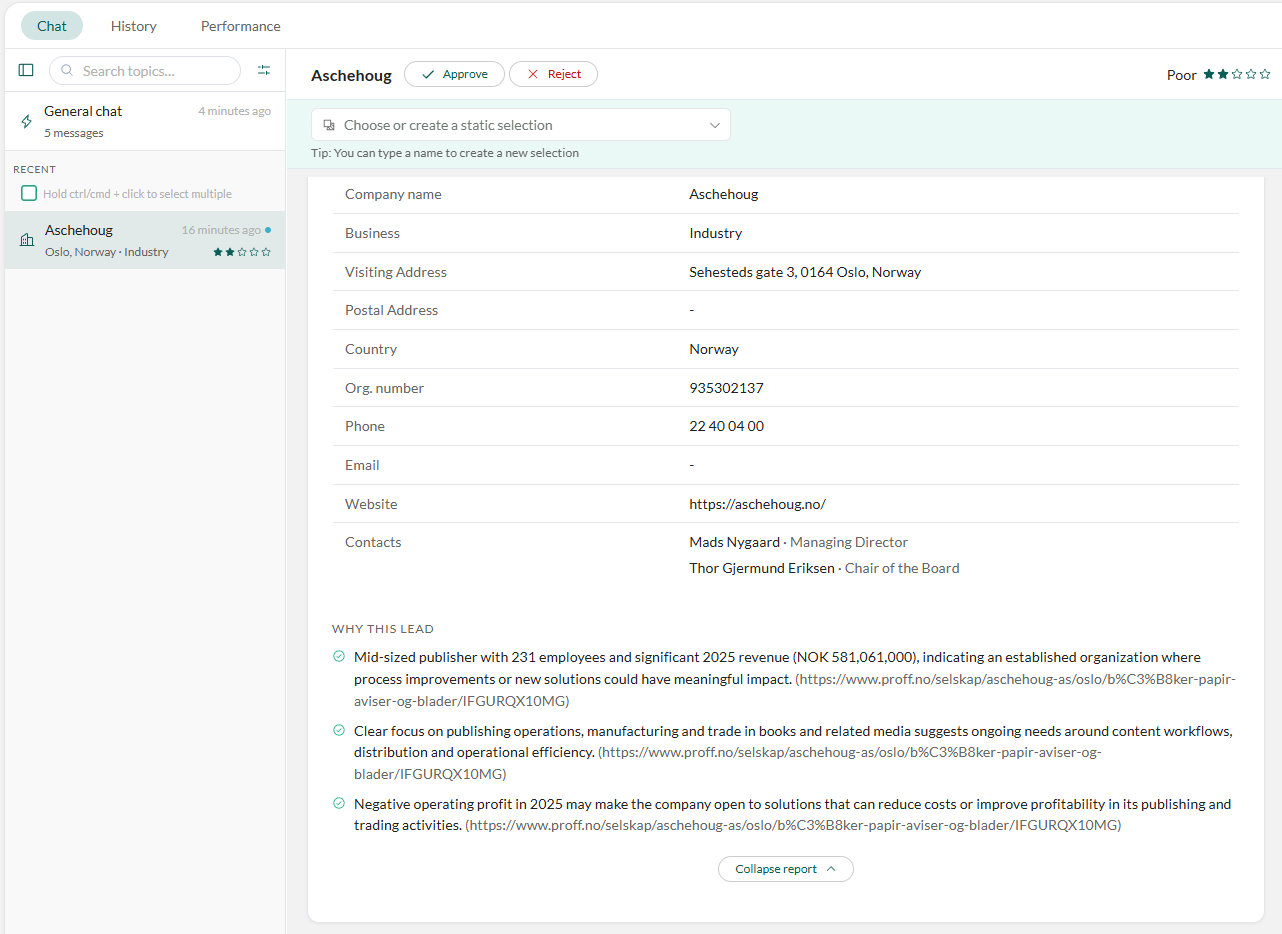
- Select Expand report for the full write-up: a company summary, the record to be saved (name, business, address, country, phone, email, website, and any contacts found), and why it is a good fit, with sources cited.
- Optionally, select to download the report as a PDF.
Look into a specific company
- Select the Chat tab.
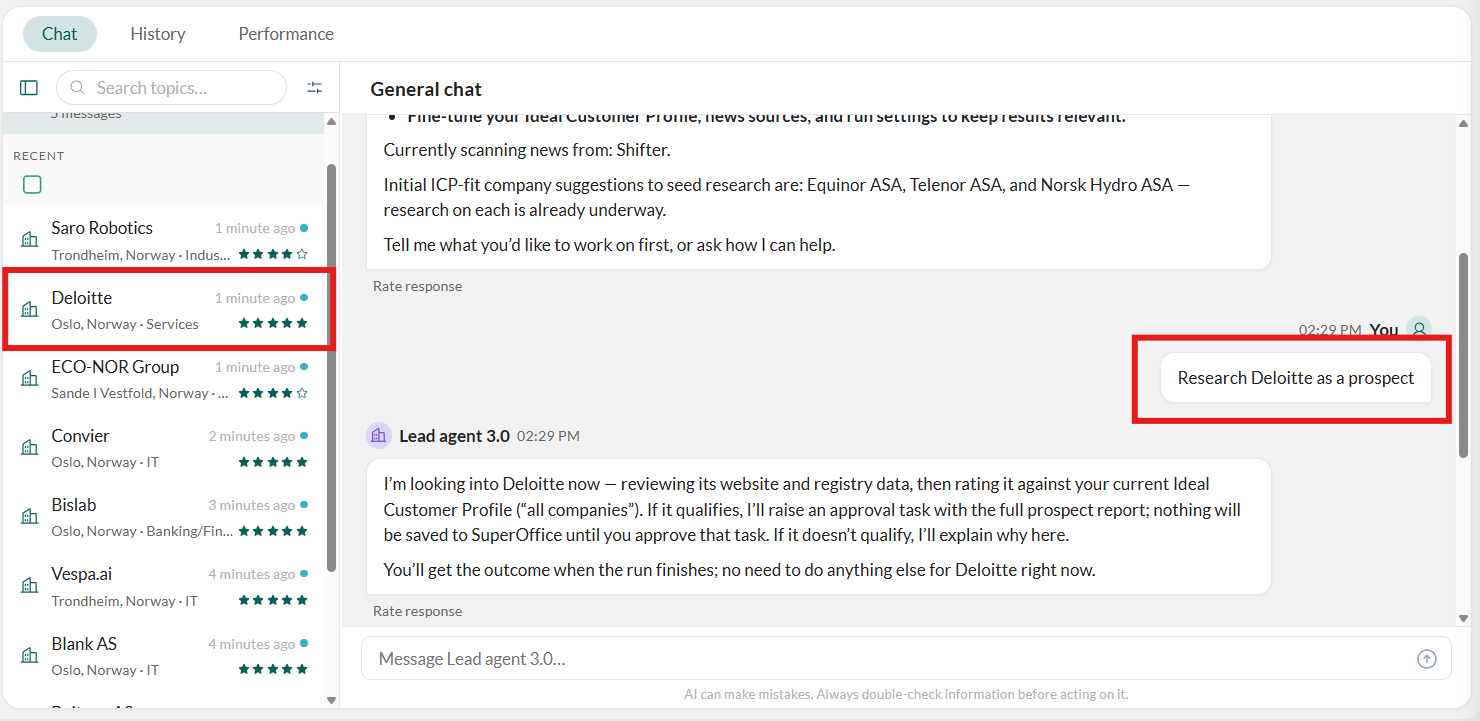
- In the General chat, ask the agent to explore a specific company.
- If a genuine lead is found, the prospect report is added to the list. Review it as described above.
Approve a prospect
 When you decide to save a prospect to SuperOffice:
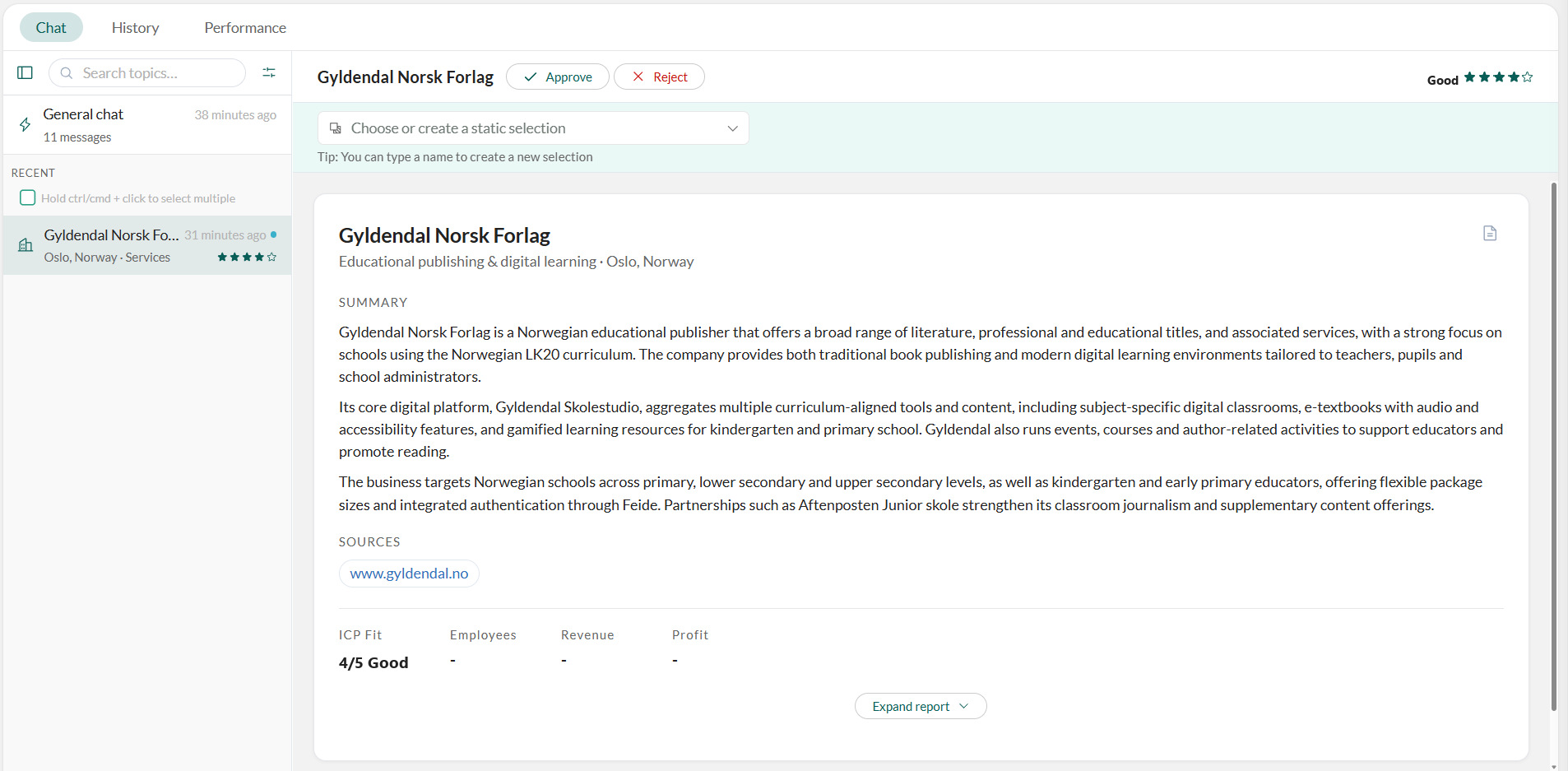
- Optionally, Choose or create a static selection to add the company, and any contacts, to the selection when you approve.
-
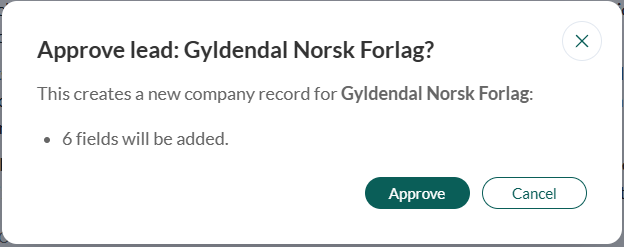
Select Approve on the selected prospect.
-
In the confirmation dialog, review what will be saved to SuperOffice and select Approve.
- The approver is set as owner.
- Two notes are added: Company Summary and Product Offerings.
Reject a prospect
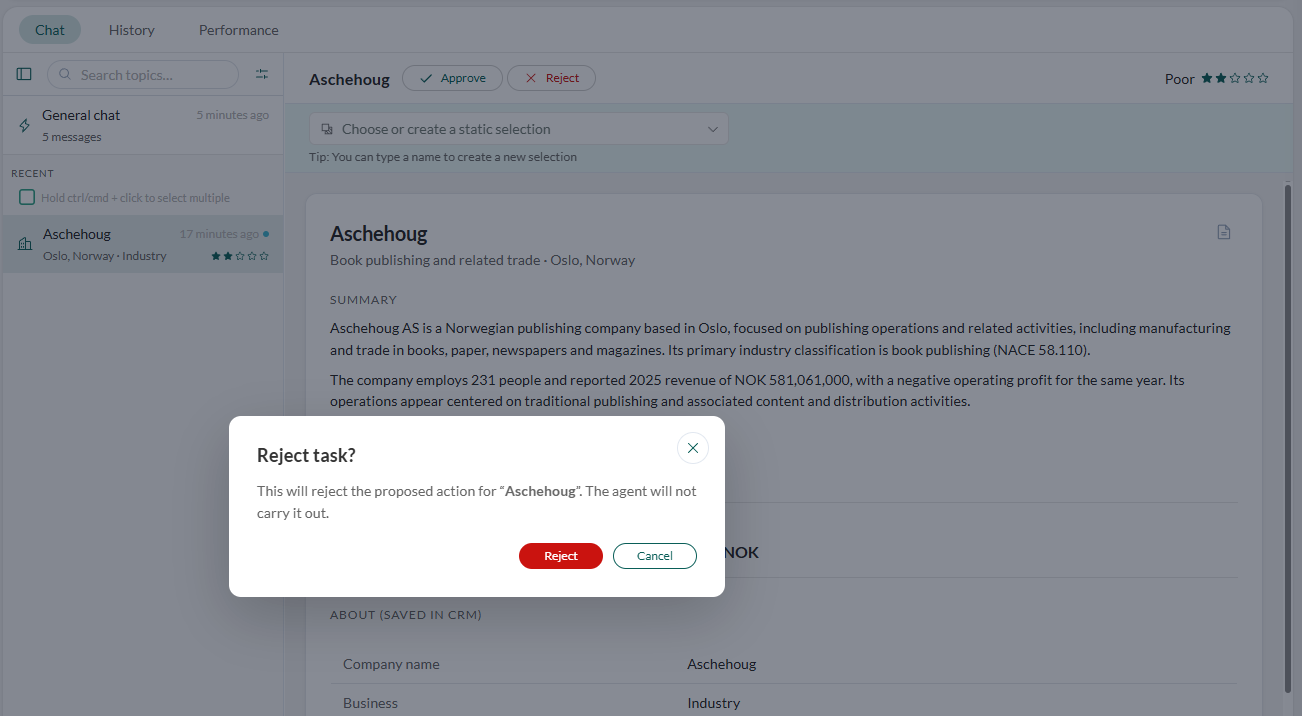
If you decide not to add a prospect to SuperOffice, you have two options:- Ignore: the lead remains in the list until it expires and nothing is saved.
- Reject: the lead is skipped and nothing is saved. This lets other approvers know the lead has been vetted.