- This file is up until 8.1 used during the setup phase - it describes which prime data files are to be loaded into the newly created or upgraded database.
- Before 8.1 the file is created automatically during the setup process with links to our priming data. From 8.1 the priming data is part of our dictionary steps and the files are no longer used.
- You may manually edit this file to import additional data.
Sections in this file
Sections Init, Register, and Upgrade are hidden from the Load or re-load initial data into an 8.1+ database dropdown in SuperOffice CRM Database Maintenance (DBsetup.exe) menu. You may add your own import files and add a section inside brackets, like:[MyImportSection]
The prefix before =path.and.filename just needs to be unique.
Creating your own imp file
The imp file must match the table you want to import, starting with the table name inside brackets. On the line below you may specify what you want to do with the current data in this table.Truncate_table
This will delete all data in the table before it imports what is found in the imp file.Truncate_BuiltIn and Set_BuiltIn
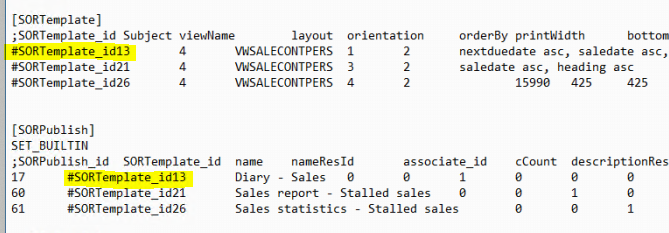
Special data marked as belonging to SuperOffice may be updated in later releases, this is done by us flagging our data with 1 inside the IsBuildIn field of the database table. Then we can later tell DBSetup that we only want to delete our data, but leave customer and partner rows behind in the database.If you set the primary key of a table to 0 then DBSetup, which automatically sets the primary key to the next available value. If you want to set it hard to a specific ID as we do in the
SORPublish table in the I_STDReportsNew.imp file.#MyTableEntry_id1, #MyTableEntry_id2, and so on. Then in a later table in the same imp file, you may pick up the value and assign it as a foreignKey.