How to use SuperOffice new record trigger with Zapier
Use a new trigger when you want your Zap to start whenever a new record is created in SuperOffice CRM.Each record type (such as Sale, Contact, or Project) has its own trigger event.Use the tabs below to view the specific steps and screenshots for each trigger type. All other steps on this page are identical for every event.
To create Zaps, you must connect a SuperOffice CRM account that has General Administrator user rights.
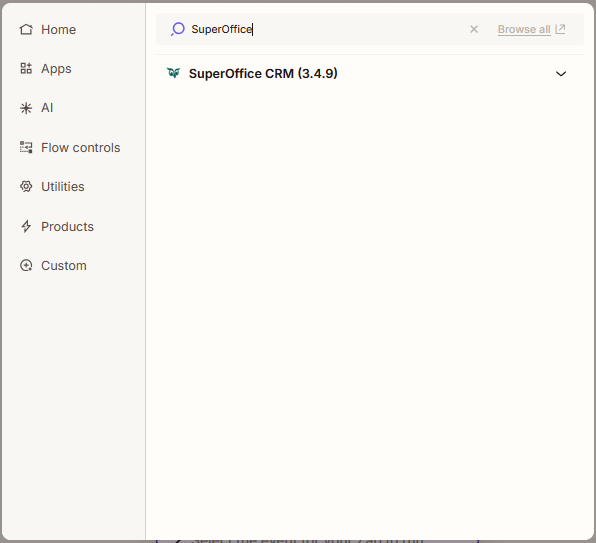
Click the Trigger step to open a window for selecting the application to use.Search for and click on SuperOffice.
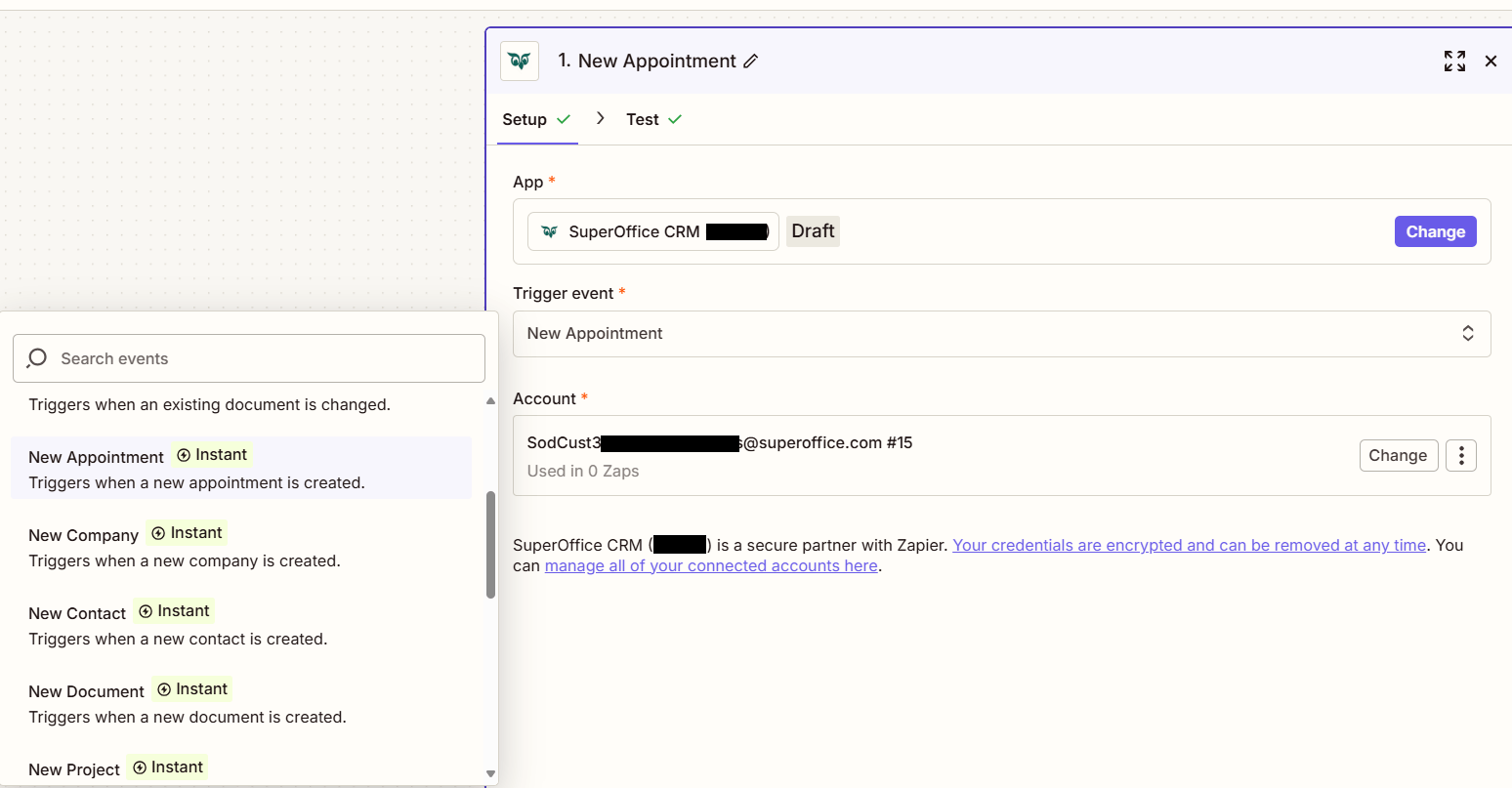
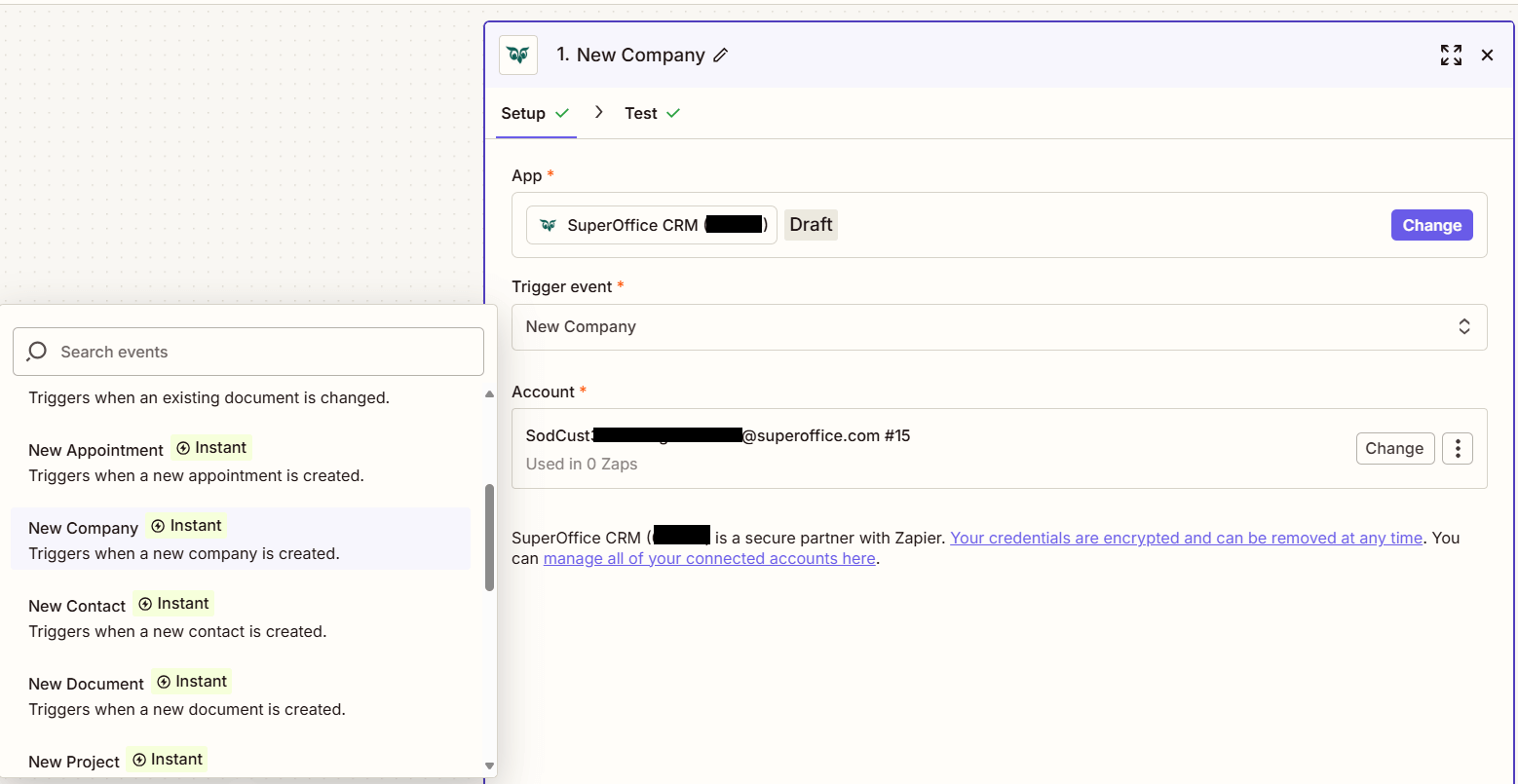
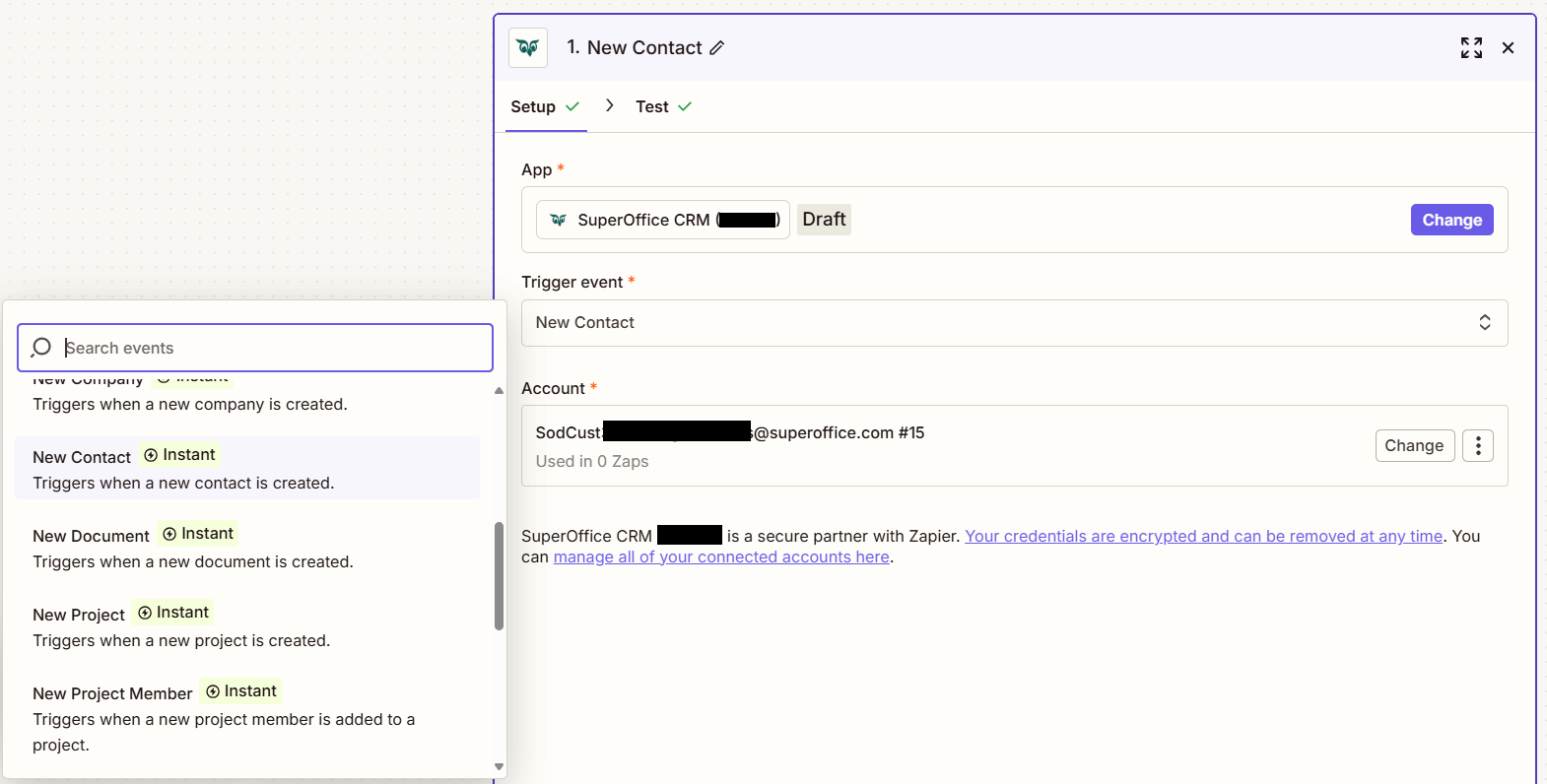
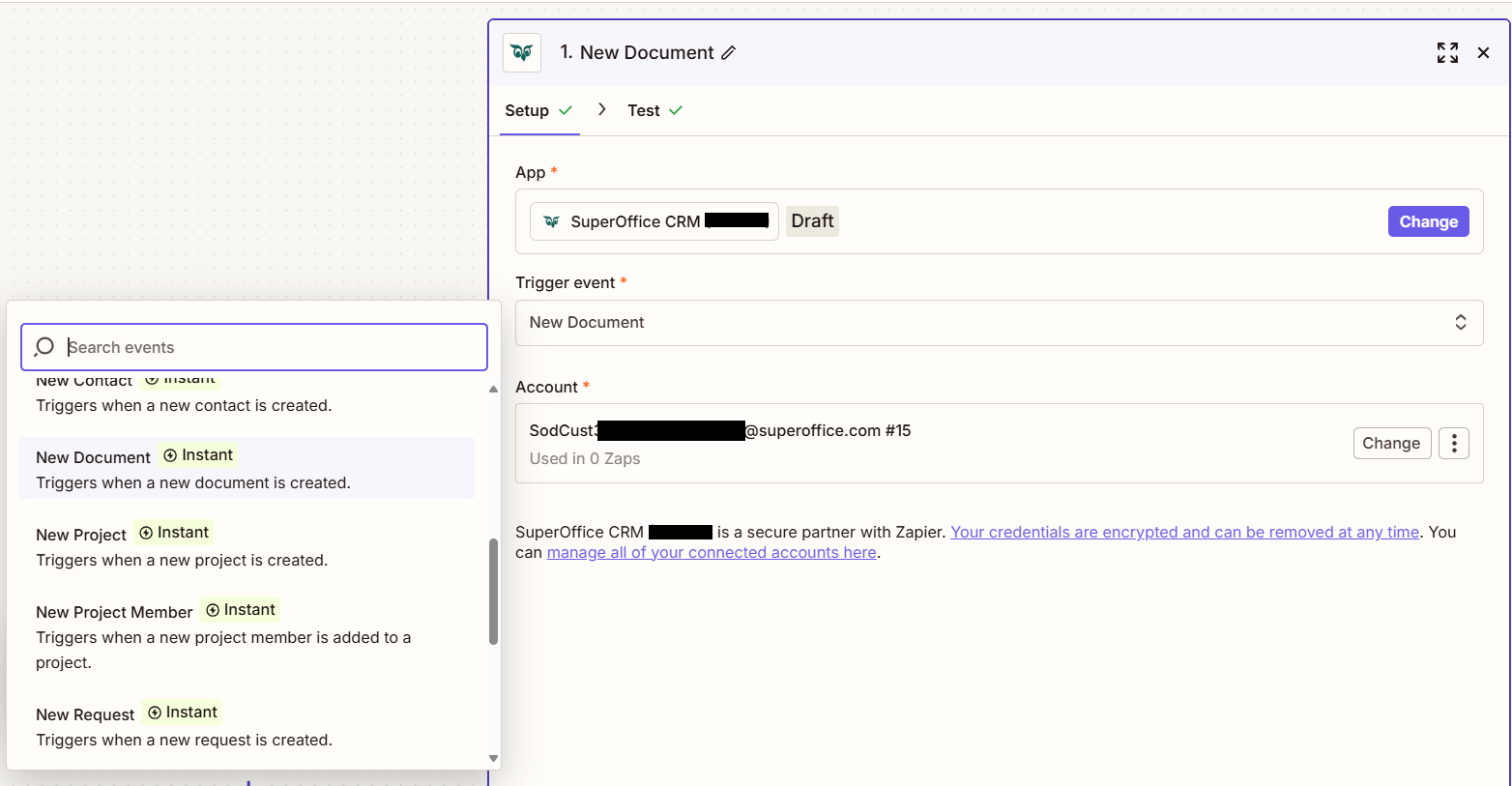
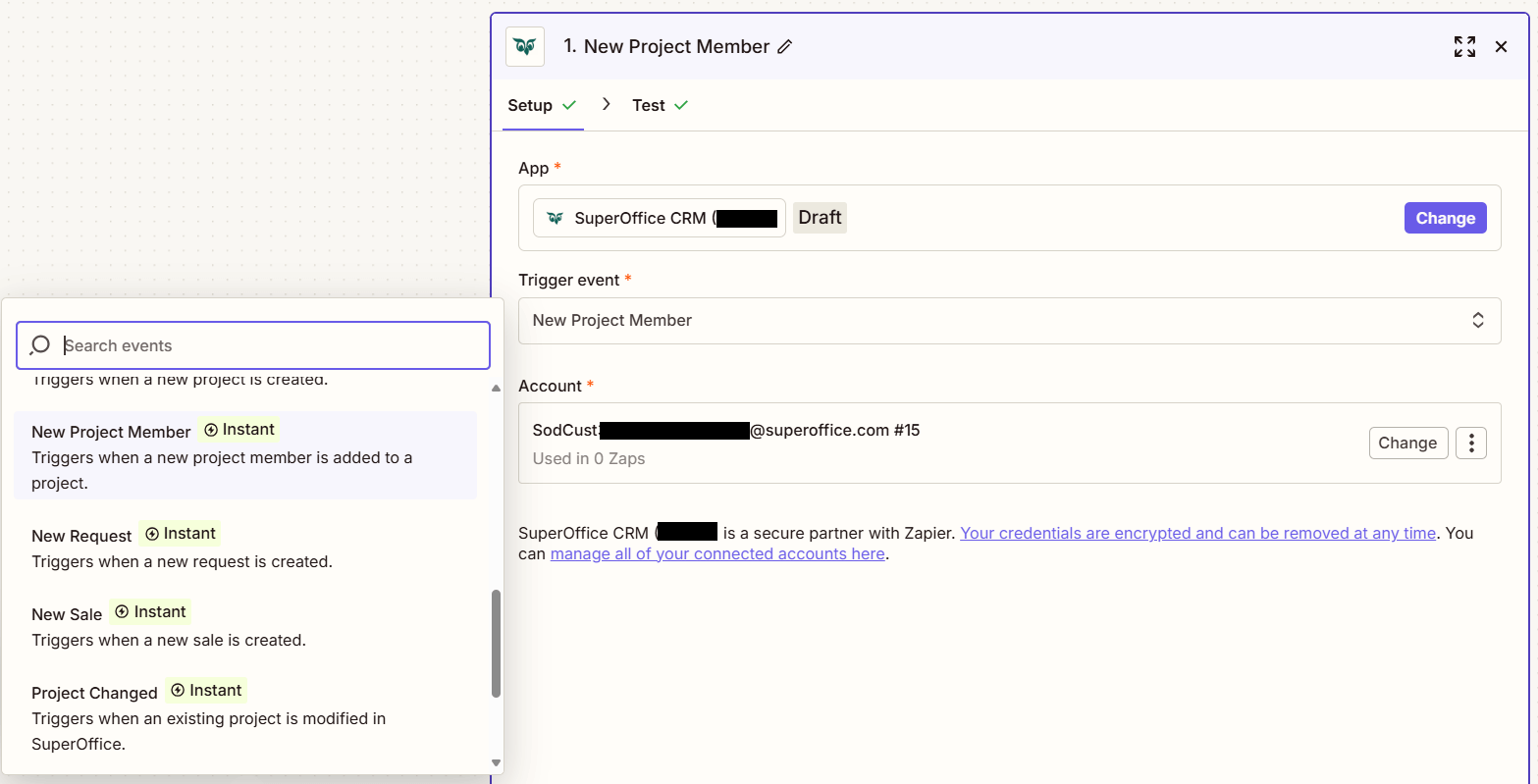
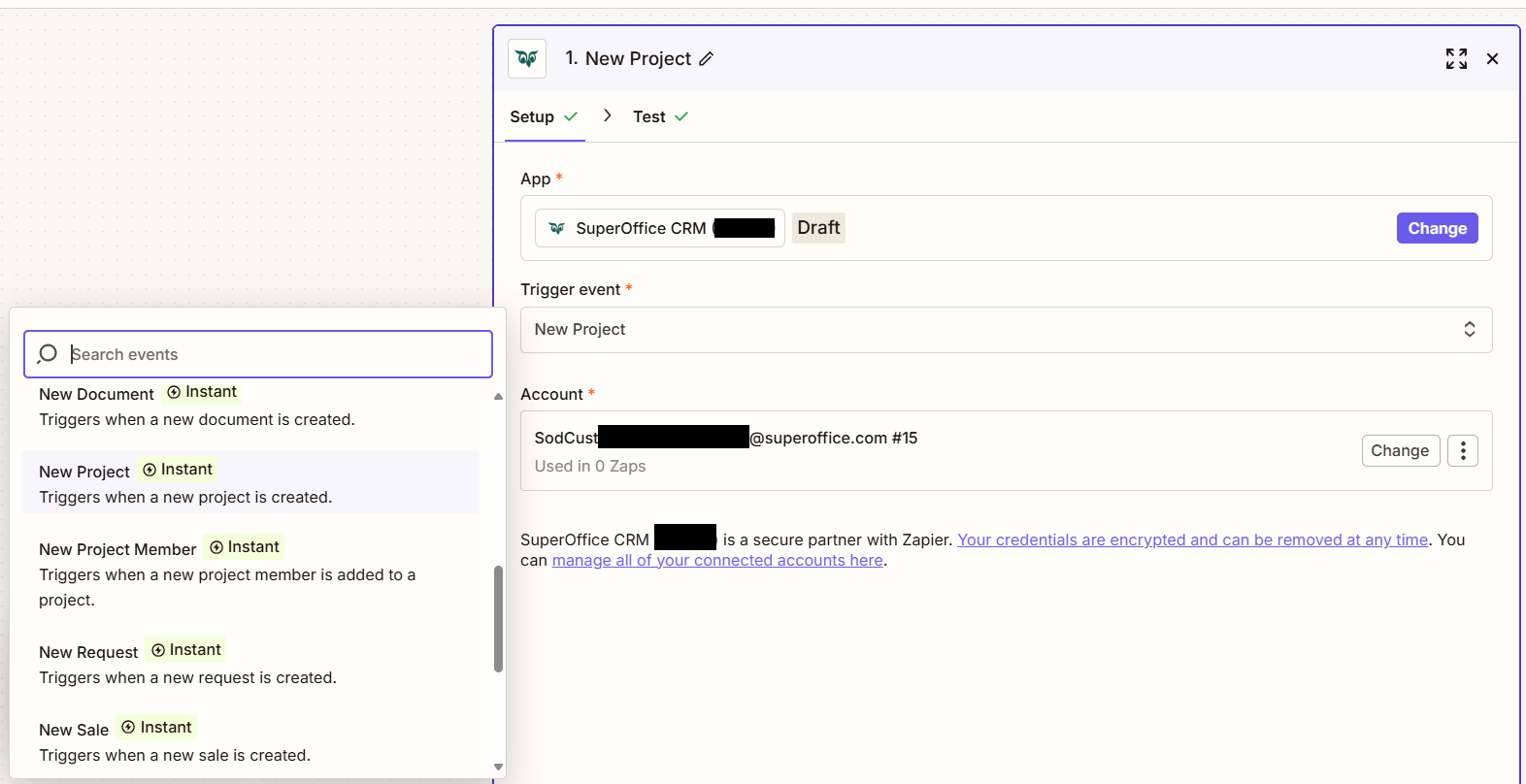
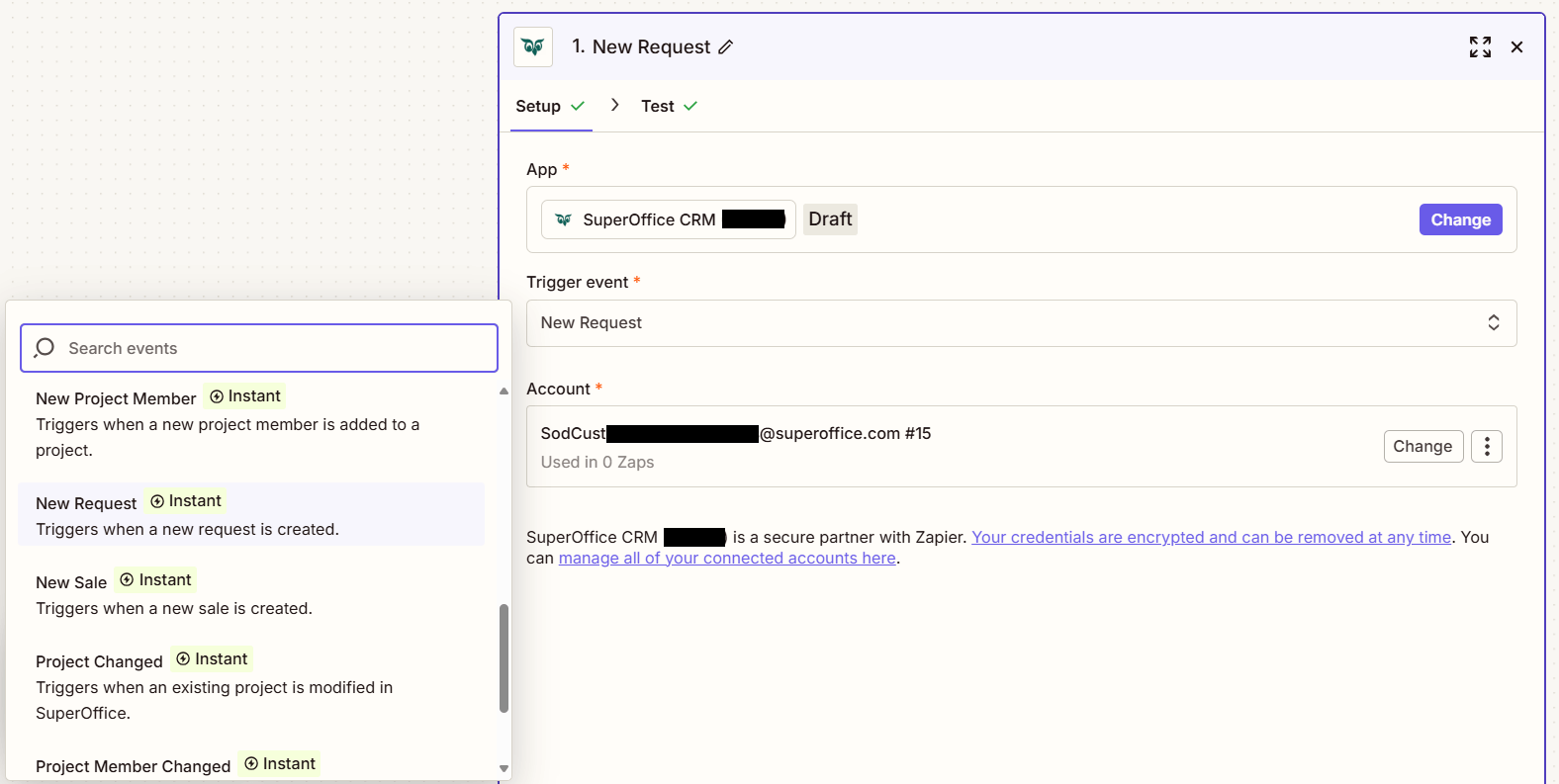
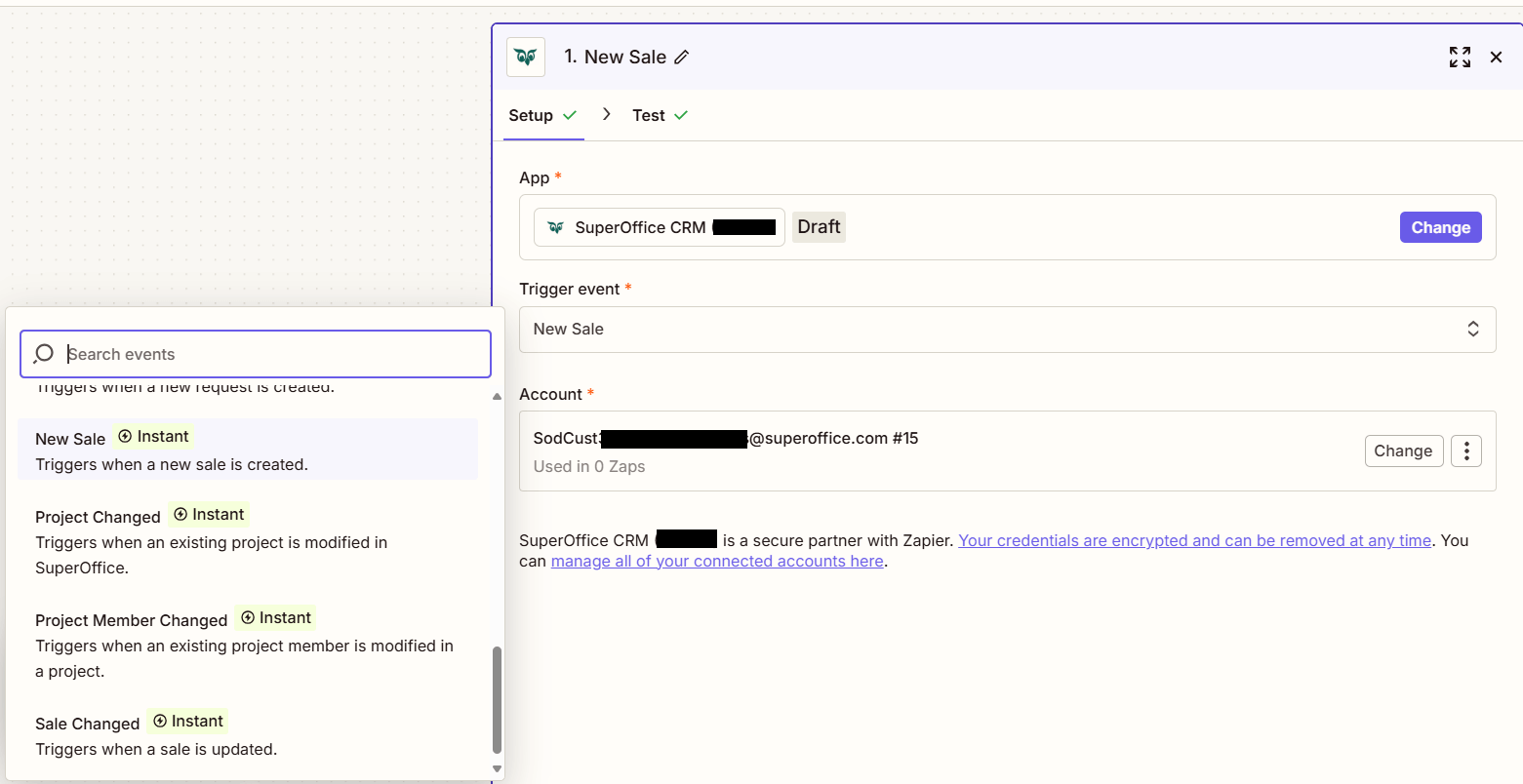
A side menu opens. In the Trigger event section, select the event to listen for. For example, New Contact or New Sale.
Click the Account section and log in using a SuperOffice account.
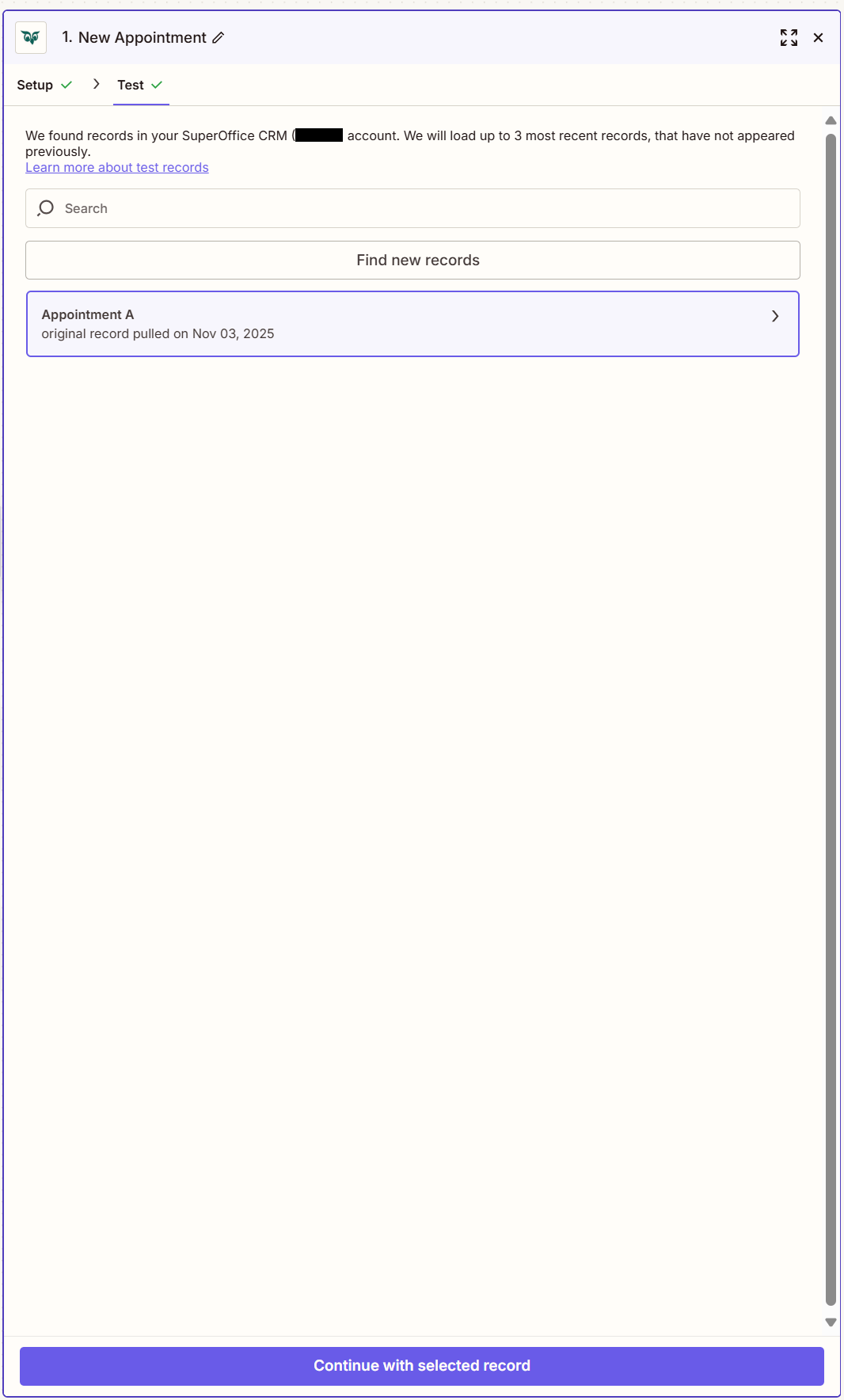
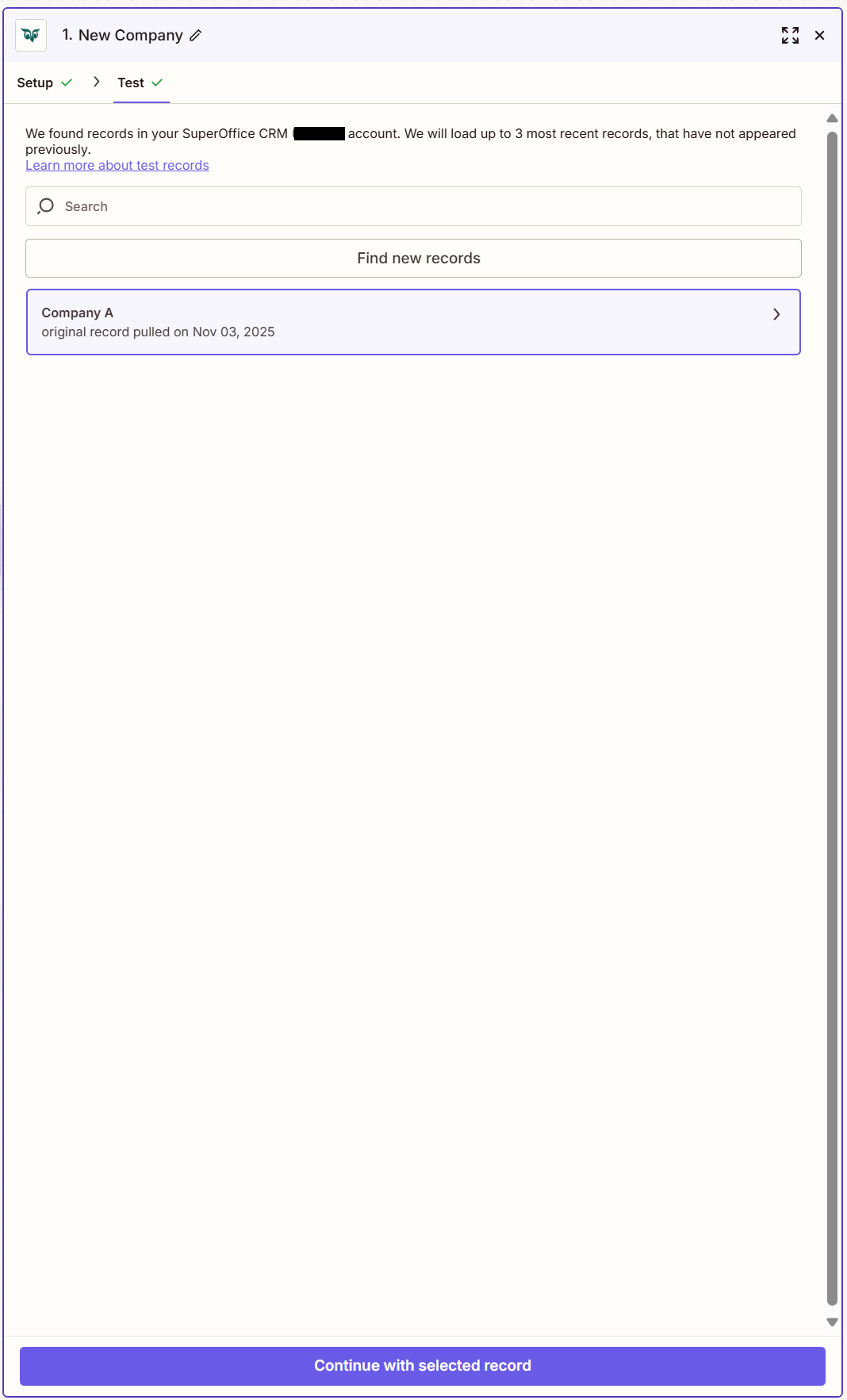
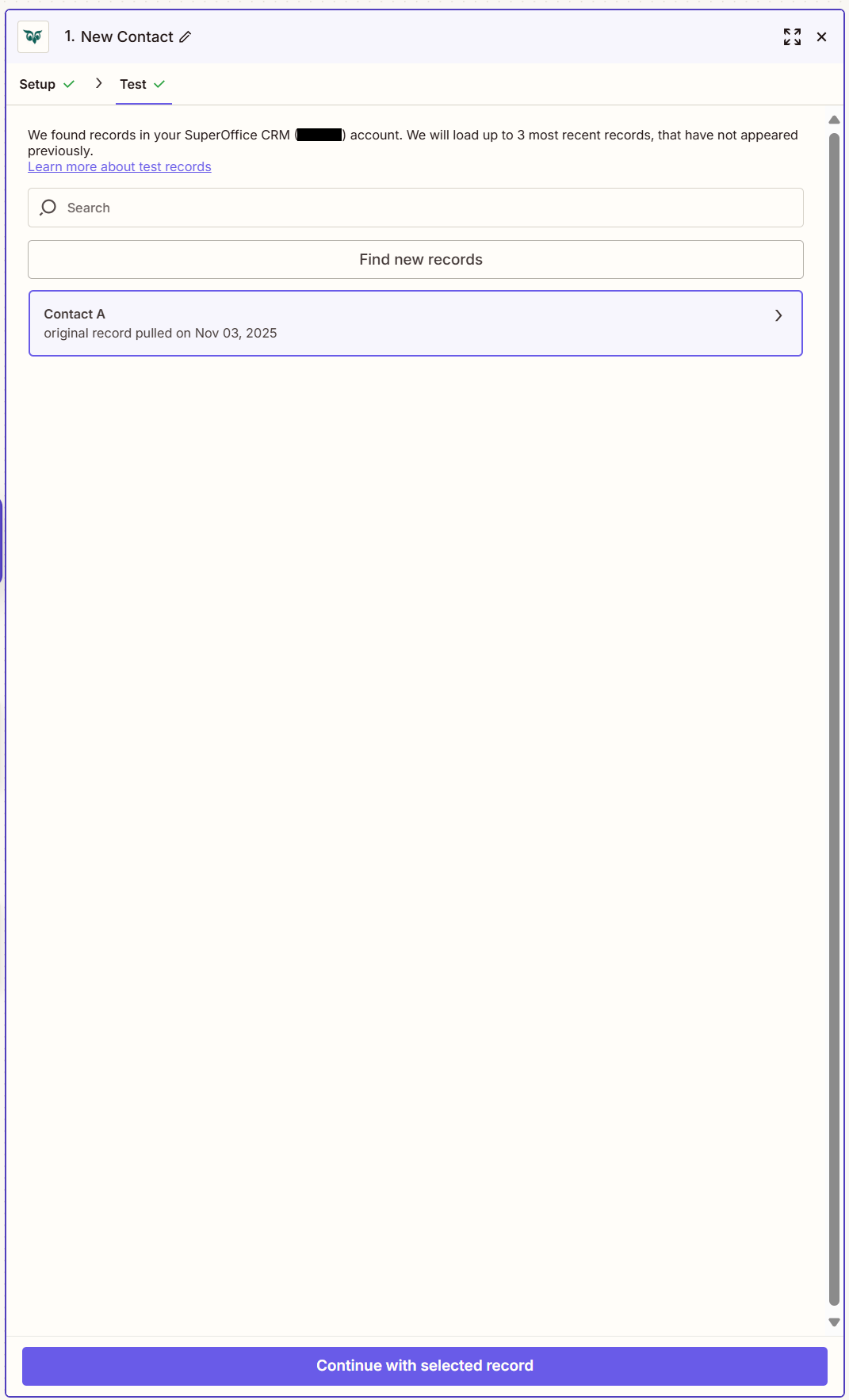
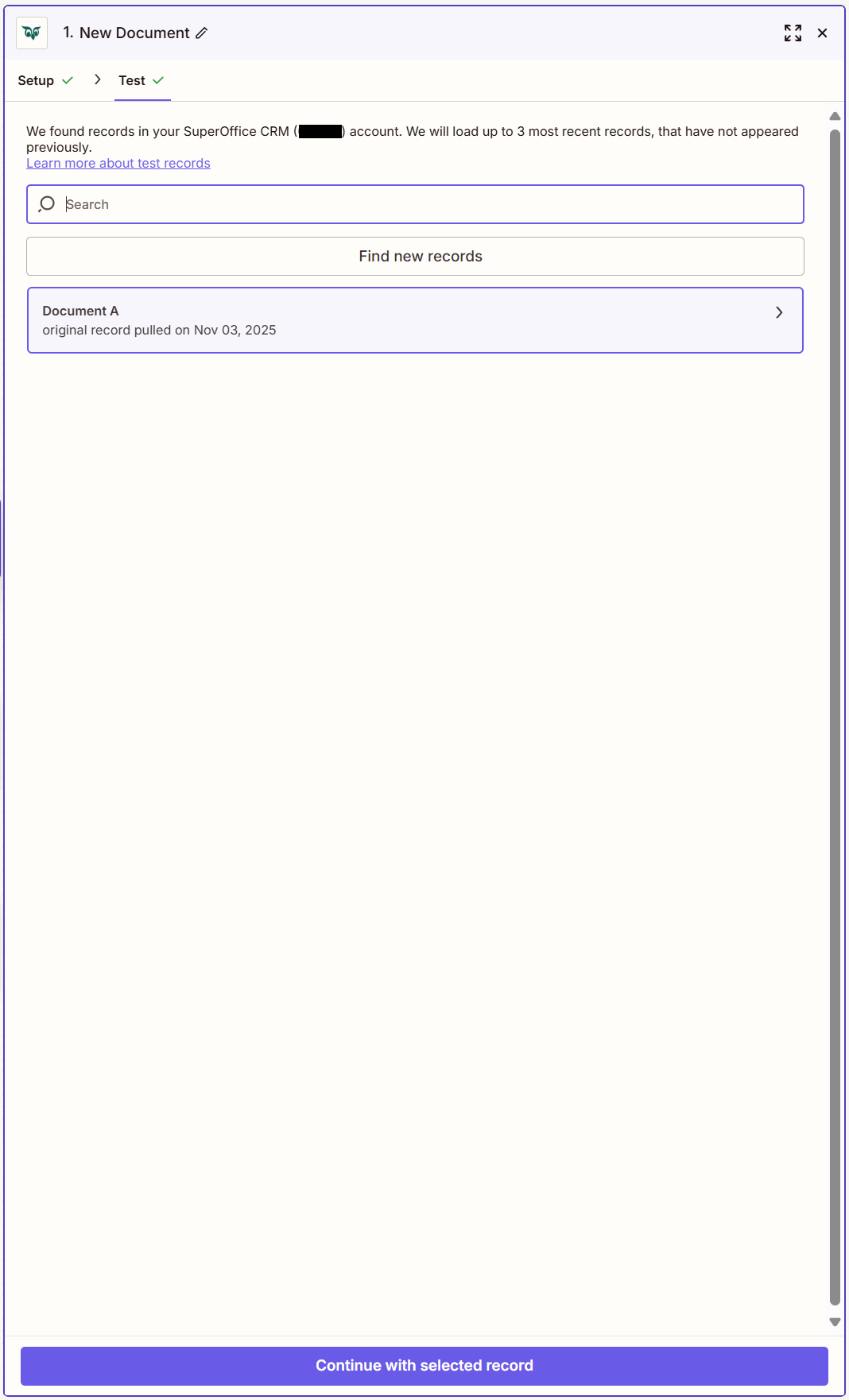
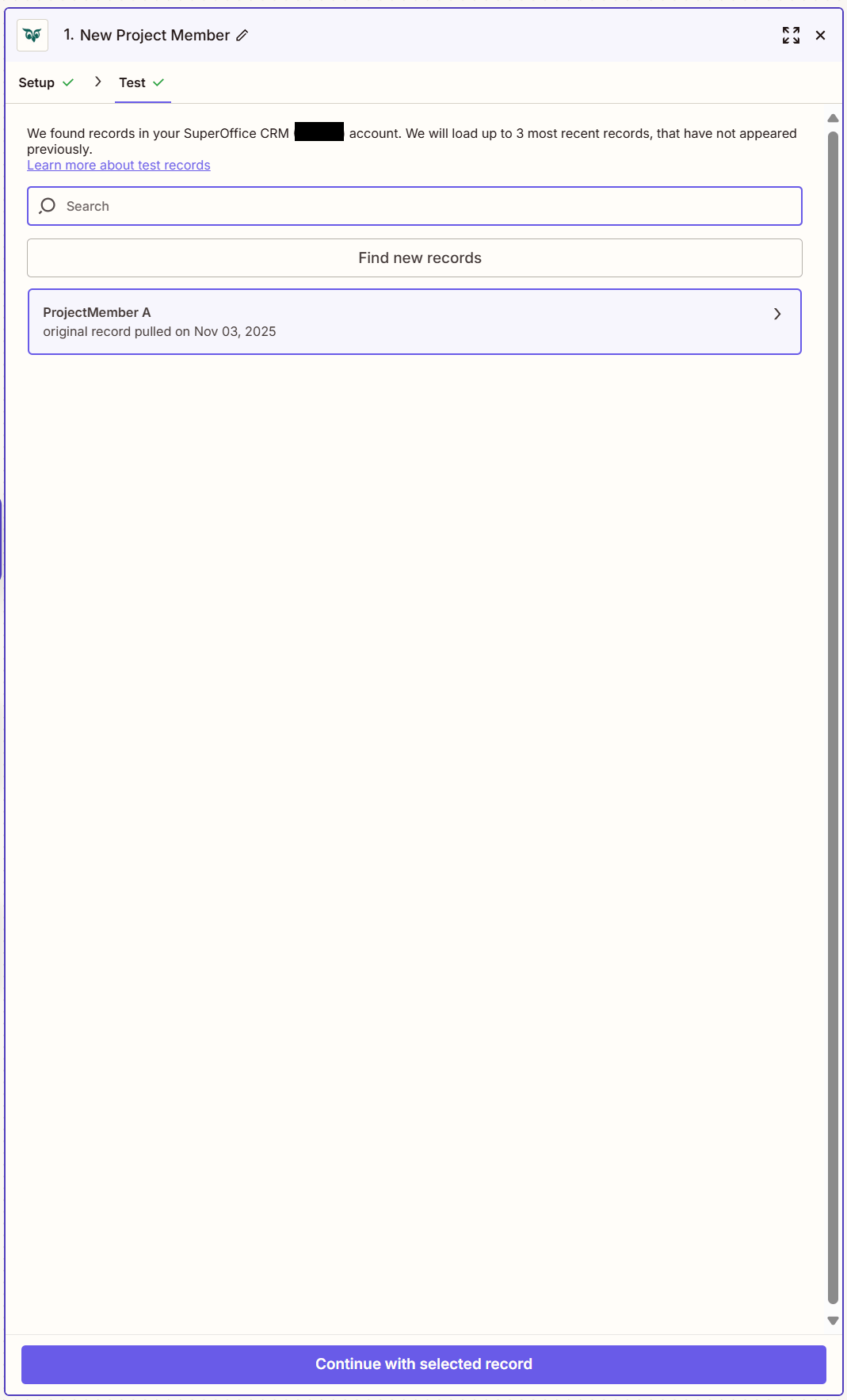
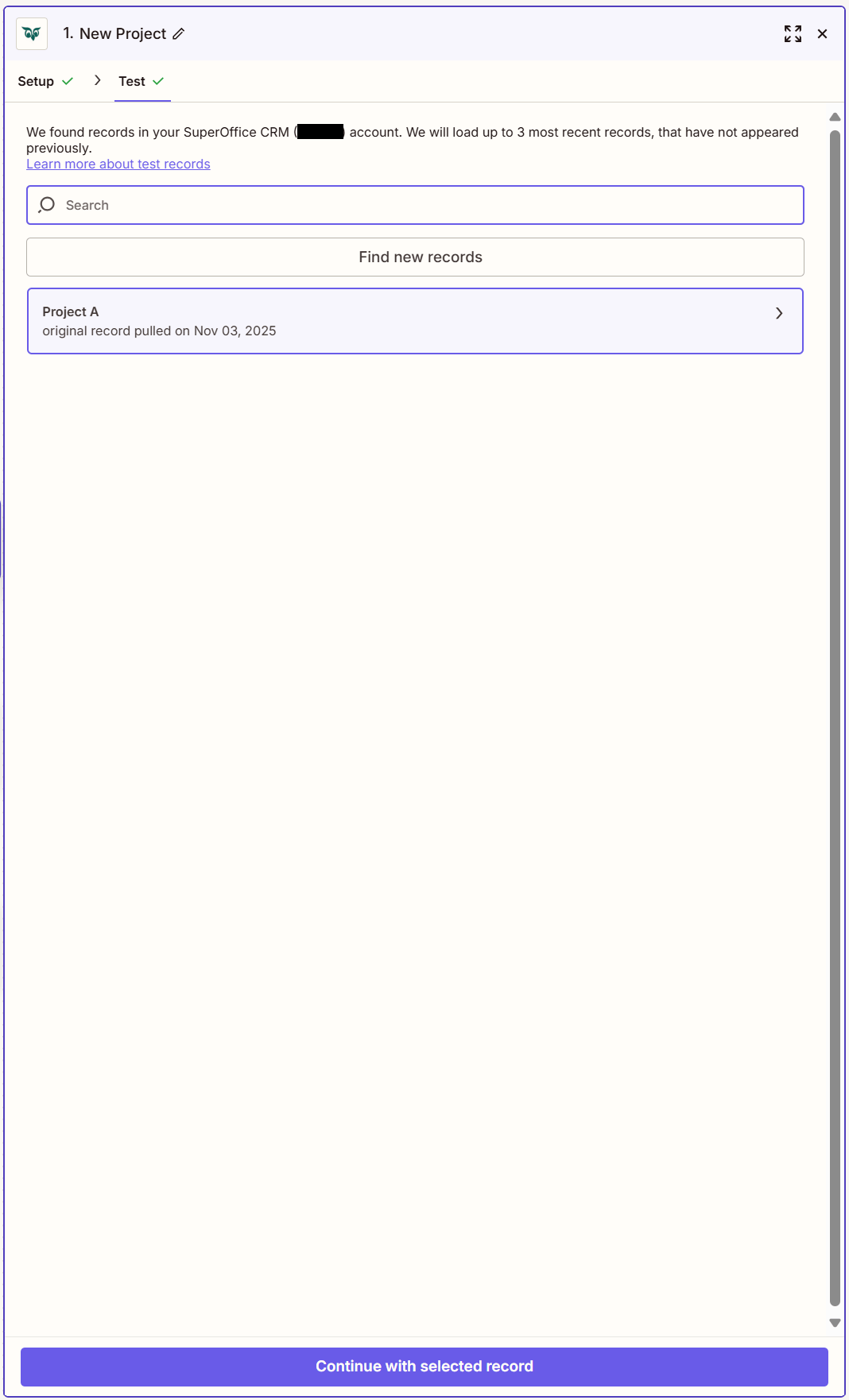
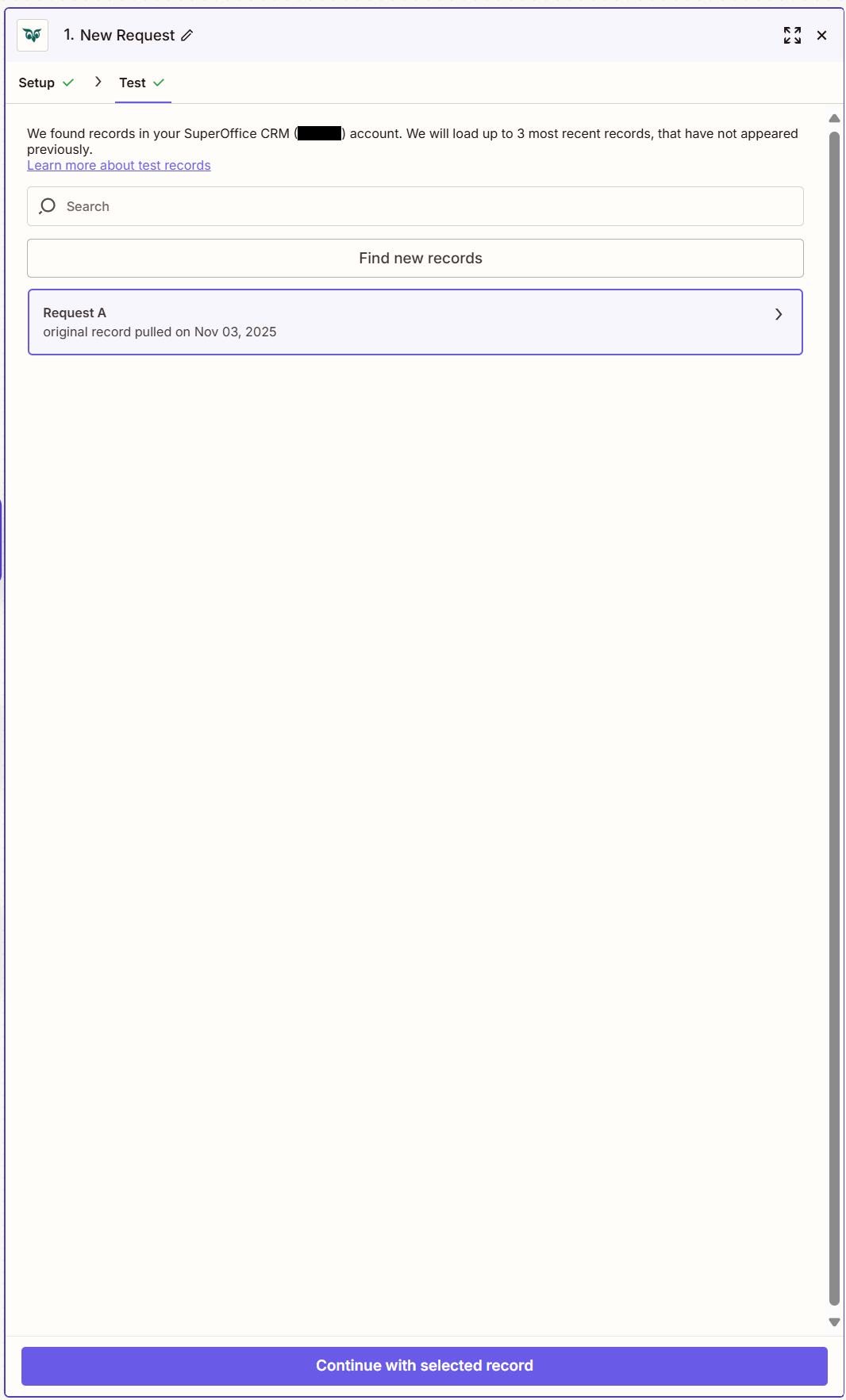
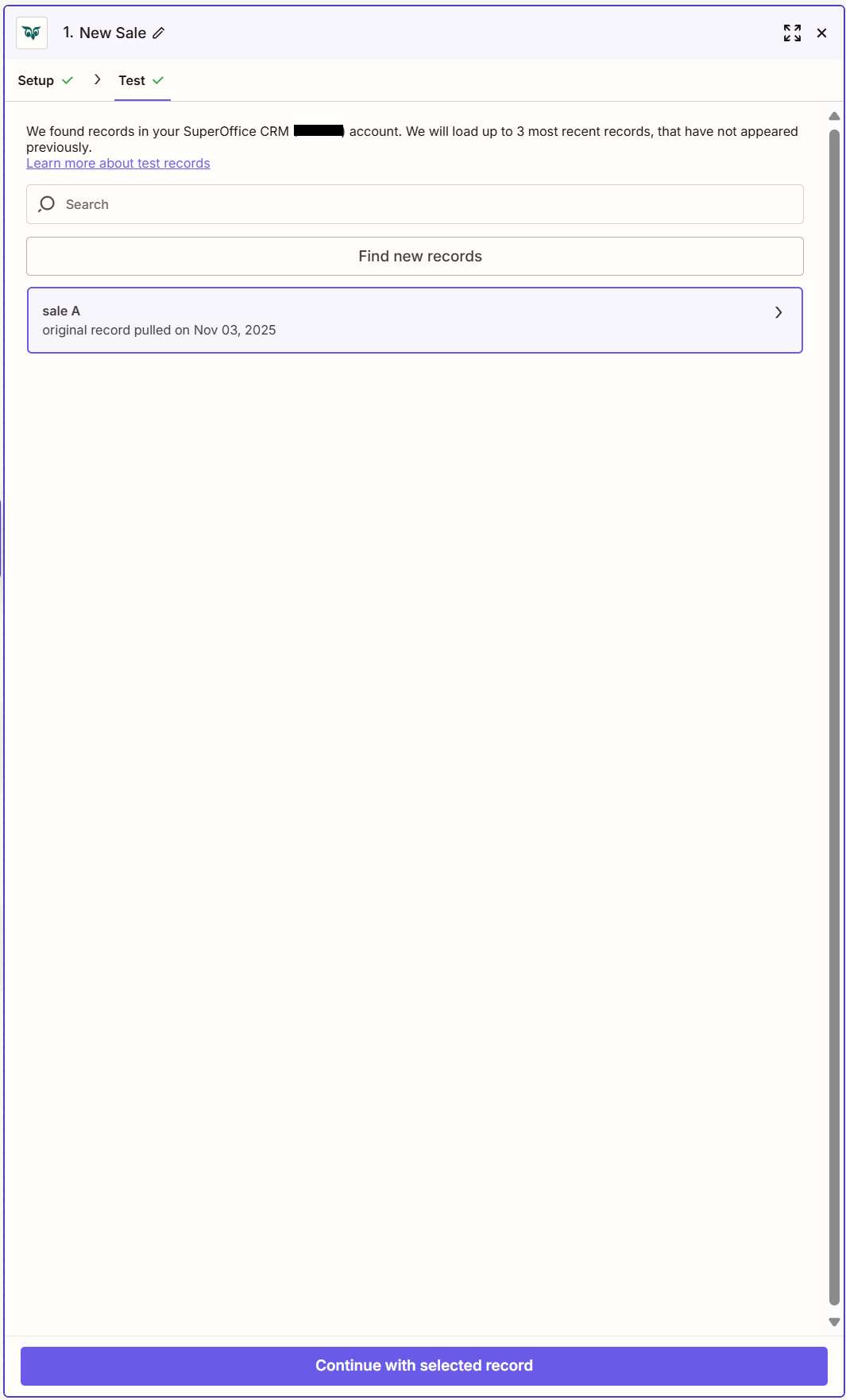
Click the Continue button at the bottom of the side panel to proceed to the Test step, where the trigger can be verified by selecting Continue with selected record.
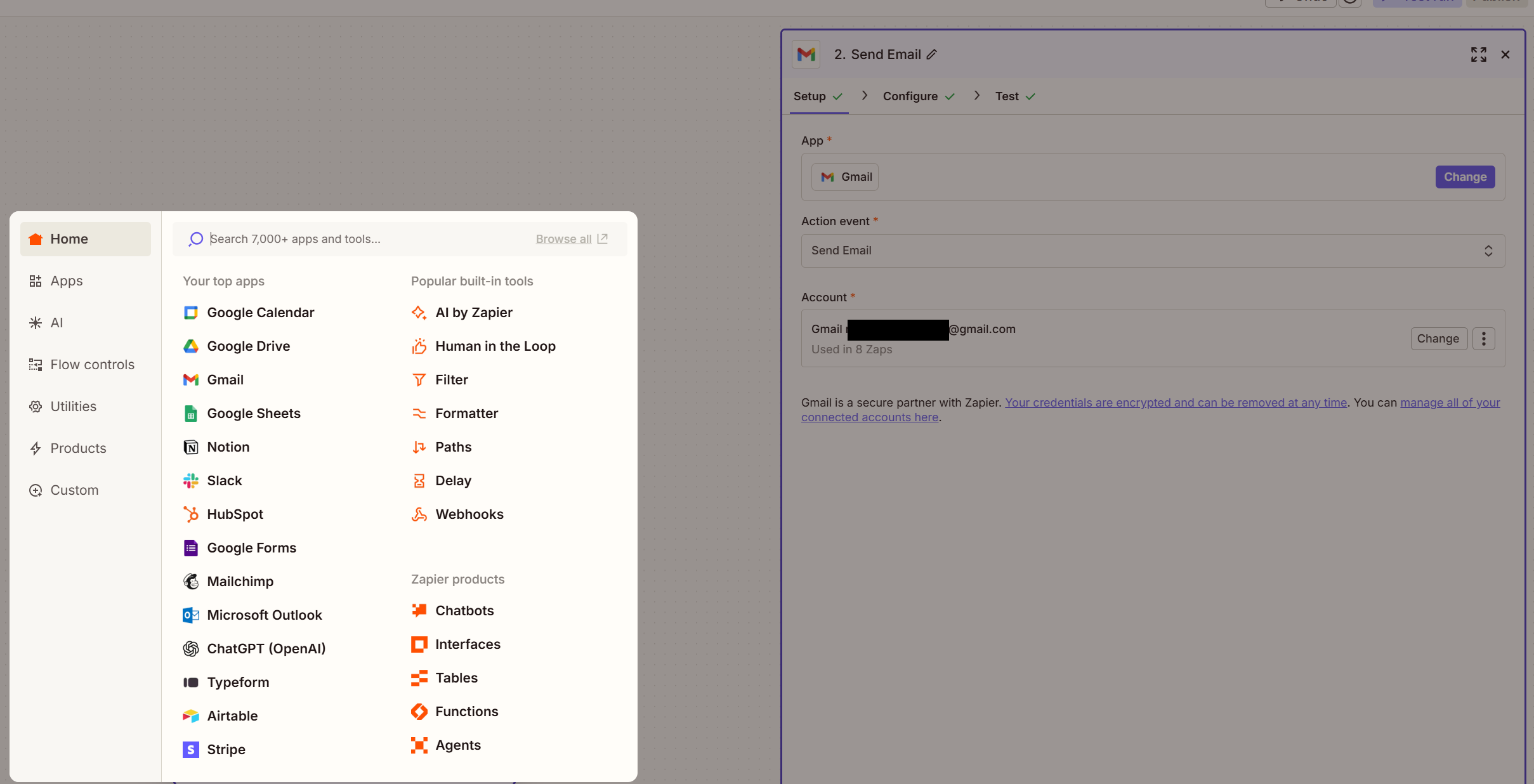
Click the Action step to open a window for selecting the application to use. This can be an action in Gmail, another external system, or a SuperOffice action.
New Appointment
New Company
New Contact
New Document
New Project Member
New Project
New Request
New Sale
In the Trigger event section, select New Appointment.
Verify the trigger:
When the New Appointment trigger runs in SuperOffice CRM, the chosen action executes automatically.


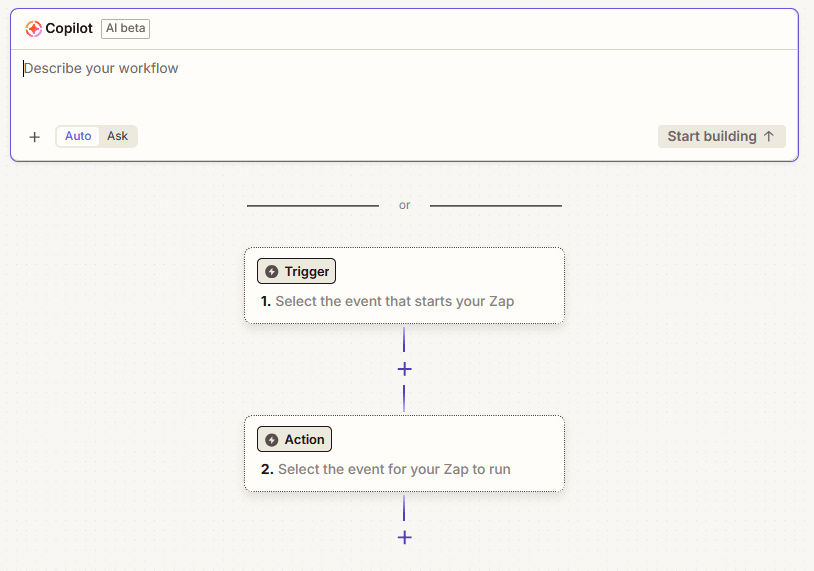 Search for and click on SuperOffice.