

Dashboards - preview in navigator
When using the navigator to find dashboards, you get a preview of the dashboard. It will give you a better indication on what the dashboard will contain and if it was the one you wanted.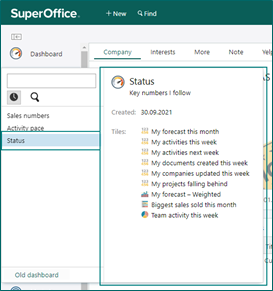 The information in the preview is name, description, when created/updated and what tiles it contains.
Dashboards - full-screen with tasks
When you view a tile in full screen, you can change the window size in the bottom right corner.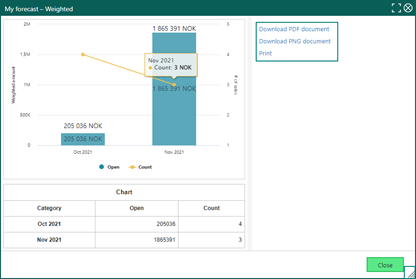 You can also select different tasks for the tile:
- Download PDF document
- Download PNG document
Dashboards - donut tile with totals
Use the pie chart on the tile, will give you an extra setting for the pie layout.- Pie
- Donut
- Donut with total
- Semi-circle
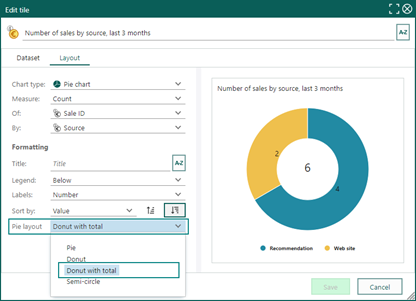
Dashboards - tooltip on title
Some tiles in the dashboard might have long titles. By mouse over the title, you will get a tooltip with the whole title.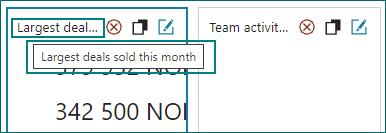
Dashboards - List tile with image preview
Using list tiles, you get a list of items that shows with big numbers and info about the entity.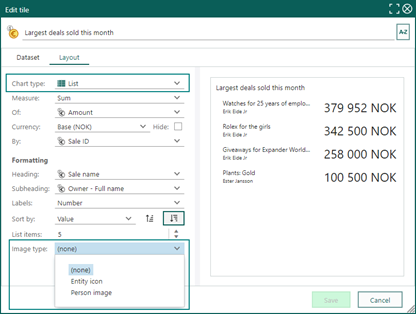 Image type lets you select whether to show the entity icon such as sale, activity, document, or company, or show the person image for the user owning the entity, or no image.
Dashboards - warning when changing tile name when multiple languages
The title on the tile can be translated to wanted languages. When changing the title it’s easy to forget to also update each language that are added. The warning show on the language button as soon as you change the title and there are other languages added. This warning info also shows on some other places we have the language button.
Company and Contact - copy to clipboard button on phone, email and URL
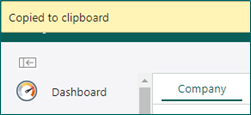
In SuperOffice there are some information that is very handy to be able to easily copy. Like phone numbers, e-mail addresses and web sites.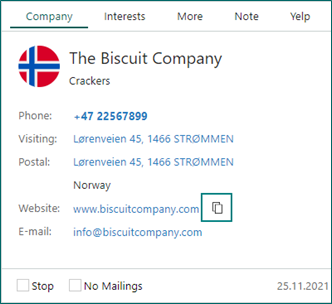 By mouse over the field, you get the copy icon and clicking will give a message that the information was copied to clipboard.
 Read more about Dashboards.