

- Automatically mark a request as closed.
- Instantly close the Request tab after processing.
- Improve efficiency for handling repetitive tasks, such as spam requests.
This functionality requires SuperOffice version 10.5.2 or newer.
Scenario: Automating spam request handling
A company receives a high volume of spam requests and wants an automation that allows agents to close these requests with minimal manual effort.Proposed solution
We will add a button to the Request screen that:- Automatically sets the request status to “Closed”.
- Closes the active Request tab in the SuperOffice interface.
Step 1: Creating the CRMScript
We start by creating a CRMScript, which will be triggered via a Task menu item in SuperOffice.- Click on the top bar and select Settings and maintenance.
- In the navigator, click CRMScript and go to the Macros and scripts tab.
- Click the New script button.
-
Fill in the following details in the Information tab:
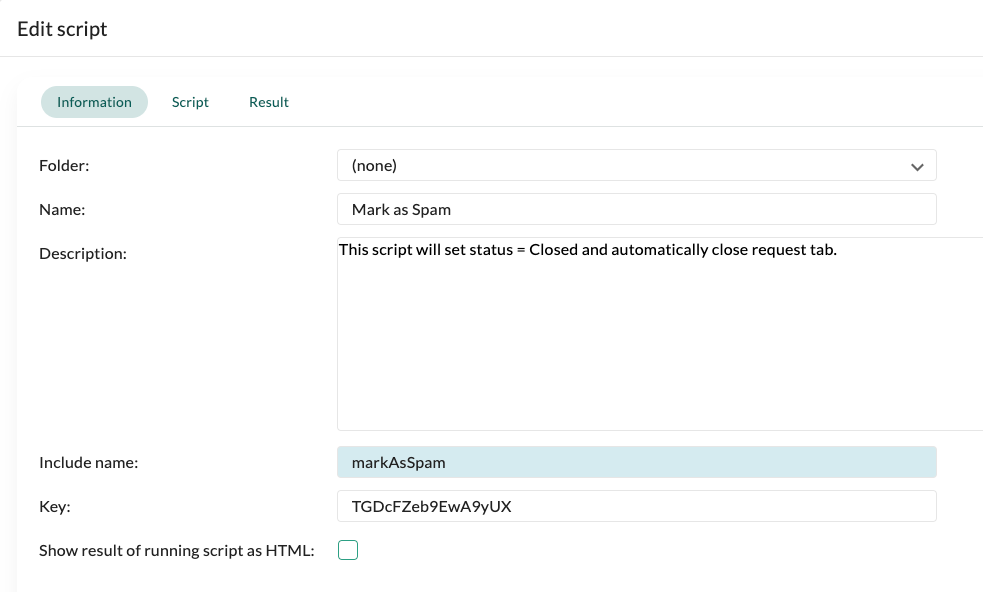
- Go to the Script tab. This is where we will add our CRMScript code.
- Click OK or Apply to save.
Step 2: Adding CRMScript code
Copy and paste the following code into the Script tab:Code explanation
- Retrieve the active request ID.
- Find the default “Closed” status in SuperOffice.
- Update the request status to “Closed”.
- Close the Request tab in the user interface.
Step 3: Creating a Task menu item
Now that our script is ready, we need to add a Task menu item to trigger it.- In Settings and maintenance, go to Lists.
- Find Task menu and click Add to create a new item.
-
Fill in the following details:
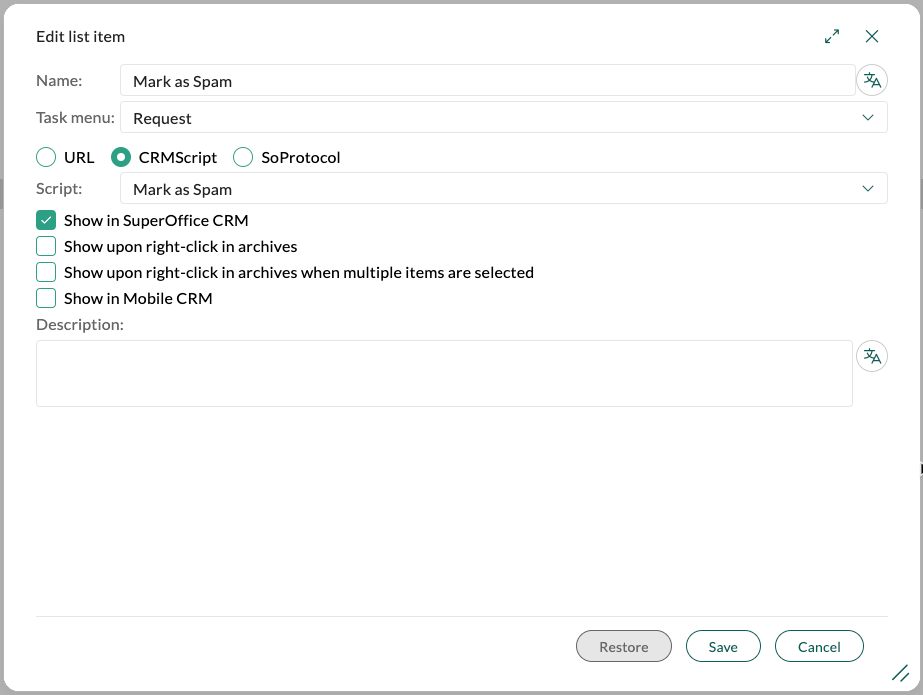
- Click Save to confirm.
Step 4: Activating the changes
To ensure the new menu item appears, refresh the SuperOffice client:- Open SuperOffice CRM in a web browser.
- Append
?flushto the URL and press Enter.
Step 5: Testing the automation
- Open a Request in SuperOffice.
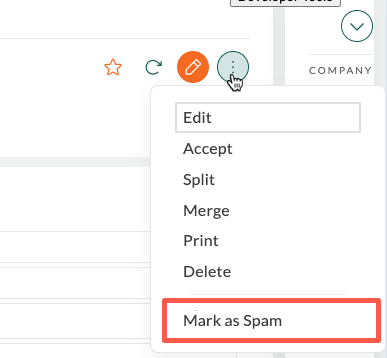
- Click the Task menu button () and select Mark as Spam.
- The request should:
- Be marked as Closed.
- The Request tab should close automatically.
Summary
- We created a CRMScript to automate request closures.
- We added a Task menu item to trigger the script.
- We refreshed the system and tested the automation.
Troubleshooting
- If the option does not appear in the Task menu, ensure you performed a flush (?flush).
- If the request does not close, verify the script is assigned correctly in the Task menu.