

- Created a CRMScript that builds a URL with a contact’s external ID.
- Configured a Task menu item to open this script result in a new tab.
- Verified that the Task menu opens the external page correctly.
In the SuperOffice data model, a contact refers to a company. Individuals associated with a contact are referred to as persons. This tutorial targets the
Contact entity and the script uses the contactId, which refers to the company.Step 1: Create the CRMScript
We start by creating a CRMScript, which will be triggered via a Task menu item in SuperOffice.- Click on the top bar and select Settings and maintenance.
- In the navigator, click CRMScript and go to the Macros and scripts tab.
-
Click New script, then fill in the Information tab:
-
Go to the Script tab and paste in the following code:
- Click OK to save the script.
Code explanation
- Read the current contact ID.
- Look up a custom field (
x_extra_field) from the contact. - Builds a URL to an external system.
Step 2: Add a task menu item
Now that our script is ready, we need to add a Task menu item to trigger it.- In Settings and maintenance, go to Lists.
- Find Task menu in the list selector and click Add to create a new item.
-
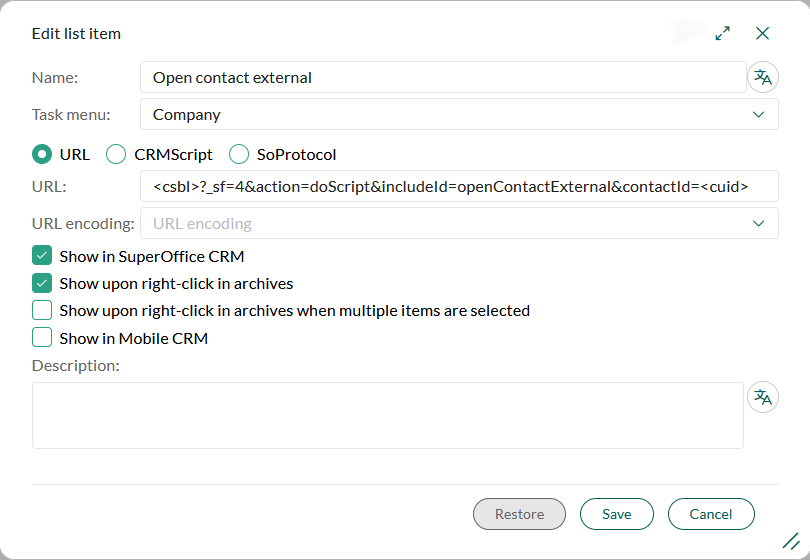
Fill out the dialog with these values:
Make sure to select the URL type. Choosing CRMScript, and therefore executing the script directly, will not open in a new tab.
- Enable any other visibility settings as needed.
- Click Save.
Step 3: Use the task menu item
- Open a Company card in SuperOffice CRM.
- Click the Task menu button ().
- Select Open contact external.
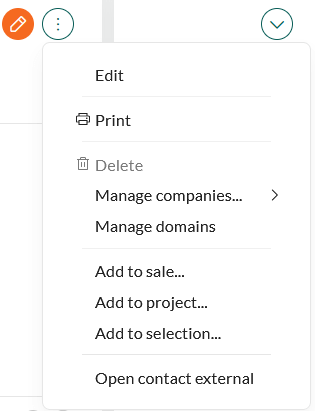 The system should open a new browser tab with a URL like:
 https://portal.mysystem.com/customers?customerId=12345
Summary
- We created a CRMScript that outputs a URL based on the contact’s external ID.
- We configured a Task menu item to open this URL in a new tab.
- We tested the menu and confirmed it works as expected.
Troubleshooting
-
Nothing happens when clicking the task menu item:
Make sure the include name is set correctly and the script is saved. The script must be saved with an include name that exactly matches what you use in the
includeIdparameter of the URL. -
The script fails with “No contactId given”:
Confirm that you are using
<cuid>in the Task menu URL and that it resolves correctly. In this scenario,<cuid>will be passed ascontactIdto our script, which expects this value on line 3. -
The external ID is empty:
Ensure that the
x_extra_fieldvalue is populated for the contact you are testing.