

- When user creates a new appointment we will start by asking if they would like to add travel time.
- If user confirms this we should ask for additional input and capture duration.
- Based on this we will create an additional appointment of specific type in calendar.
Script triggered dialog are not supported on BeforeSave and AfterSave triggers on Document and Quoteline dialogs. Having multiple dialogs appear is not a great user experience, and due to some legacy challenges, this feature has been postponed for these dialogs.
Implementation
We will start by creating a new CRMScript trigger for event Before saving appointment.- In Sales, click the burger menu in the top right corner and click Settings and maintenance. Then in the left menu, you can find CRMScript.
- In Service, click the cogwheel in the top right corner, click System design and then CRMScript.
- Click the New trigger (script) in the trigger pane. In the search box, type Before saving company and click the trigger.
-
The Description field should contain a short description of what your trigger is doing, in this case, I’ll write Travel time confirmation.
- If you want this trigger to be enabled, remember to click the toggle box on the right side.
- In the textbox below is where we will add our CRMScript code.

Step 1
When creating a new appointment we should open a small dialog to prompt user if they would like to add travel time.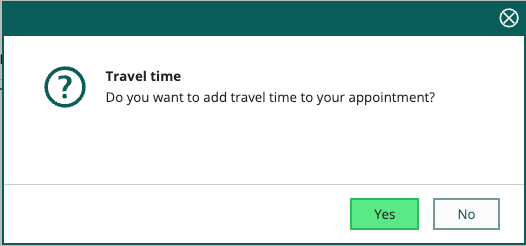 To accomplish this we will start by adding CRMScript below to our trigger:
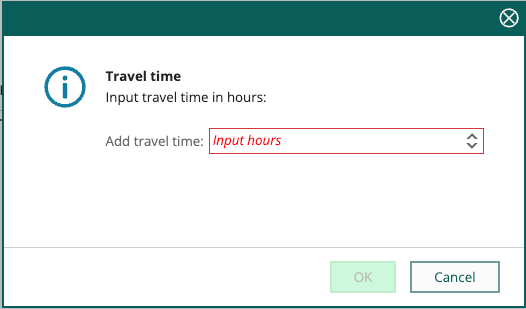
Step 2
Continuing our current CRMScript trigger with adding additional dialog;Step 3
Putting it all together we are able to provide very useful automation;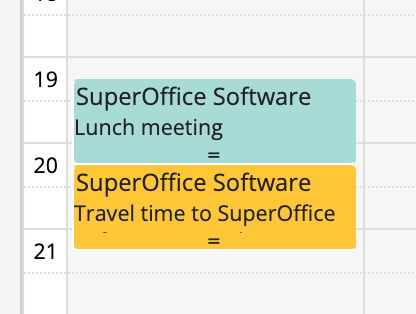 Hopefully this has given a good overview of how to utilize this to automate tasks, and chaining dialogs together.