

-
Request to publish events for:
- Application configuration
- App Store information
- Partner page information
- Feedback submitted from the App Store Report a problem link.
- Support tickets created from the Failures details page.
- Support requests that SuperOffice routes to you - see How support requests reach you.
-
Your emails sent to
appdev@superoffice.comorappstore@superoffice.com. - Notifications about Developer Portal changes.
Messages is not a support channel. For support, contact SuperOffice Support.
At a glance
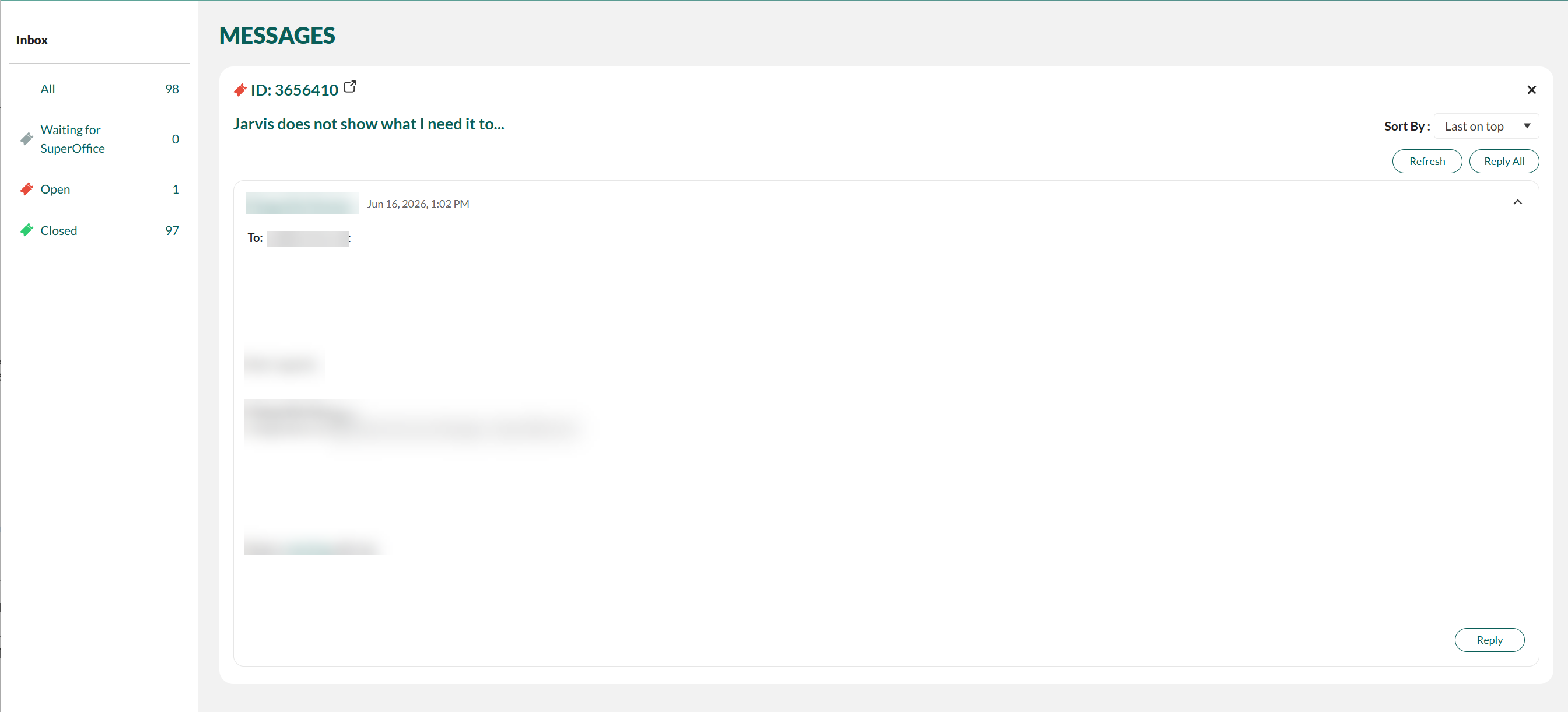
Messages is located in the upper-right corner of the Developer Portal.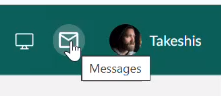 Tickets are grouped into categories in the sidebar so you can see at a glance what needs attention. The count next to each category shows how many tickets it currently contains.
Filter and find tickets
The ticket list is a table you can filter one column at a time. Filters are applied on the server, so paging stays fast even with many tickets. Filter by:- Ticket Id
- From - the sender of the ticket.
- Title
- Partner - useful if you belong to more than one partner.
- App - limit the list to tickets for one of your apps.
- Last Changed - pick a date range.

Reply to a ticket
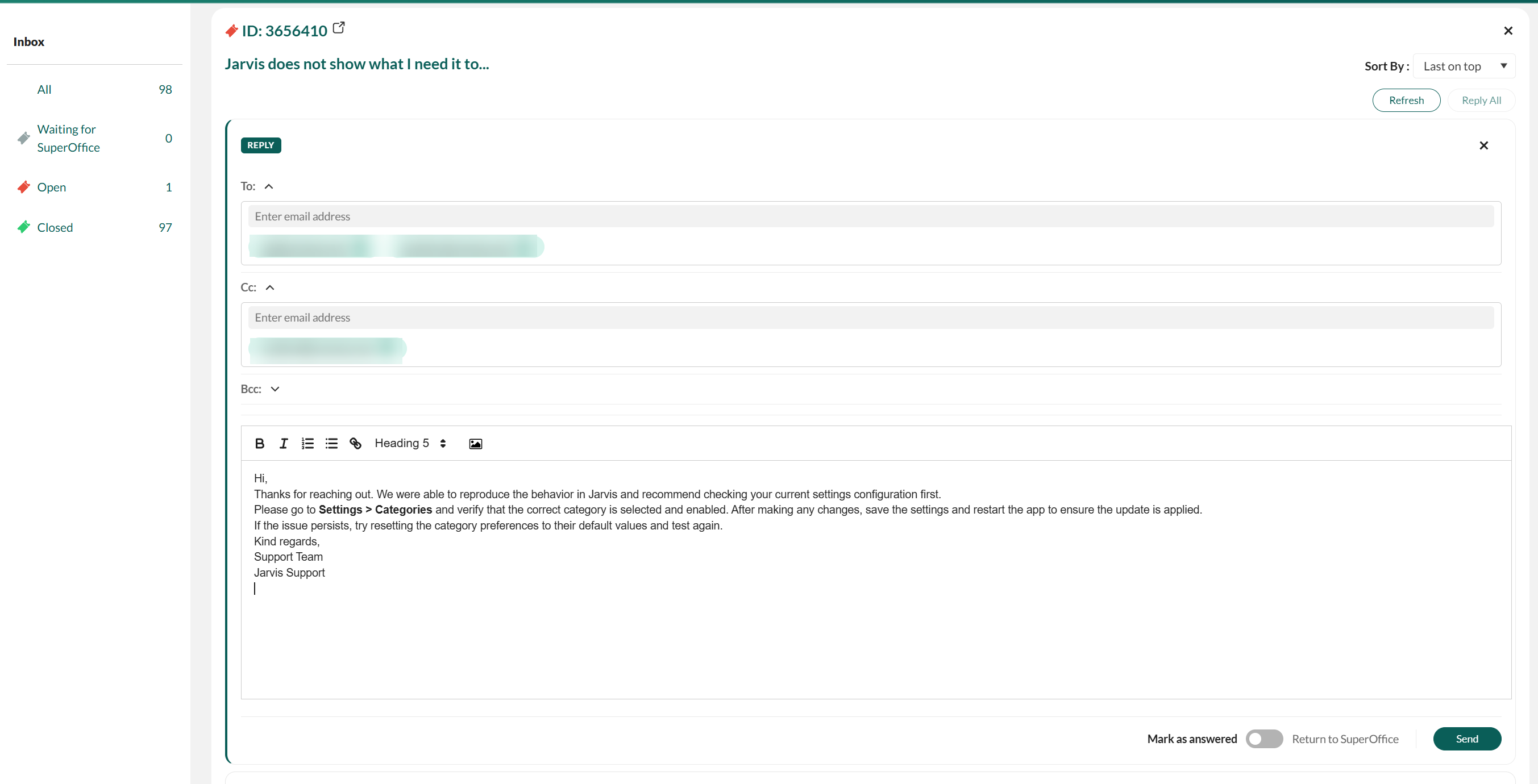
Open a ticket to see its full history. You can compose a reply in two places, and the difference is who gets the reply by default:- Reply All, at the top of the ticket - pre-fills the editor with the ticket’s full recipient list (everyone currently on the conversation).
- Reply, at the bottom of an individual message - pre-fills the editor with only the recipients of that specific message. Useful when you want to respond to one branch of a long conversation without including everyone.
- Click Reply All at the top of the ticket, or Reply at the bottom of an individual message.
- (Optional) Expand Cc or Bcc to add more recipients, or click the X on a chip to drop someone from the reply.
- Compose your message using the rich-text editor.
- (Optional) Add an attachment.
- Decide what happens to the ticket after you send - see Mark as answered or Return to SuperOffice.
- Click Send.
To, Cc, and Bcc addresses
The To, Cc, and Bcc fields accept multiple email addresses, shown as chips:- Type an address and press Enter, or simply click outside the field, to confirm it. When you click Send, any address you typed but did not confirm is added automatically - addresses are no longer dropped silently.
- Invalid addresses appear as a red chip. Send is disabled until you remove or correct them.
Add an attachment
You can attach image files only, up to 5 MB per file. Add images one at a time - there is no overall cap on the number of attachments, only the per-file size limit. To send an image with your reply:- Click the attachment icon in the reply editor.
- Select an image from your computer.
-
The portal validates the file before adding it:
- If it is not an image, the file is rejected with the message Only image files are allowed as attachments.
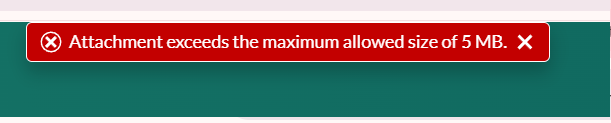
- If it is larger than 5 MB, the file is rejected with the message Attachment exceeds the maximum allowed size of 5 MB.
- Repeat to add more images if you need to.
- Send the reply as usual.
Mark as answered or Return to SuperOffice
Next to the Send button there is a toggle that decides what happens to the ticket after your reply goes out. By default, the toggle is set to Mark as answered. Switch it to Return to SuperOffice to hand the ticket back; when you do, Send is disabled until you add at least one recipient.[!IMPORTANT] When the toggle is set to Return to SuperOffice, the reply must have at least one recipient - Send is disabled until you add an address in To, Cc, or Bcc. This prevents you from handing a ticket back without telling the customer.
How support requests reach you
Most tickets arrive in Messages on their own - from publishing requests, App Store feedback, failures, and the emails you send to SuperOffice. In addition, SuperOffice support can route an app-support case to you when a shared customer’s question is best handled by the partner who built the app. When that happens:-
You receive an email notification with a direct link to the ticket. Select the link to open the ticket in Messages, ready for you to reply.
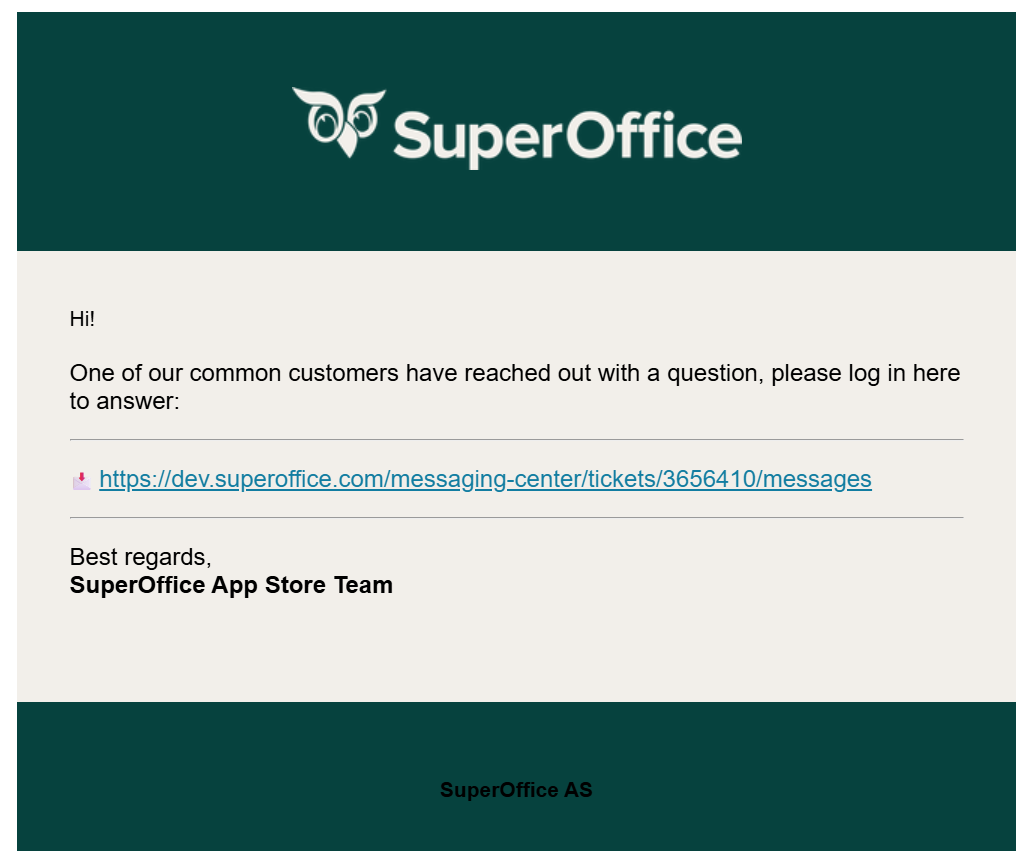
- The ticket shows under the Open category, because the next action is yours.
- Reply as usual (see Reply to a ticket) and choose Mark as answered or Return to SuperOffice.
- If the ticket is not answered within 7 days, it returns to SuperOffice so a support agent can follow up.
[!IMPORTANT] For these notifications to reach you, your organization must have at least one contact email configured. SuperOffice uses the first available of: the partner Support emails, then the app’s Error reporting emails, then the partner technical contact.
Open a ticket in the SuperOffice Customer Center
When you click a ticket ID, a new browser tab opens that ticket in the SuperOffice Customer Center.You must be authenticated to see the ticket immediately in the SuperOffice Customer Center. Otherwise you will have to sign in.