

What is a version?
A version is a labelled snapshot of the app configuration or the App Store information.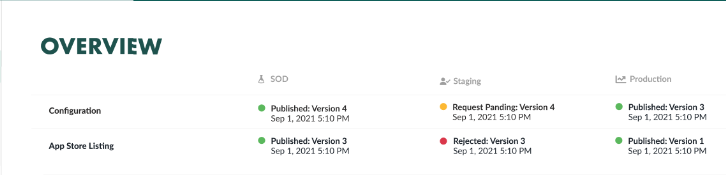 The initial version is automatically published to SOD. You can then:
- Update the initial version
- Create a new version
- Publish the new version to SOD yourself
- Request to publish a version to stage
Watch the walk-through
States
Where are my versions?
The Overview section of the app page and partner page shows the current state of the app configuration and the App Store information per environment. From this overview, you can click any version to open it. To see all versions of a section, select that section and click More versions
Edit version
All changes happen in SOD!- Pending versions can’t be changed.
- Rejected versions can be edited and saved in SOD.
- Versions published to stage and/or production can’t be changed.
- Locate the version you want to update either from the Overview, App Store information, or Configuration section.
- If it is locked, create a new version.
- Change the configuration or information you want and click Save Settings.
Some settings can be configured per environment. A single configuration will then hold multiple values of that setting. For example, if you have environment-specific certificates you handle this within one configuration and request it published to Stage and Production. Don’t confuse settings per environment with versions per environment.
Create new version
- Locate the version you want to update either from the Overview, App Store information, or Configuration section.
- Click More versions.
- Click Add New Configuration or New App Store Change depending on your context.
- Enter a label and click the green checkmark. The new version appears in the list and you can select it to edit.
Compare versions and track changes
We keep a change log per version. When someone clicks Save Settings, a new entry is added. To access the log, locate the version. It shows up automatically, for the selected version.- If the wrong version is showing, click More versions and select the one you want to view.
- If the change log is empty, it means that there are no changes since that version was created or that the changes happened before August 2022.
Request to publish
When you think it is ready in SOD, you can request to publish to Stage. This starts the certification or validation process, so read the guidelines and be prepared to follow up. The Request to publish button will be disabled with a tooltip that explains what needs to be completed before you can start the process. The SuperOffice app manager or App Store manager will reject or approve. Remember to pick up application keys for all required environments before you request to publish. For custom applications, when you request publish to Stage, we will automatically publish directly to production when approved.- If your version was approved for Stage, you can test it there before requesting to publish to production.
- If your version was rejected for Stage, you need to fix the problems in SOD and then request to publish again.