

A Service Essentials license or the Core plan is required to take action on a request.
Accept
For a request to be your responsibility, your name must appear in the Owner field. If the request is unassigned, self-assign it to prevent others from responding at the same time.Reply / reply all
A reply is an external message sent to the customer.-
Tap Reply on the action bar.

-
The customer’s email address is prefilled in the To field. Optionally, add more recipients.

- Update request properties as needed (owner, status, category).
-
Compose your message.
Your signature is automatically included if available. See how to add a signature.
- Tap Send.
Reply to a single message
- Open the request and find the message.
- Tap the message and select Reply.
- Choose which contacts (internal or external) get the reply.
- Write your message and tap Send.
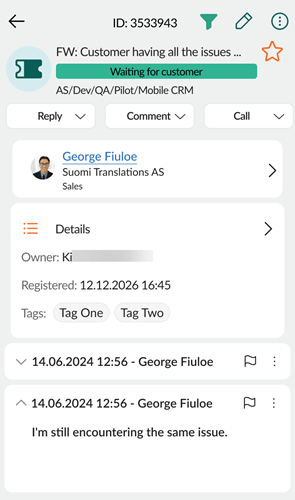
Add comment (internal)
Comments are internal messages used to collaborate before responding to the customer. They are shown with a red background, are not visible to the customer, and are excluded when forwarding a request.- Tap Comment on the action bar.
- Update request properties as needed.
- Write your comment.
- Tap Save.


Forward
Use Forward when you need to share the request with someone outside the organization. Forwarding a request compiles all external messages along with your own message into a single email.- Tap and select Forward.
- Add one or more recipients in the To field.
- Update request properties as needed.
- Compose your message.
- Tap Send.
Call customer
Use the Call button to contact the customer directly from the request screen.- Tap Call in the action bar.
- Select the number to dial.
-
Use the toggle to decide whether to log the call in SuperOffice.
- When enabled, the call is logged as a phone activity under the request.

Working with messages
While composing a reply or comment, you can add images, insert a reply template, or include a link to a FAQ from the Task menu. When your message is finished (you might insert multiple items):- For replies and forwards, tap Send to deliver the message.
- For internal comments, tap Save to store the comment.
Add image
- Tap and select Add image.
-
Take a photo or select images from your gallery.
- You can select multiple images at once.
- If images do not appear, check the image permissions for SuperOffice on your device.
-
The images are added as attachments.
- Maximum total size: 25 MB per message.
Insert reply template
A reply template can help you respond faster with predefined content.- Tap and select Insert reply template.
- Search for a template and tap to select.
- The template is inserted at the cursor. Edit as needed.
Insert link to FAQ
Frequently Asked Questions help reduce response time for recurring issues.- Tap and select Insert link to FAQ.
- Search for and select a relevant FAQ.
- The link is inserted at the cursor position in your message.
Add signature
- Go to Settings > Email settings > Add signature.
- Tap to edit the signature line.
- Tap Save.