

Requires a Service Essentials license or the Core plan.
Create from the Requests screen
- Go to the main Requests screen.
- Tap + and select New request.
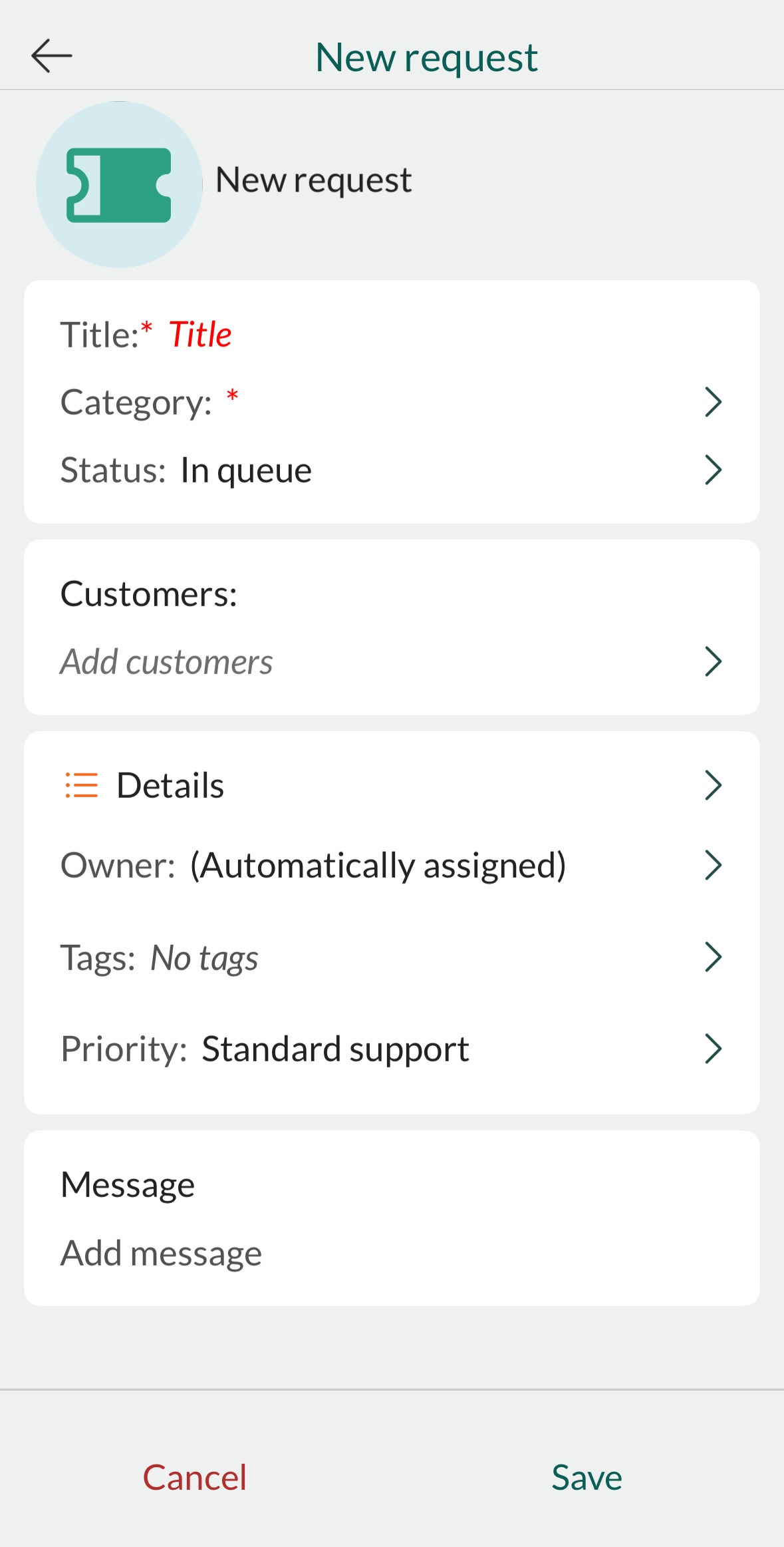
- Enter a descriptive title.
- Tap Add customers, select one or more persons, then tap OK.
-
Choose the owner:
- Unassigned
- Automatically assigned
- A specific person
- Select a category. Optionally, add tags.
-
Add other details as needed:
- Link to a sale or project
- Add internal notes
- Set priority
- Add a message (mandatory). You can also add images, insert a request reply template, and link to a FAQ from the Task menu.
- Tap Save.
Create from a contact
To create a request linked to a specific contact:- Open the person’s contact card.
- Tap + and select New request. The contact is added automatically.
- Fill in the remaining fields as described above.
- Tap Save.