Requires a Service Essentials license or the Core plan.
Edit request fields
- Open the request.
- Tap the Edit icon ().
- Update the fields as needed.
- Tap Save.
What you can update
Your permissions depend on your role, the request category, and whether you are the owner. Most commonly updated fields:- Status
- Priority
- Owner
The fields Created at and Deadline are not editable and do not appear in edit mode.
Change status
You can update the status in one of the following ways:- When viewing a request, tap and select Set next request status.
- From a list, swipe left, tap , and choose Set next request status.
- Open the request in edit mode, change the status field, and tap Save.
Assign, accept, or delegate a request
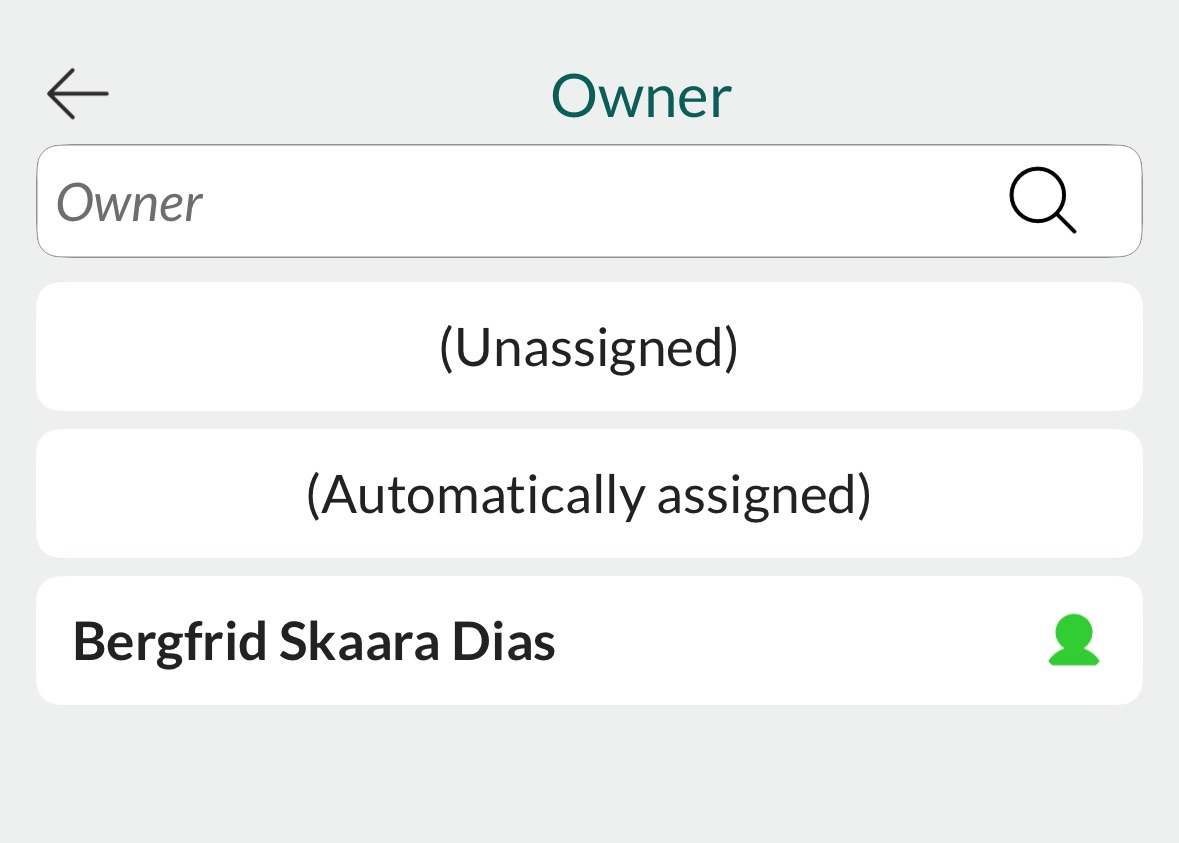
To make a request your responsibility, your name must be in the Owner field. To update the owner:- When viewing the request, tap and select Set owner.
- From a list, swipe left, tap , and select Set owner.